







Imagine there was a chest, and it was full of drawers. All the drawers had the capability of being locked, but none of them were locked. One of the drawers in this chest has encyclopedias in it. Another drawer has Playboy magazines in it. There are also thousands of other drawers in the chest, but I have no idea what are in those drawers because I’ve never looked.
Would I be acting in the best interest of my 12-year-old son if I simply gave the chest to him and left him to his own devices unsupervised? This is how I feel about giving my 12-year-old son a laptop to continue school at home during our new reality with the COVID-19 pandemic.
Introducing the Microsoft Family Group
Microsoft has a free service that enables you to put locks on the drawers that you don’t want your child to access as well as all the other drawers with unknown contents: Family Group.
We have Xboxes in our home and each of the children has a child account. I’ll stop here and suggest if you have an Xbox in your home, go to the effort of making a Family Group to manage the Xbox along with creating child accounts. Just don’t hand it to your child and say have fun. It is a device that connects to the internet, it has a browser, and is just as susceptible to the bad things on the internet as a laptop would be.
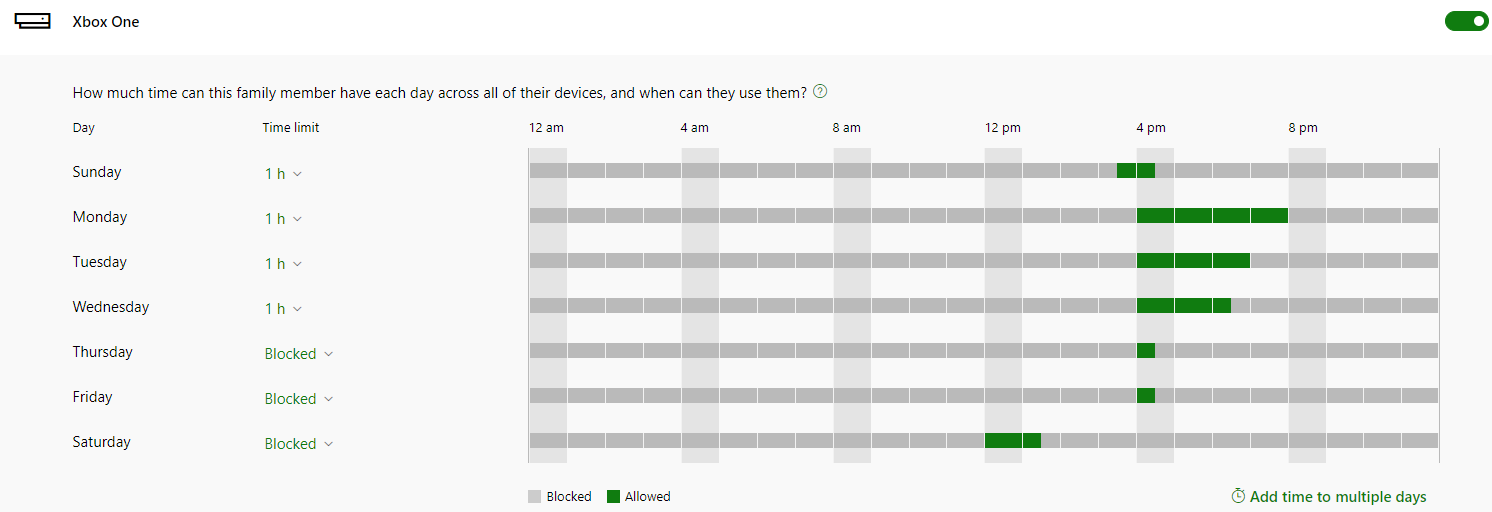
We have the Microsoft Family Group to set maximum time limits on the Xbox along with windows of time they’re allowed to play.
Setting Up a Family Group on Windows 10 Computers
The same is true for a Windows 10 machine:
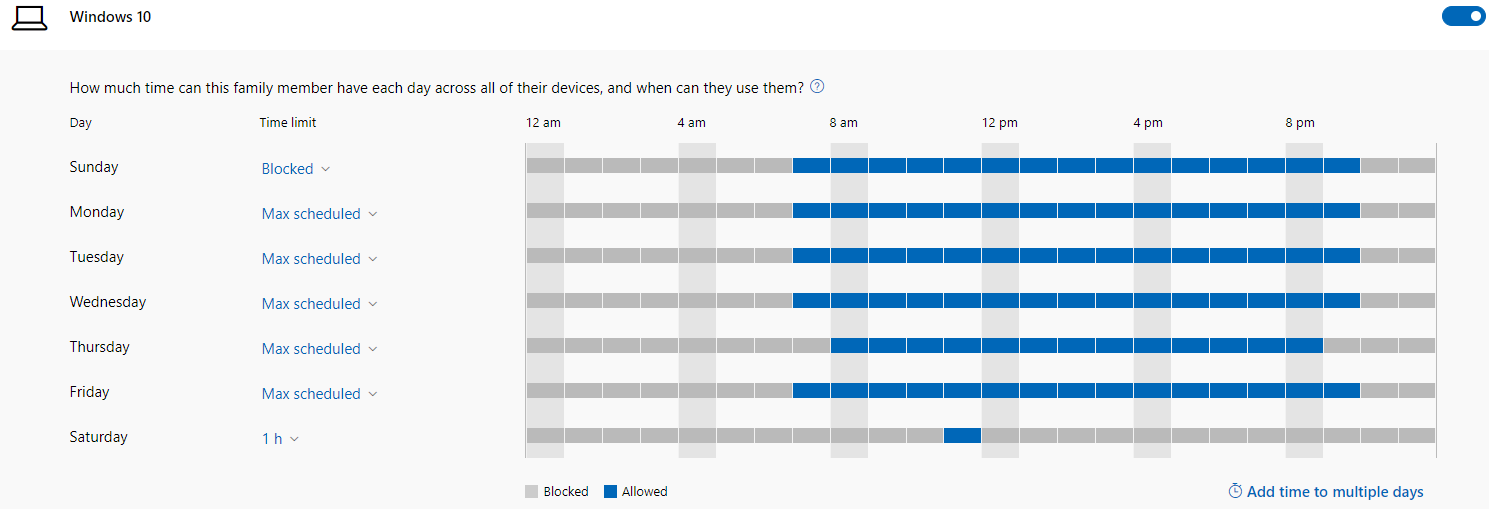
Perhaps your son doesn’t need access to the laptop on Saturdays and Sundays except for Sunday between 11:00 a.m. and 12:00 p.m. It is very easy to set.
The greatest of all the features of the Microsoft Family Group is the web filter. For my own family, I’ve blacklisted everything they are not allowed to access. Each morning, my son will review what is in his Learning Management System (LMS) and see if there are any YouTube videos or other sites his teachers want him to visit. He clicks the link, sees that it is blocked, and then requests approval. I see the email and can review the link myself to approve it or deny it if I don’t feel that it is a valid request.
After creating the Family Group and adding the kids to it, log into Edge on the Windows 10 machine with the child account, and all the settings will immediately install on the computer. Please note that while Chrome is still installed, these settings block it and prevent it from running. Also, InPrivate browsing will not even be an option to select.
COVID-19 certainly pushed us to introduce technology to the kids faster than I would have pre-COVID-19. Microsoft Family Groups makes it easier to manage and protect my young ones.
This publication contains general information only and Sikich is not, by means of this publication, rendering accounting, business, financial, investment, legal, tax, or any other professional advice or services. This publication is not a substitute for such professional advice or services, nor should you use it as a basis for any decision, action or omission that may affect you or your business. Before making any decision, taking any action or omitting an action that may affect you or your business, you should consult a qualified professional advisor. In addition, this publication may contain certain content generated by an artificial intelligence (AI) language model. You acknowledge that Sikich shall not be responsible for any loss sustained by you or any person who relies on this publication.