







In today’s blog post, I’ll be talking about how to spoof caller ID in Microsoft Teams. Spoofing caller ID involves manipulating the information that appears on the recipient’s phone display when receiving a call. While often associated with scams and fraudulent activities, there are legitimate reasons why someone might need to spoof caller ID. We’ll explore one of these legitimate use cases. Please note that this knowledge is only to be used for legitimate purposes. You must be able to prove ownership of any phone number you intend to spoof. Any illegitimate spoofing of caller ID is susceptible to fines or legal action from the FCC or your local communications governance:
A common scenario that has required me to legitimately spoof caller ID in Microsoft Teams is when a client is utilizing a third-party call center. In a scenario like this the client has ported their main line phone numbers to the third-party call center to take advantage of the features that call center provides, but their user’s phone numbers reside inside of Teams via Microsoft Calling Plans. By default, if the number you’re trying to use for the caller ID policy in Teams doesn’t exist in your tenant, you will not be able to assign it to a resource account to use it in the caller ID policy. The following steps describe how to spoof or work around that issue.
How to Spoof Caller ID in Microsoft Teams
First, create a resource account in the Teams Admin Center and license it with a Microsoft Resource Account license. In this example the name of the resource account is “Example Spoof.”
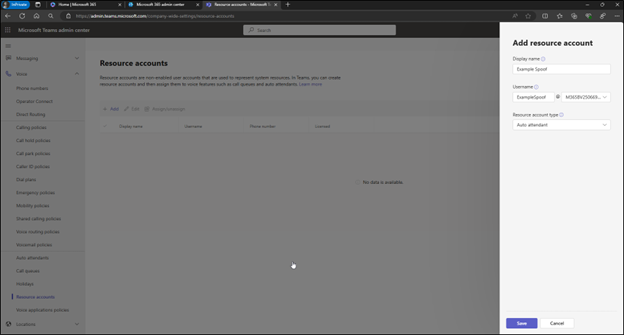
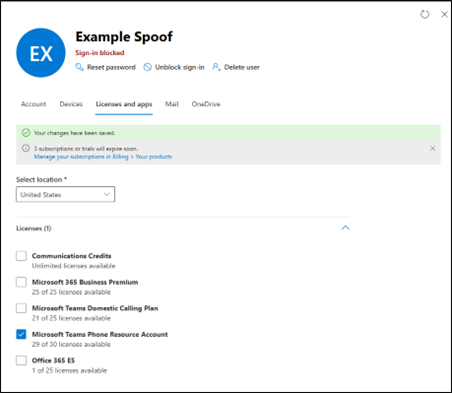
You may need to wait a few minutes after licensing the account for the changes to sync on the backend of M365. Once the changes have gone through you can click “assign/unassign” on the resource account, change the “Phone Number type” to “Direct Routing” and then manually enter the phone number you’d like to use for caller ID. Be sure to include the country code, in this example we’re in the US so it’s +1 followed by the phone number.
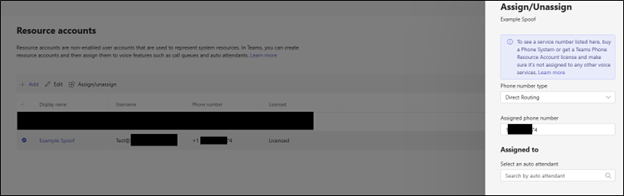
Once that has been done navigate to the caller ID policy in the Teams Admin Center and choose the resource account you created, “Example Spoof” in this example.
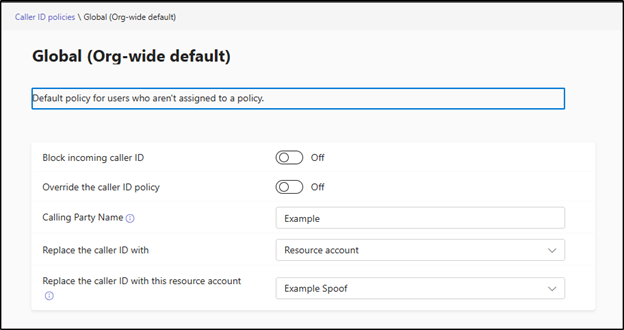
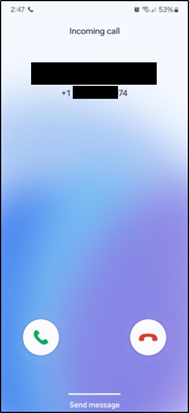
Then test by calling from a user/number in Teams and confirming the caller ID is spoofing correctly:
The following configuration can be done via PowerShell as well. Here is an example of the syntax:
Connect to Microsoft via Powershell:
- Connect-MicrosoftTeams
- Connect-MsolService
- Connect-MsGraph
Create the resource account:
New-CsOnlineApplicationInstance -UserPrincipalName “ExampleSpoof@domain.onmicrosoft.com”
Assign a Microsoft Teams Phone Resource Account license:
Set-MgUserLicense -UserPrincipalName “ExampleSpoof@domain.onmicrosoft.com” -AddLicenses M365BV250669:PHONESYSTEM_VIRTUALUSER
Configure the phone number for the resource account:
Set-CsPhoneNumberAssignment -PhoneNumber “1xxxxxxxxxx” -Identity “ExampleSpoof@domain.onmicrosoft.com” -PhoneNumberType DirectRouting
While spoofing caller ID is often associated with fraudulent activities, we can see from the example above why an organization may find themselves in a situation where they have a legitimate reason for spoofing caller ID. However, it’s essential to use this capability responsibly and in accordance with applicable laws and regulations to avoid misuse or abuse.
This publication contains general information only and Sikich is not, by means of this publication, rendering accounting, business, financial, investment, legal, tax, or any other professional advice or services. This publication is not a substitute for such professional advice or services, nor should you use it as a basis for any decision, action or omission that may affect you or your business. Before making any decision, taking any action or omitting an action that may affect you or your business, you should consult a qualified professional advisor. In addition, this publication may contain certain content generated by an artificial intelligence (AI) language model. You acknowledge that Sikich shall not be responsible for any loss sustained by you or any person who relies on this publication.