







Most organizations utilizing cloud-hosted tier-1 environments are using some form of auto start and stop to help manage their Azure spend. Typically, this is achieved via Azure Automation Runbooks, which can start and stop VMs based on a schedule. This works well but also has some limitations. Few people tend to have access to the runbook to modify schedules due to security reasons, and LCS does not reflect the status of a VM started or stopped outside of LCS. And again, for security reasons, not all users who access the D365 system will have permission to start or stop the VM from LCS.
Microsoft has created an LCS API that provides access to a number of features, such as database movements and starting/stopping VMs. This allows us to use other tools, such as Power Automate, to expose this functionality in a self-service manner to users who may not normally have access to it.
In this example, we will build a Power Automate flow that lets users start a cloud-hosted environment (or VM) outside of our normal uptime (M-F) via email. We will manage the list of VMs available to start on a SharePoint list.
Prerequisites:
- LCS Project and Cloud-Hosted Environment
- SharePoint site
- Azure Application client ID and secret
- Organizational account that
- Does not have 2FA enabled (LCS only supports user account authentication presently)
- Has an Exchange mailbox
- Has a Power Automate license
- Is at least an environment owner in the LCS project, and has actually logged in to the project in LCS (invite status is not “Pending”).
Available environments
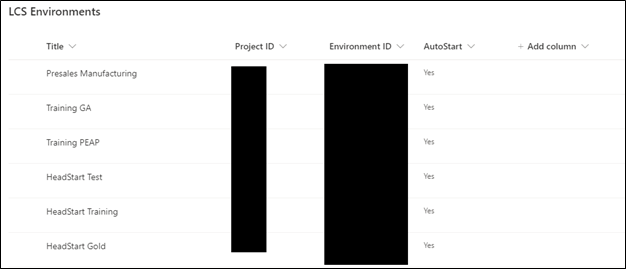
We need to maintain a list of environments we can start somewhere. I chose to use a SharePoint list for this. We need to know the environment name the user can use in their email request, and then the LCS project and environment IDs. I also have an auto start column used for starting environments on a schedule.
Start Environment
Next, we need to build a flow that will start a given environment. We will design this flow so that it can be called in a variety of scenarios, just needing to know the LCS project and environment ID we are working with. We will receive this information from an HTTP request and provide a HTTP response with the result of our start request. In between, we need to obtain a bearer token to authenticate, and then make our LCS API request.
- HTTP request
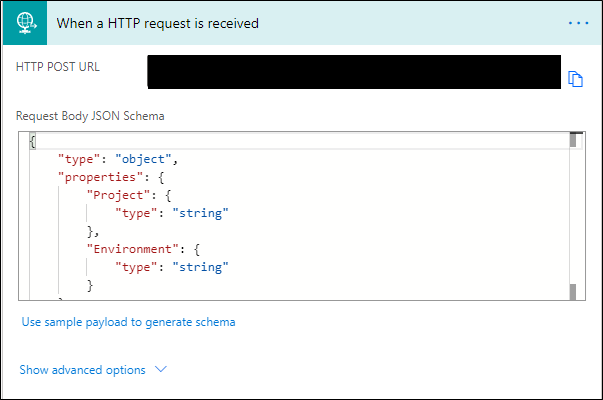
Our request takes two parameters, Project and Environment IDs. We define these in our request body JSON schema.
- Variables
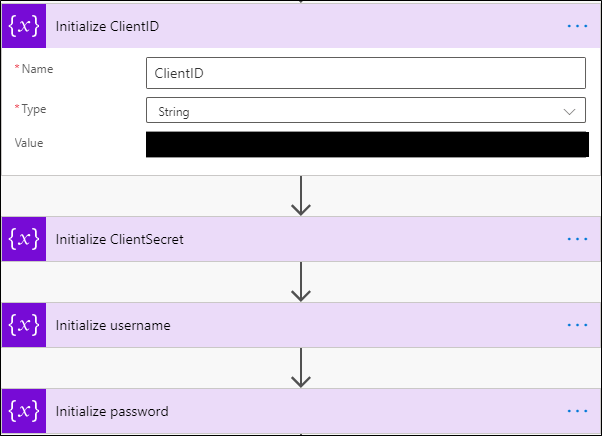
Next, we declare variables for our Client ID, Client Secret, username and password. We do not need to do this, but it makes managing these values easier, and it also makes the flow easier to copy and share.
- Bearer Token
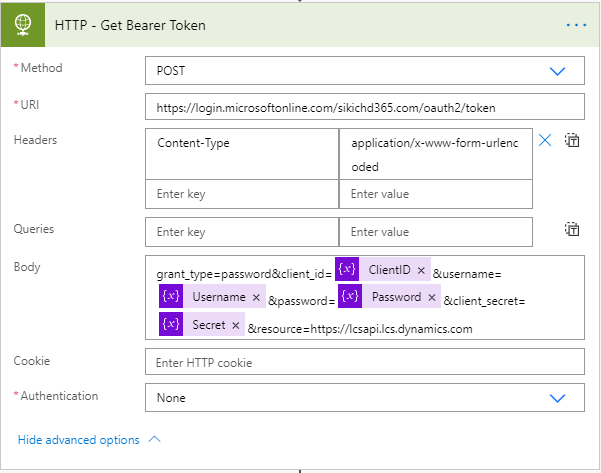
Now we can use these variables to get our Bearer Token, which is used to authenticate the LCS API request. We do this with an HTTP request action in Power Automate.
| Method | Post |
| URI | https://login.microsoftonline.com/sikichd365.com/oauth2/token |
| Headers | Content-Type, application/x-www-form-urlencoded |
| Body | grant_type=password&client_id=@{variables(‘ClientID’)}&username=@{variables(‘Username’)}&password=@{variables(‘Password’)}&client_secret=@{variables(‘Secret’)}&resource=https://lcsapi.lcs.dynamics.com |
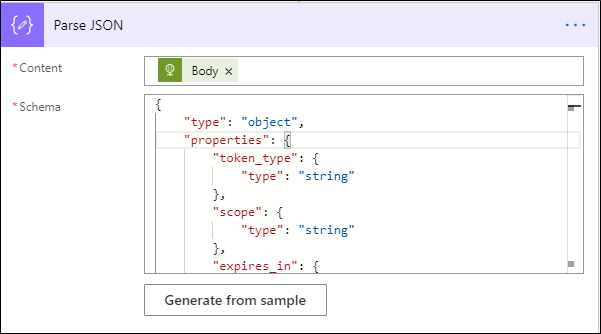
We then need to parse the response from our request for the Bearer Token. We do this with the Parse JSON action. We can use the output from a request to obtain a Bearer Token to generate sample schema. I have copied the schema below. This allows us to easily refer to the values in the Bearer Token response in subsequent actions. The input to this action is the body of the HTTP request.
{
"type": "object",
"properties": {
"token_type": {
"type": "string"
},
"scope": {
"type": "string"
},
"expires_in": {
"type": "string"
},
"ext_expires_in": {
"type": "string"
},
"access_token": {
"type": "string"
},
"expires_on": {
"type": "string"
},
"not_before": {
"type": "string"
},
"resource": {
"type": "string"
},
"refresh_token": {
"type": "string"
}
}
}
- LCS API Call
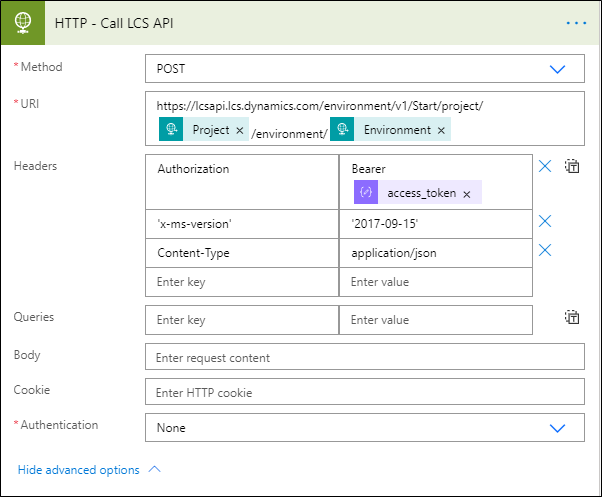
Now that we have all of our information for authentication and which environment to start, we can call the LCS API. Again, we use the HTTP action.
| Method | Post | |
| URI | https://lcsapi.lcs.dynamics.com/environment/v1/Start/project/@{triggerBody()?[‘Project’]}/environment/@{triggerBody()?[‘Environment’]} | |
| Headers | Authorization | Bearer body(‘Parse_JSON’)?[‘access_token’] |
| x-ms-version | ‘2017-09-15’ | |
| Content-Type | Application/json | |
- Respond
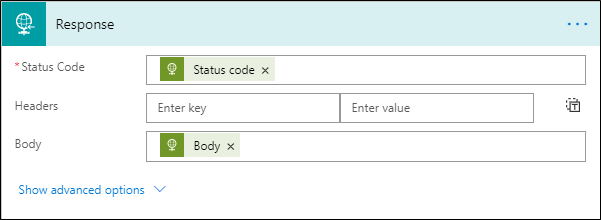
Lastly, we respond to the caller with the status of the LCS API call and the body. You could do something fancy here based on the status code (200 = success), but we are just returning the info as is.
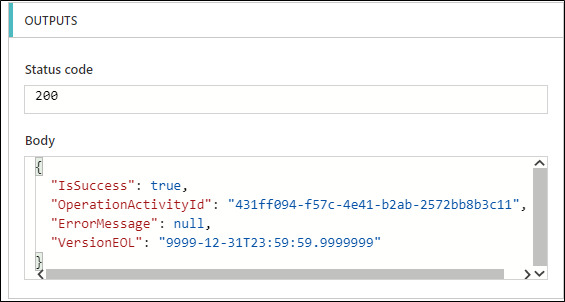
The following is an example of a successful request.
Now that we have built a generic flow to start an environment, we can move on to handling the email request.
Processing email request to start a cloud-hosted environment
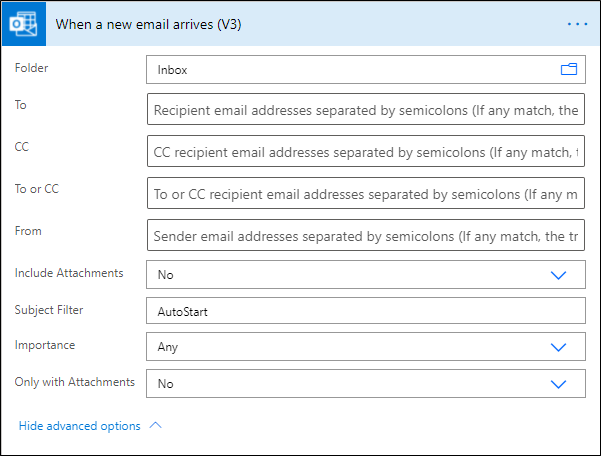
Our goal is to allow users to start a VM environment via email. To do this, we want the user to send an email with the subject “AutoStart <EnvironmentName>”, where environment name matches an environment on our SharePoint list.
- When a new email arrives
Our trigger will be the receipt of an email message with a subject that starts with “AutoStart.”
- Obtain environment name
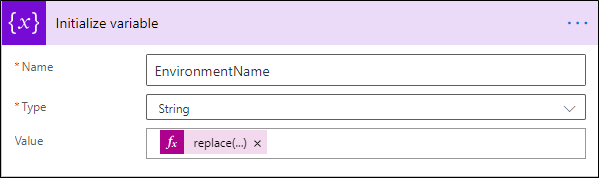
We need to get the environment name from the email subject and store it in a variable. The expression I use to do this is the following:
| replace(triggerOutputs()?[‘body/subject’], ‘AutoStart ‘, ”) |
- Look up LCS Project and Environment ID
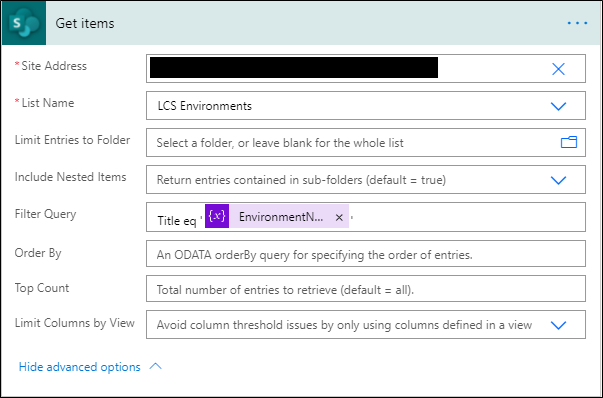
Next, we need to look up the Project and Environment ID that correspond to the environment name in our email subject.
- Call LCS Start flow
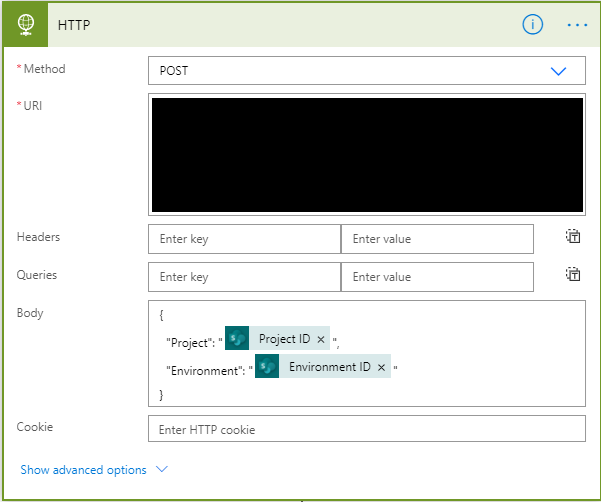
We are now ready to call the flow we built above using the HTTP request action.
| Method | Post |
| URI | Copy this from the previous flow trigger |
| Body | {“Project”: “@{items(‘Apply_to_each’)?[‘ProjectID’]}”,
“Environment”: “@{items(‘Apply_to_each’)?[‘EnvironmentID’]}” } |
- Respond to user request
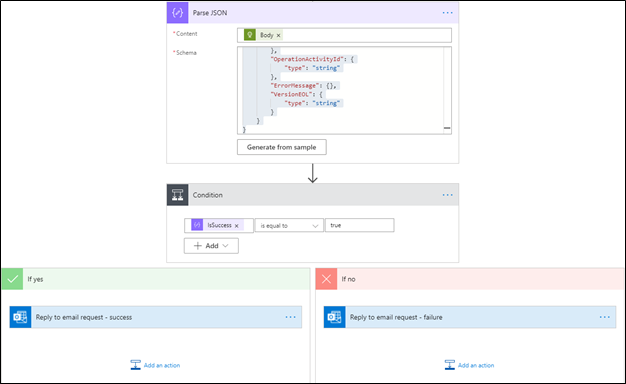
Now we have received a response from our request to start the VM, we can respond to the user who requested the action via email. To do this we first parse the response of the HTTP request, using the Parse JSON action, and use the ‘IsSuccess’ value to determine what sort of email response to send. A sample schema for parsing the response is included below.
{"type": "object","properties": {"IsSuccess": {"type": "boolean"},"OperationActivityId": {"type": "string"},"ErrorMessage": {},"VersionEOL": {"type": "string"}}}
Further Enhancements
There are a couple of additional items we can implement to improve on the above scenario.
The first would be to filter the incoming email requests to allow only users in our organization to request a VM to start.
The second would be to add auto shutdown functionality via the same LCS API. This would keep the LCS cloud-hosted VM status in sync with Azure and allow for users to manage the automatic shutdown via a checkbox on our SharePoint list.
Have any questions about how to start a cloud-hosted environment via email? Please reach out at any time!
This publication contains general information only and Sikich is not, by means of this publication, rendering accounting, business, financial, investment, legal, tax, or any other professional advice or services. This publication is not a substitute for such professional advice or services, nor should you use it as a basis for any decision, action or omission that may affect you or your business. Before making any decision, taking any action or omitting an action that may affect you or your business, you should consult a qualified professional advisor. In addition, this publication may contain certain content generated by an artificial intelligence (AI) language model. You acknowledge that Sikich shall not be responsible for any loss sustained by you or any person who relies on this publication.