







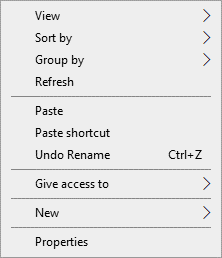
Through your IT career you come across things very infrequently that are game changers. The best ones happen to be the most simple ones that will change how you interact with your computer every single day. I came across one of those things a few years back. If in a Windows Explorer window, if you hold down shift while right clicking it will change your options presented to you. Here are the normal options:
If you hold down Shift while right clicking, one new menu option becomes available – “Open PowerShell window here.”
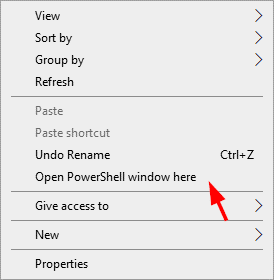
I’ve used this trick over and over again to get a PowerShell prompt in the path of where the window is navigated in to save time from copying the path from the window and changing the directory in PowerShell after pasting it in. I’m saving 5 or 6 seconds maybe, but I’ll take that time back gladly.
However, if I needed to get an elevated PowerShell prompt, I still had to use the old copy and paste method after opening a new elevated PowerShell prompt window. Today I was shown a trick that will change the way I interact with my machine daily. I hope it saves you a few seconds each day too.
Easy mode to open a new elevated PowerShell prompt (that is, running PowerShell as an administrator) is simply to navigate to the location in a window you want an elevated PowerShell prompt in and click the file menu button. Yes, there is a file menu button in this ribbon bar world we are living in. Here it is.
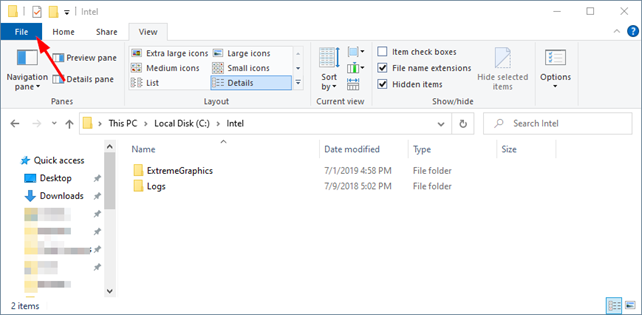
Once the file menu button was clicked, mouse over the arrow to the right of “Open PowerShell Window.” How about that? Another way to open a normal PowerShell window in this location.
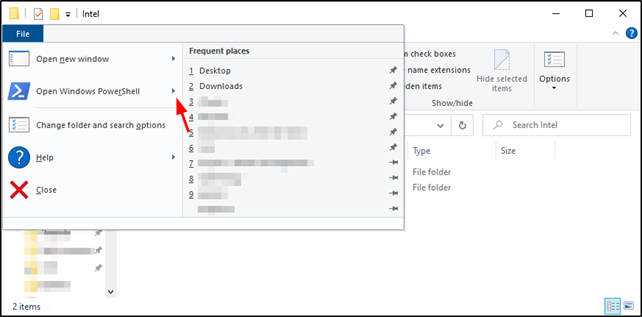
Here it is in its greatness.
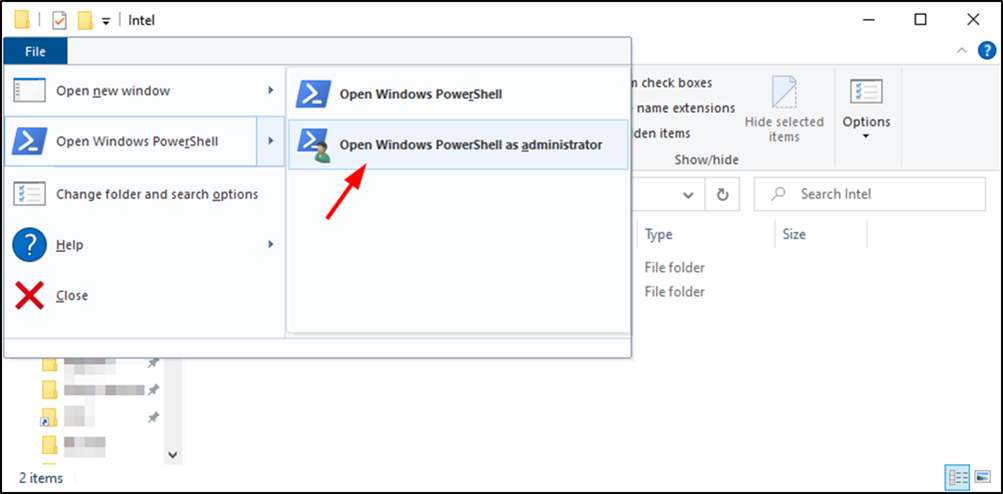
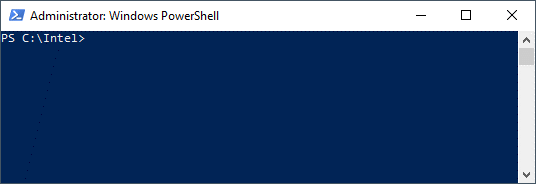
The result we have all been waiting for – an elevated PowerShell prompt in the path we have the window open in.
Big thanks to Ernesto at Microsoft for showing me this one today. We spent 2 hours troubleshooting an issue with Azure AD Connect Provisioning Agent timing out, discovered it was due to it using Active Directory (Azure AD) Application Proxy which requires an Azure AD Premium P1 license at minimum and a full uninstall and reinstall of the Microsoft Azure AD Connect Provisioning Agent to resolve the problem, which was a great find in its own right. But the take away for me? Easy mode PowerShell as an admin.
This publication contains general information only and Sikich is not, by means of this publication, rendering accounting, business, financial, investment, legal, tax, or any other professional advice or services. This publication is not a substitute for such professional advice or services, nor should you use it as a basis for any decision, action or omission that may affect you or your business. Before making any decision, taking any action or omitting an action that may affect you or your business, you should consult a qualified professional advisor. In addition, this publication may contain certain content generated by an artificial intelligence (AI) language model. You acknowledge that Sikich shall not be responsible for any loss sustained by you or any person who relies on this publication.