







I wrote a blog almost two years ago illustrating what MFA (Multifactor Authentication) was and why you need it. As a quick recap, it is your (at least) two forms of authentication to a service. In that blog I described that users could visit this website to set up their MFA even before MFA is required to be used by the user. Microsoft has given that process a facelift and that is what we’re covering in today’s blog.
Upon login, the default options are to configure two additional forms of authentication to prove who you are.
- App
- Phone
MFA by App
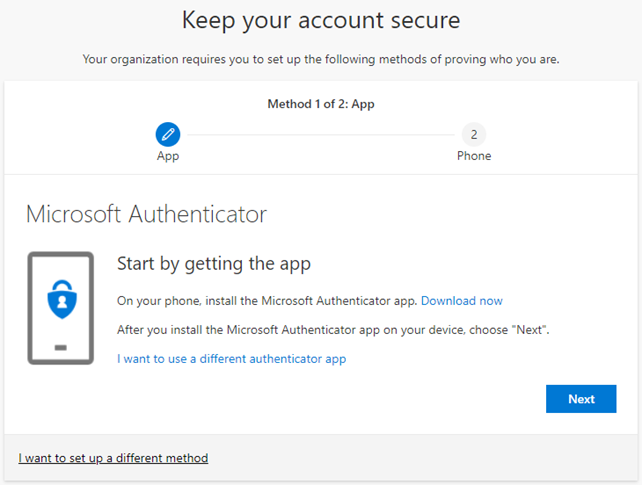
The first is by the app Microsoft Authenticator. First download the app to your phone and follow the instructions in this wizard driven approach to user set up.
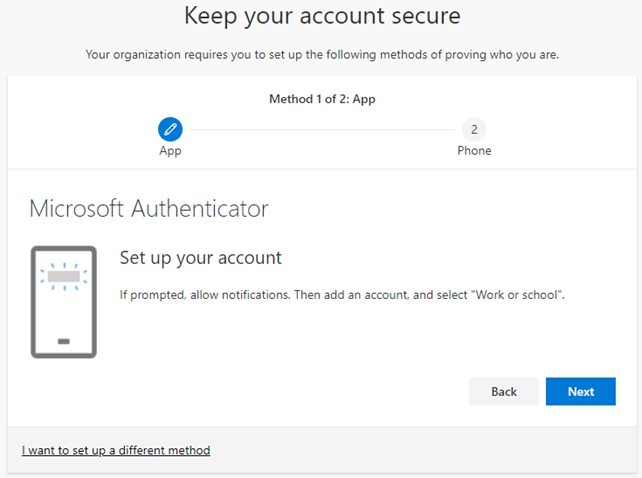
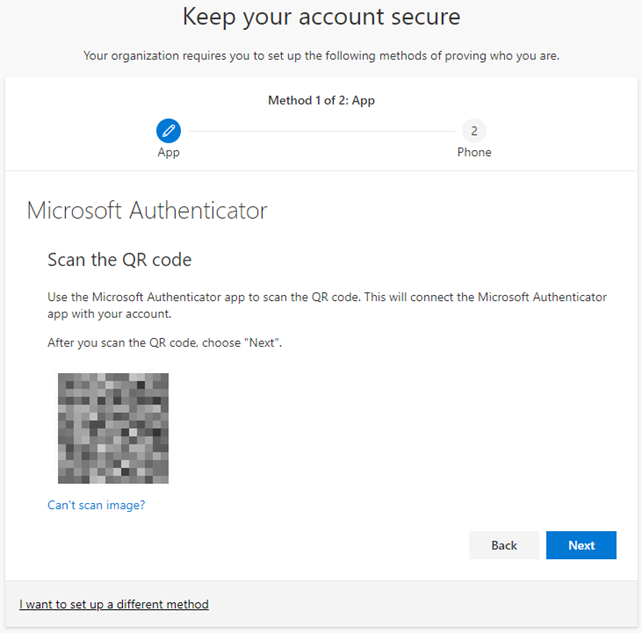
Once the app is downloaded, add a Work or school account, and scan the QR code on the screen inside of the app.
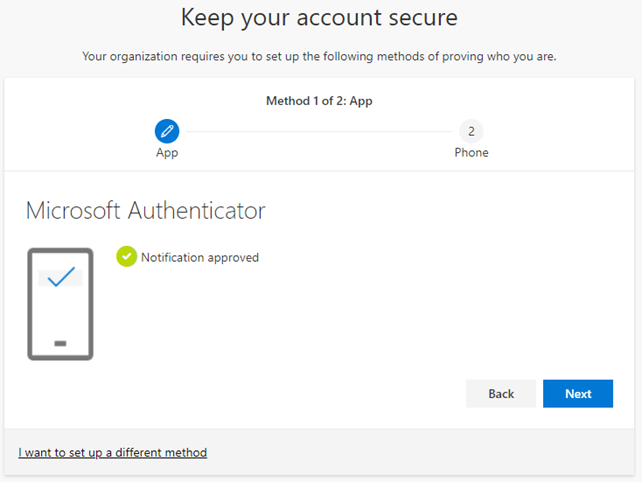
Your phone will be prompted for authentication, and you have just completed providing one additional form of authentication. Click next to continue on to the next form of authentication to provide.
MFA by Phone
Here Microsoft wants to set up a second form of authentication for you. Yes, the second form of authentication is on the same device, your cell phone. I highly recommend once the process is done to add another phone number for authentication that isn’t your cell phone. Your office phone would be a good option.
- Enter your cell phone number.
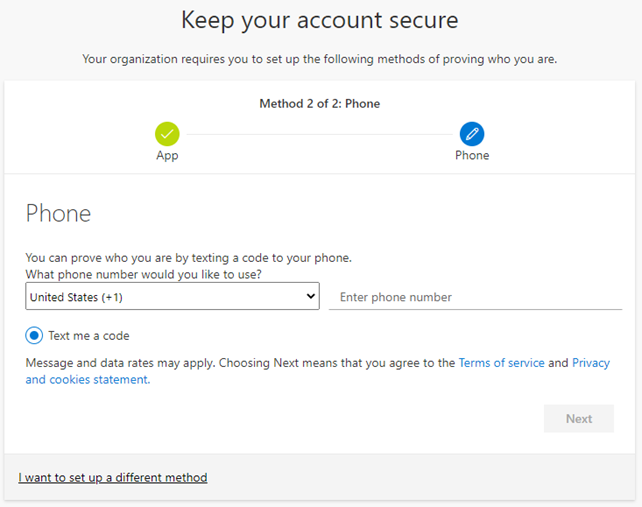
- Microsoft will send you a text to your cell phone. Enter the code it sends below.
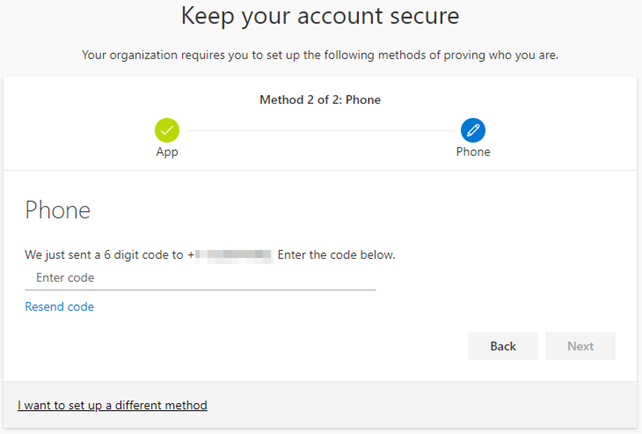
- That process provides the second form of authentication that Microsoft is requesting here.
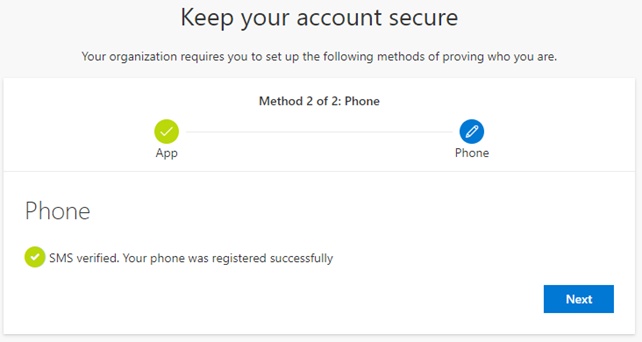
- Microsoft confirms that you are done with the minimum required to add additional MFA to your account.
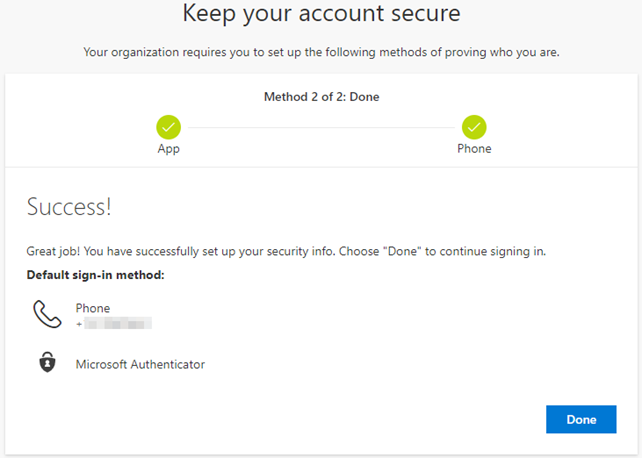
- After clicking done, the browser is redirected to your own security info showing what your methods for authentication are.
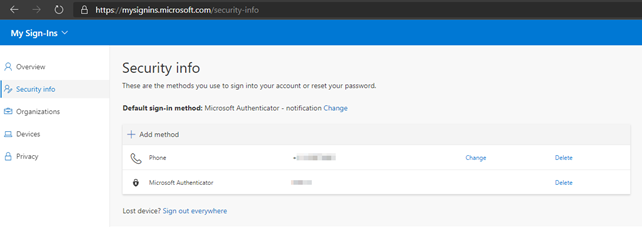
Again, I highly recommend adding an alternate phone number that is not your cell phone to the possible authentication methods. Click Add method and choose alternate phone or office phone. Microsoft will call the number and ask you to press the pound sign to verify you are who you say you are.

Cell phone alternatives
Obviously the first two forms of alternative authentication are heavily reliant on your cell phone. So, what happens when your cell phone is lost, stolen, or damaged and unusable?
Come back to this same link: https://aka.ms/MFASetup
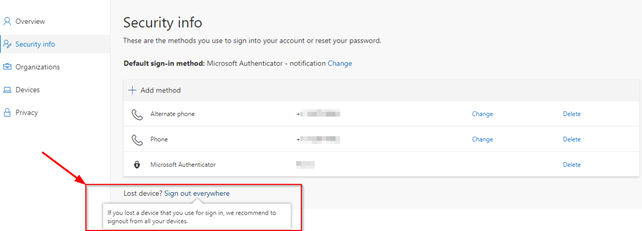
At the bottom of the page it asks if you have lost a device? If so, you can initiate a process that will sign out of everywhere. You can also change your default sign in method to your office phone number and delete your other authentication methods (app and phone). Then get started on the process of a replacement phone.
Have any questions about the new MFA process from Microsoft? Please reach out to our security team at any time.
This publication contains general information only and Sikich is not, by means of this publication, rendering accounting, business, financial, investment, legal, tax, or any other professional advice or services. This publication is not a substitute for such professional advice or services, nor should you use it as a basis for any decision, action or omission that may affect you or your business. Before making any decision, taking any action or omitting an action that may affect you or your business, you should consult a qualified professional advisor. In addition, this publication may contain certain content generated by an artificial intelligence (AI) language model. You acknowledge that Sikich shall not be responsible for any loss sustained by you or any person who relies on this publication.