







I discussed in a previous blog about how Microsoft’s Family Group service can help lock down a laptop or computer to be used by a child. With the pandemic still abounding and school out for the summer, my child had next to no social interactions with his friends. This was the first year I entertained the idea of allowing my son to have a cell phone for communication with his friends. When I was his age, I had a house phone that I could call my friends on, after all.
I investigated options like the GABB Phone that prohibit all apps and data except what is already installed on the phone, but I didn’t want to be that restrictive. There are some apps that I would have determined to be age appropriate that could be on the phone such as MLB, Amazon FreeTime, our church’s app, and a Bible.
I decided to look further into Microsoft Family Group for his cell phone (Android specifically) and found that it would cover most of what I was looking for. It allows me to:
- Specify which apps can run and which ones can’t (like the Google Play store)
- Control how long each of those apps could be run for and windows of time for them running
- Use the same web filter as the desktop version
- Prohibit any other built in browsers like Samsung’s browser from running
- Block InPrivate browsing that wouldn’t record what websites were viewed
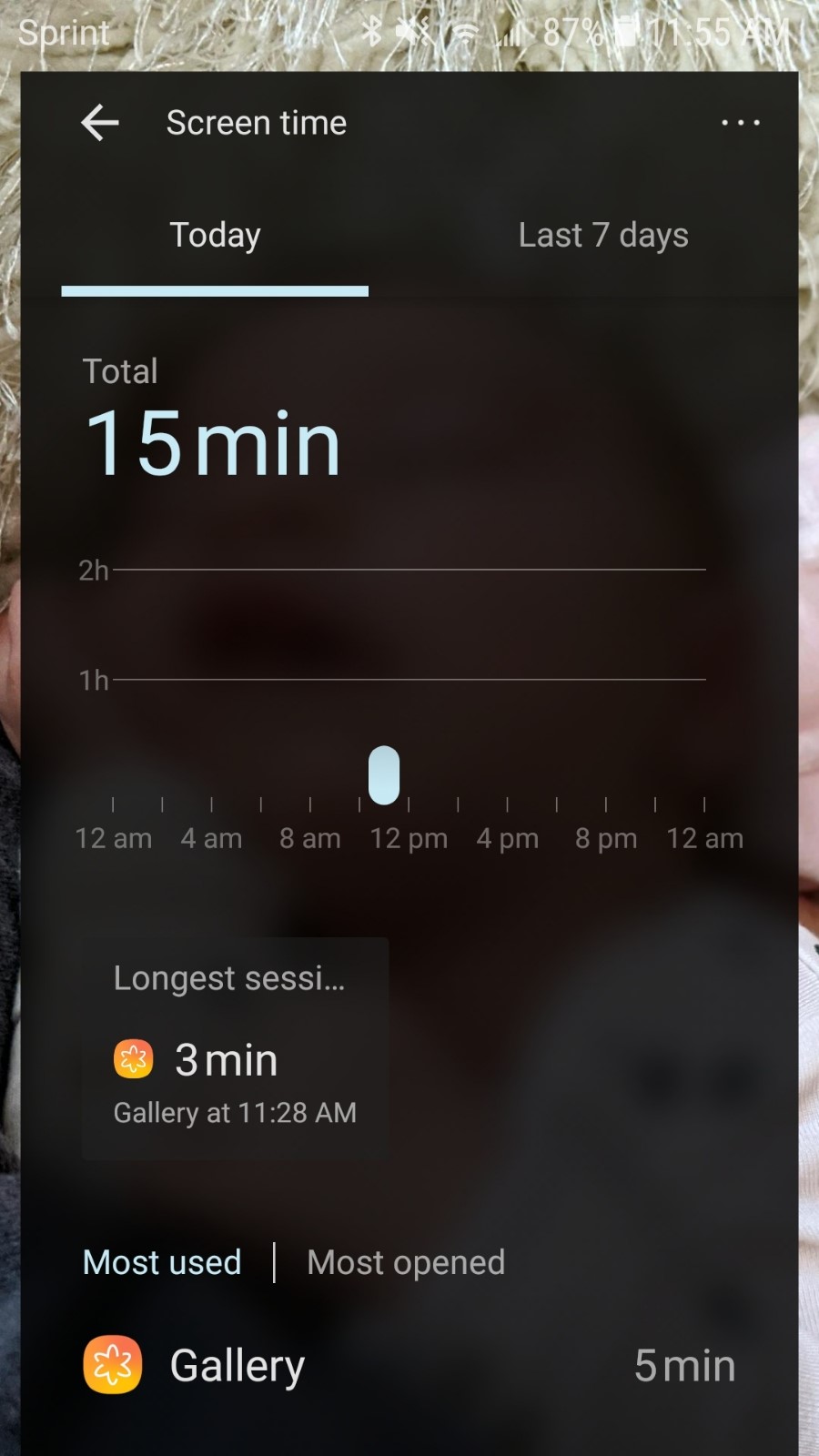
- Hold him accountable for how much time was spent on the device and what it was being used for
At the heart of this experience is two things:
- A new launcher to be installed on the phone – Microsoft Launcher
- A new browser to be installed on the phone – Microsoft Edge
Setting up Microsoft Family Group
To get started, browse here and put in the cell phone’s phone number to receive a text with a link to download what is needed.
The web filter settings that I have already put in place for the computer are in effect here, so it didn’t require doubling up the effort.
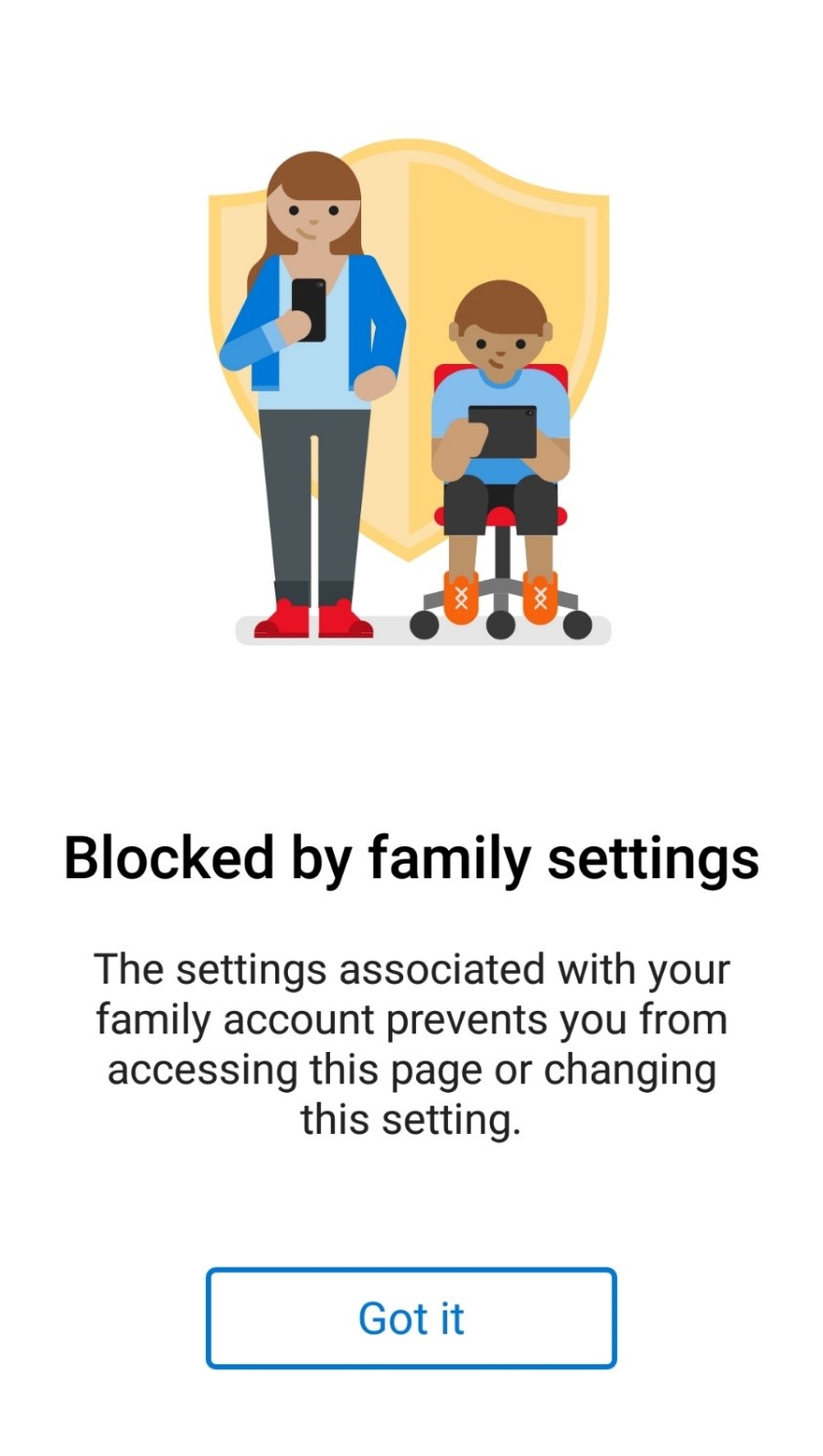
When my son attempts to change a setting that would be enough to disrupt the experience he is greeted with this screen.
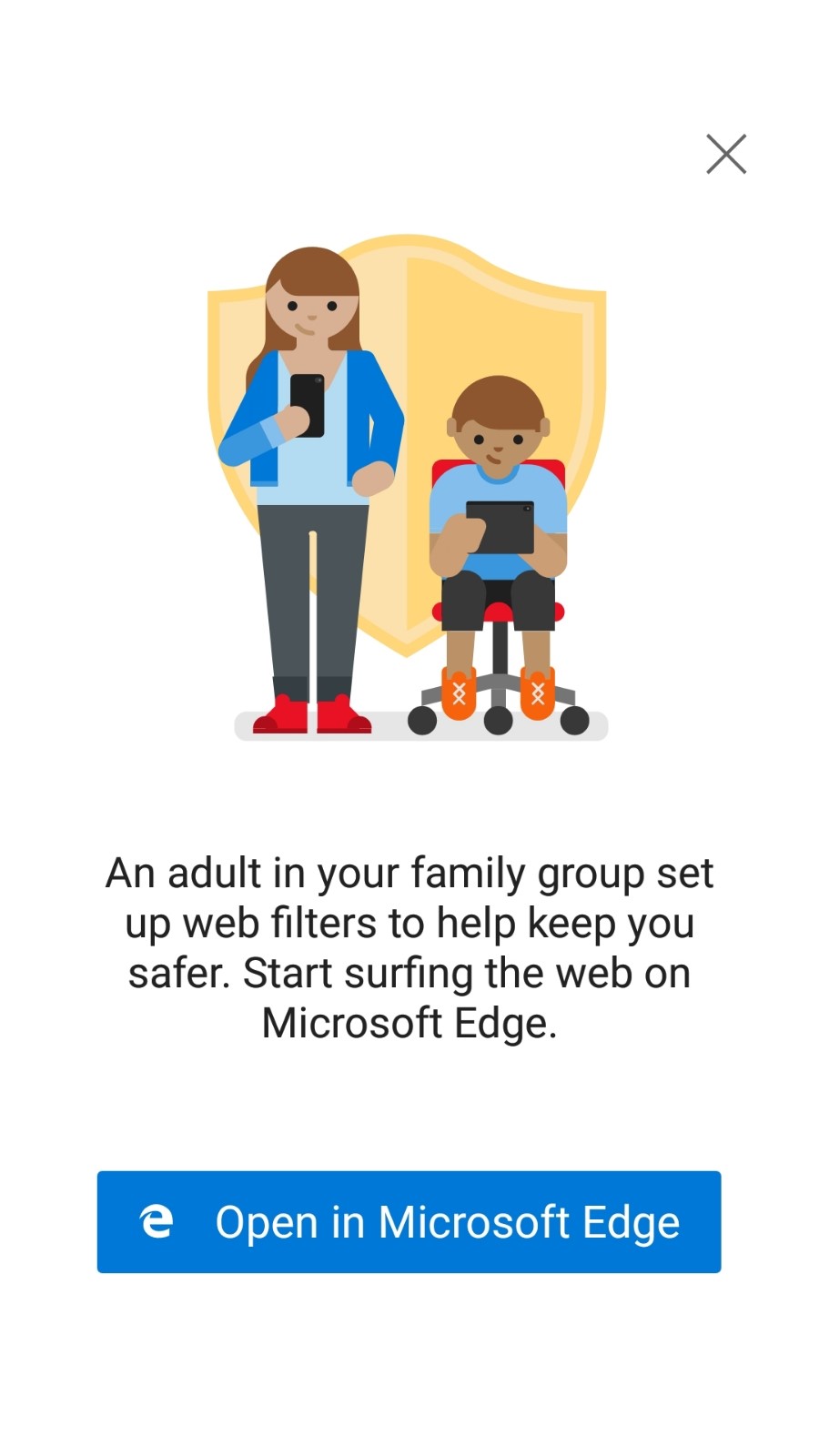
If there is some app that launches a browser for some reason that isn’t Edge, it alerts that this content must be opened in Edge. This will allow for the web filter settings to always be in effect due to the forced use of the Edge browser.
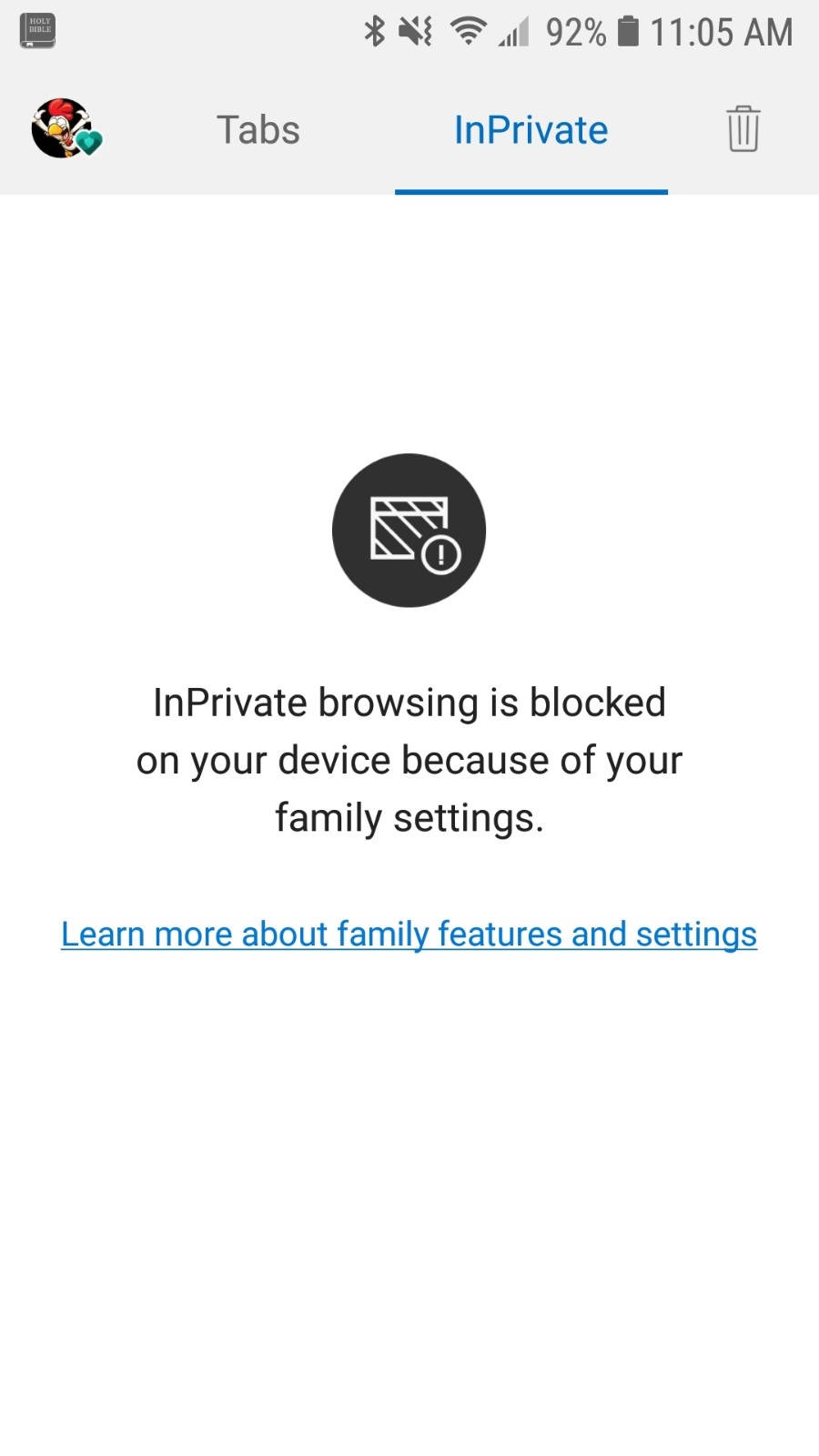
When Edge is used, the InPrivate feature is unavailable, so there is no browsing possible that can be hidden.
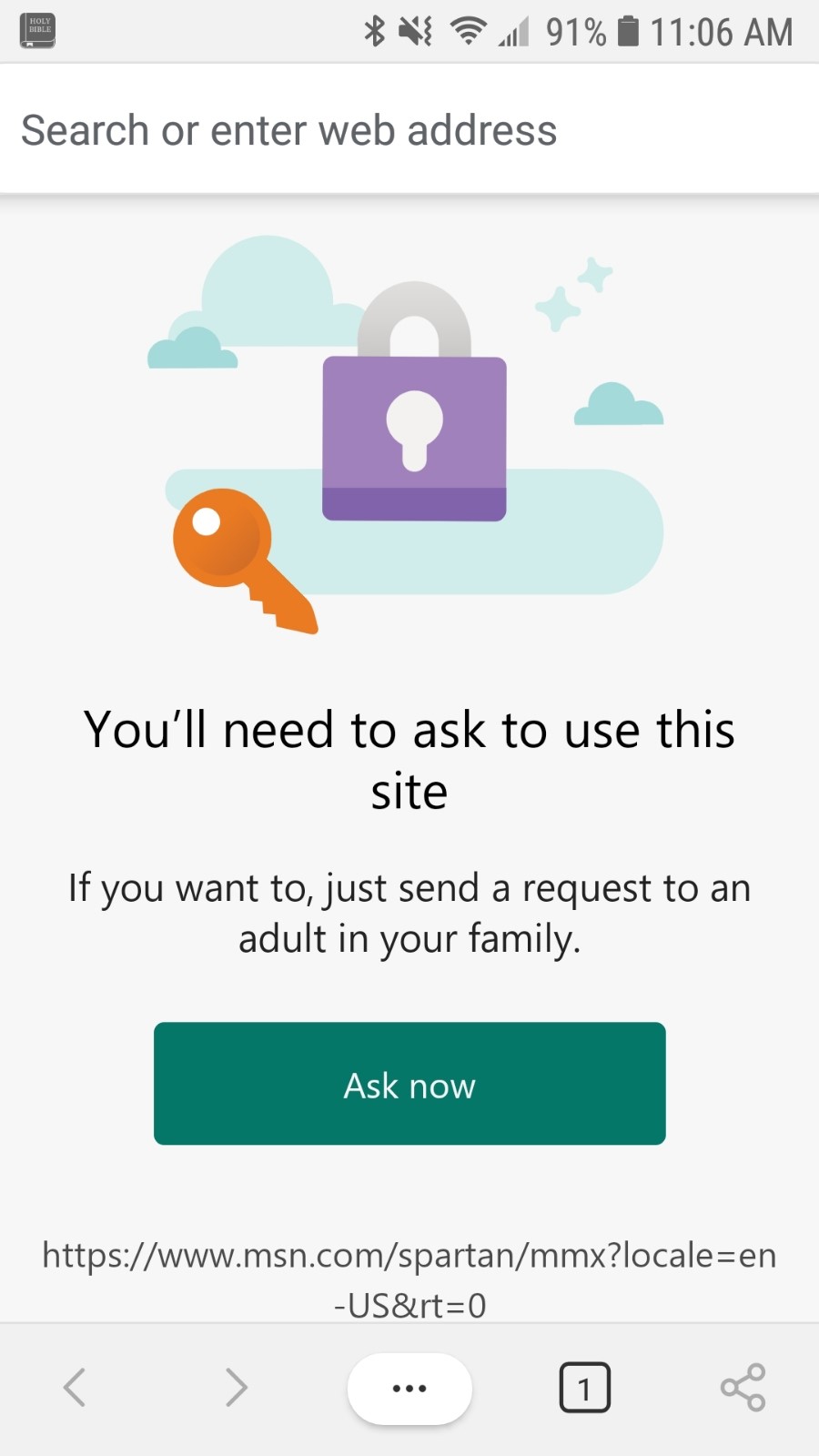
With the web filter setting I have it set to block everything except websites which I have explicitly allowed. Whenever a website is attempted to be accessed, my son will have a choice of either asking me for permission to access the site or stopping the attempt to view the site. If he asks for permission, I’ll get an email with the ability to approve it by clicking a link if I choose to.
The App Drawer will show all applications by default. However, there is the ability to hide apps that are not able to be uninstalled (like the Google Play Store for example). Here are the apps that I have chosen to be shown.
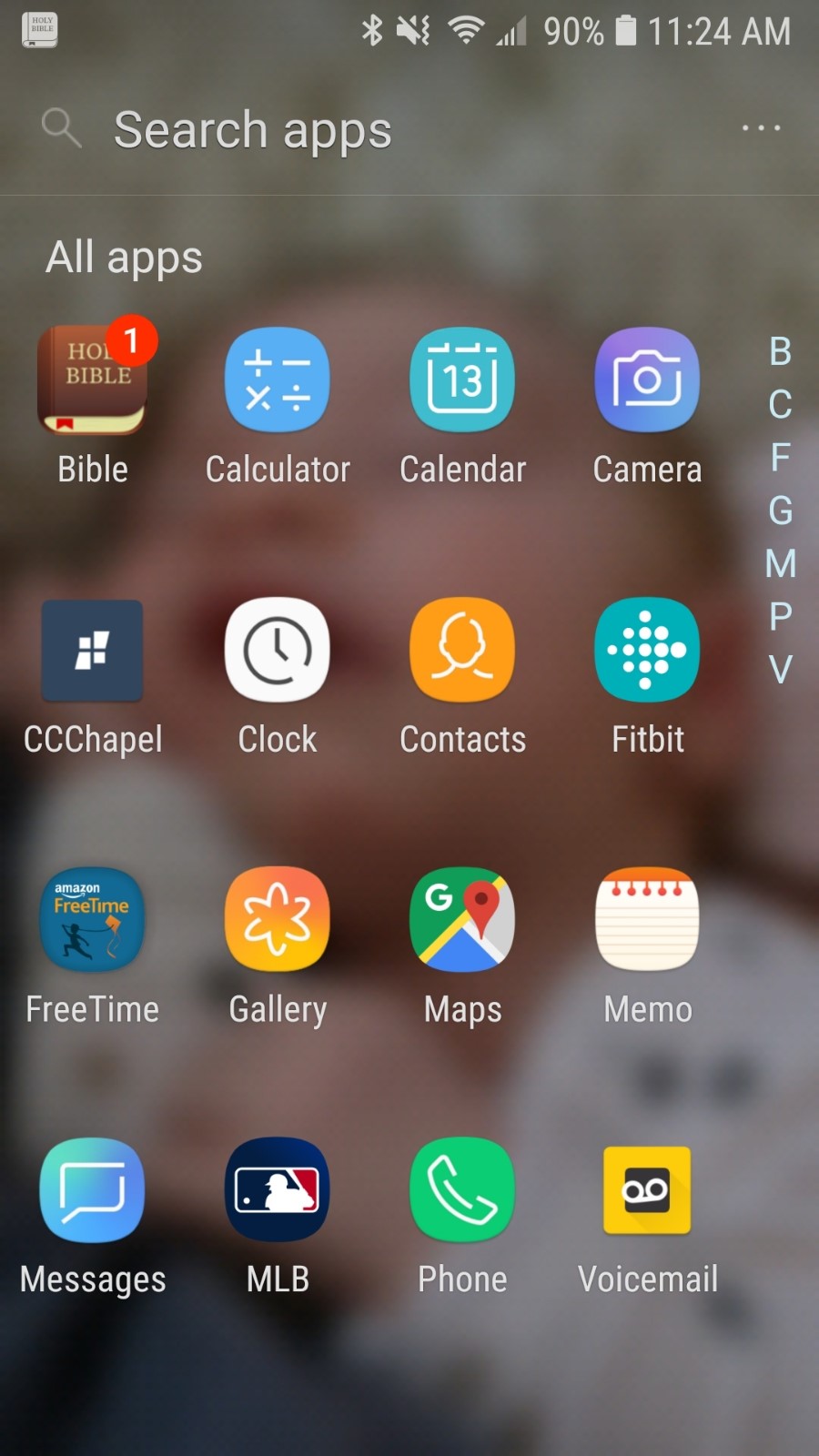
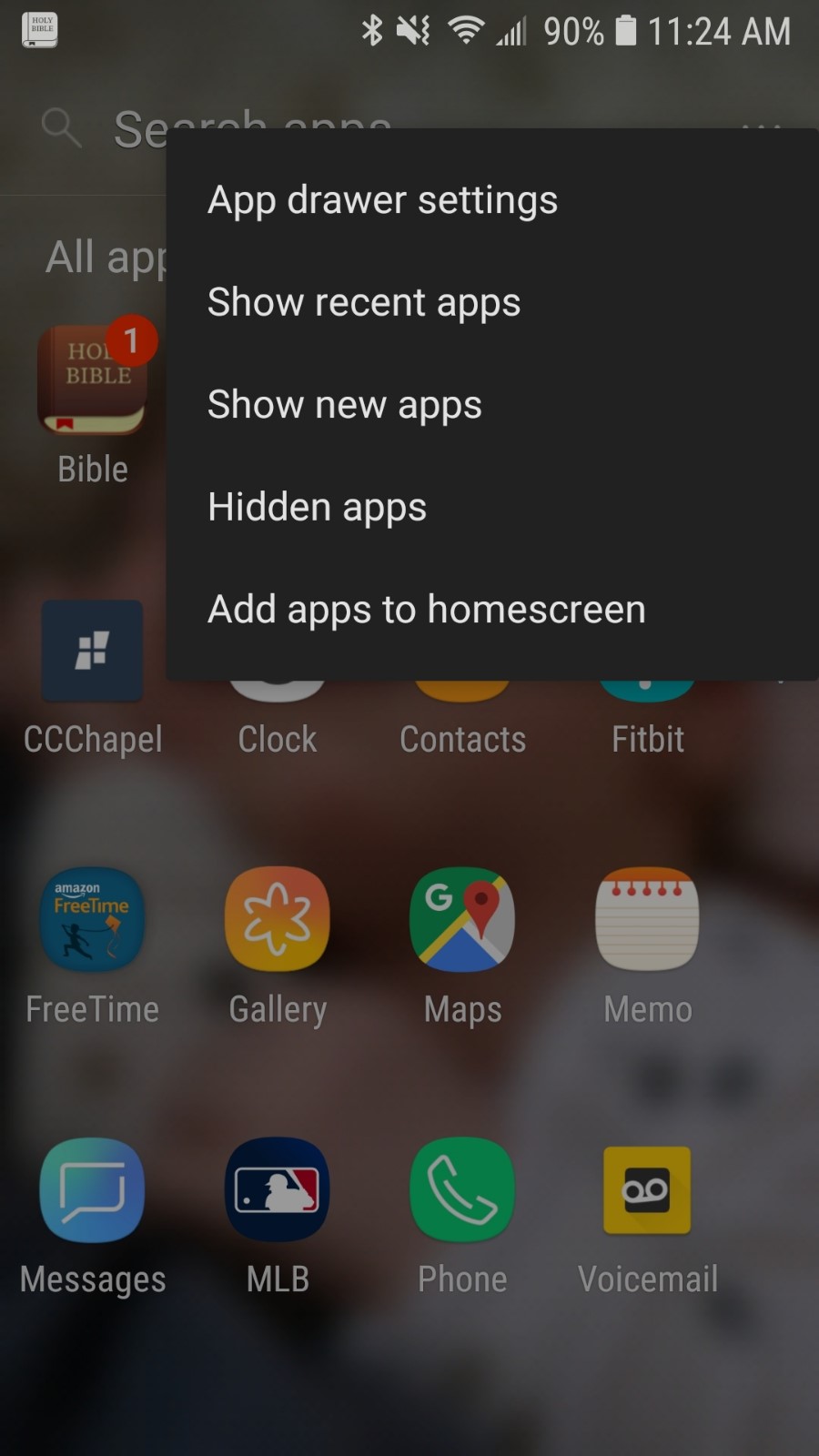
To get to the hidden apps section, select the … at the top right and click Hidden apps. This will prompt for a passcode that only you the parent should know.
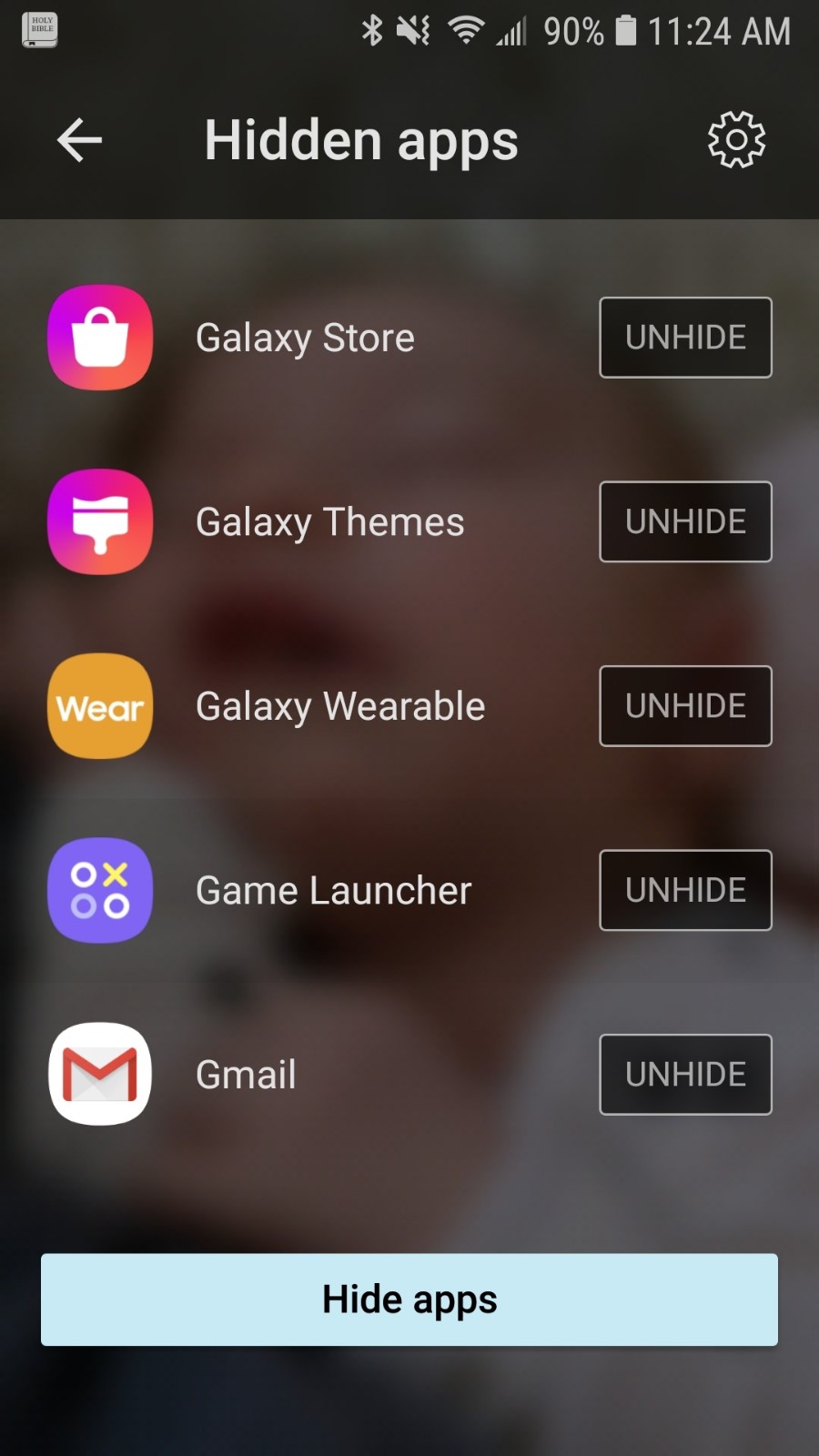
Once here, you can add or remove apps from being Hidden. These apps are not necessarily bad, it’s just that I have decided that my son doesn’t need to be using them at this point in time.
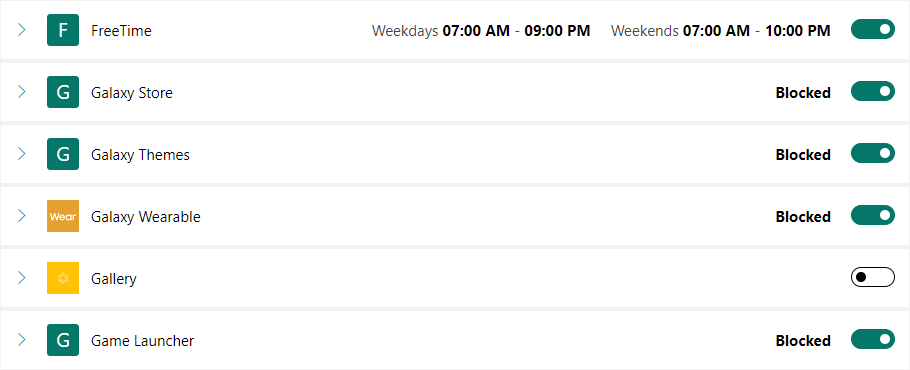
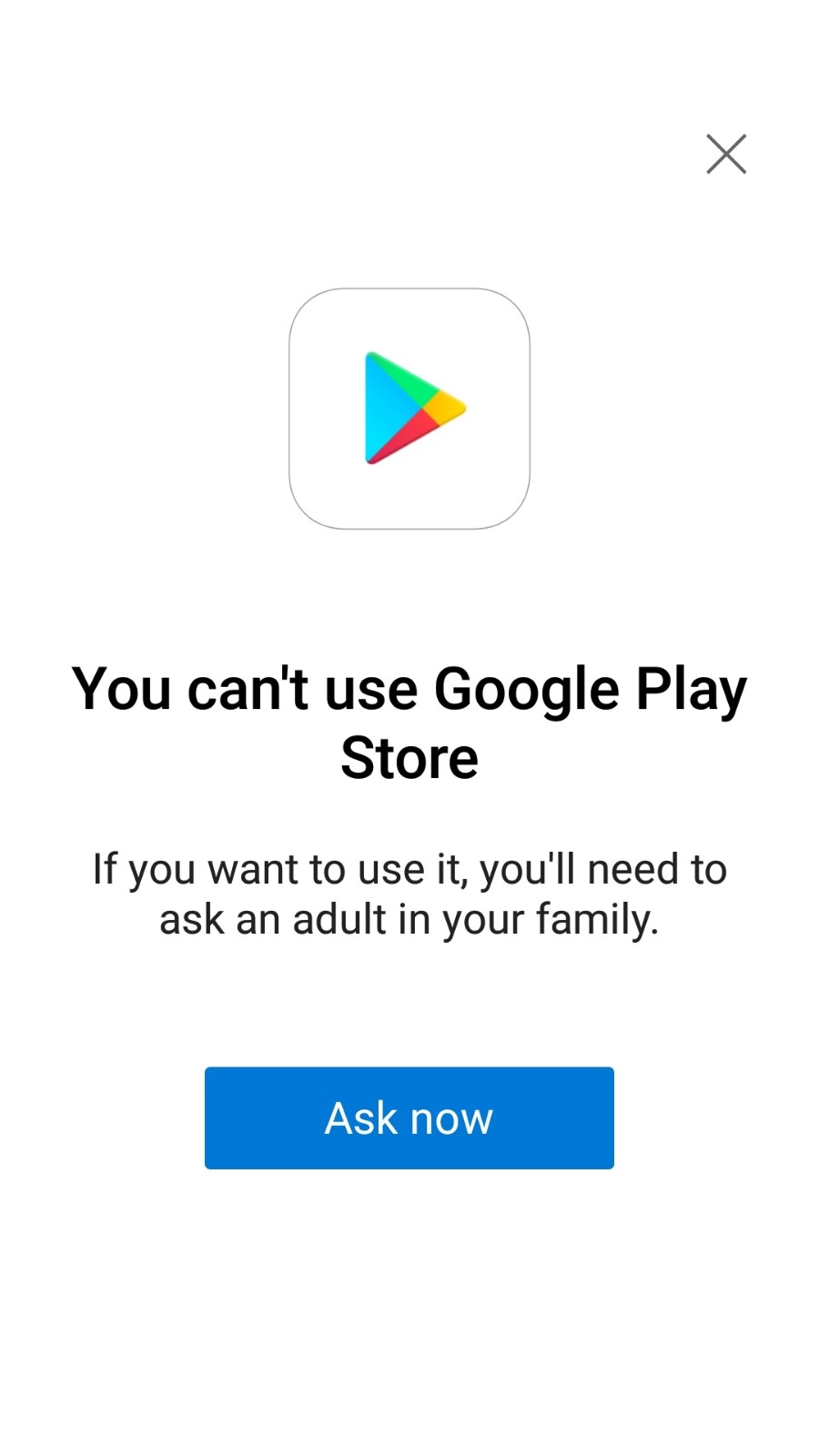
Even if my son were to figure out how to launch a hidden app, the app itself is blocked from the Microsoft family settings app limits page. I can set the limit to totally block it or only allow it to launch at certain times of the day.
Here is what the screen would look like when launching a blocked app on the cell phone.
As adults with these devices it is very easy to be on the device for much longer than we anticipated as well. The phone has the built-in accountability of showing exactly how long the device was used for and what apps were ran and for how long for both today and for the past week.
My purpose in behind all of this isn’t to handcuff my son. It is to encourage good habits for cell phone use. In a few short years, my son will be on his own making his own decisions on how to use internet connected devices. For now, I want him to be able to have access to the devices with training wheels on so I can help him out when he stumbles. Using the Microsoft Family Group for his cell phone will do just that.
This publication contains general information only and Sikich is not, by means of this publication, rendering accounting, business, financial, investment, legal, tax, or any other professional advice or services. This publication is not a substitute for such professional advice or services, nor should you use it as a basis for any decision, action or omission that may affect you or your business. Before making any decision, taking any action or omitting an action that may affect you or your business, you should consult a qualified professional advisor. In addition, this publication may contain certain content generated by an artificial intelligence (AI) language model. You acknowledge that Sikich shall not be responsible for any loss sustained by you or any person who relies on this publication.