







A core business team’s crucial function is teamwork. A centralized dashboard helps teams leverage experience and insights to deliver business value. The F&O Application includes pre-configured workspaces for invoicing, production, inventory, and sales, etc. Often, businesses often need custom workspaces for specific requirements and processes. In October 2022, Microsoft Dynamics 365 Finance and Operations introduced the feature Saved views support for workspaces, enabling teams to create custom dashboards for daily tasks. This article will dive into how to create these workspaces in Dynamics 365 and utilize them to their full capability.
Saved Views
Microsoft Dynamics Finance and Operations has the concept of saved views which allow users to personalize their pages to view all the relevant data they need to quickly act on it throughout the day. These views can either be personal views or published views. Users cannot edit published views, allowing teams to work off the same set of information. To create a published workspace, the first thing needed is customized views that are going to be used for the workspace. To publish the entire workspace, each custom view must also be published. For this article, I will be creating a published workspace that a customer service team might use daily.
First, I went about creating the different views that a typical customer service team might need such as shipped but not invoiced orders, all sales orders, and a price lookup link.
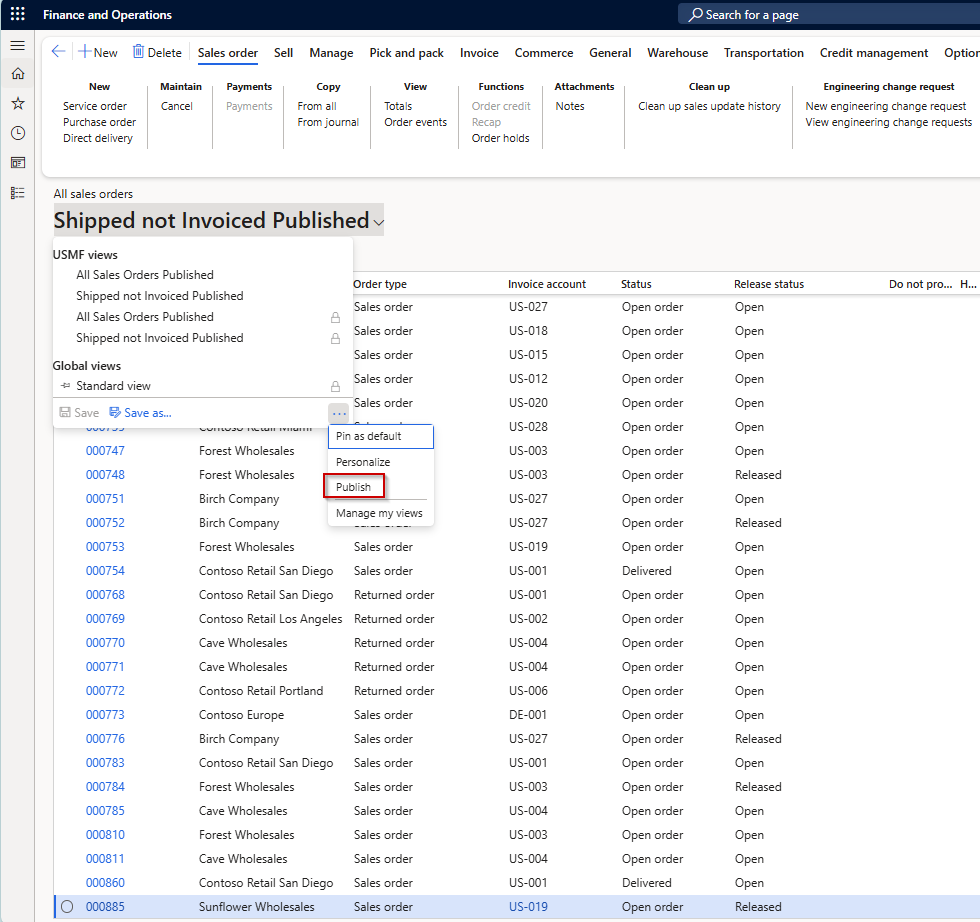
Initially, save all three views as personal views; however, you can publish them to certain roles by clicking on the view within the form and selecting the ellipses in the bottom right of the view selector. Next, you will click on the Publish button which will allow you to select the role to which these views should be available to. It is imperative that these views are published to the same role the workspace will be published to later in this document.
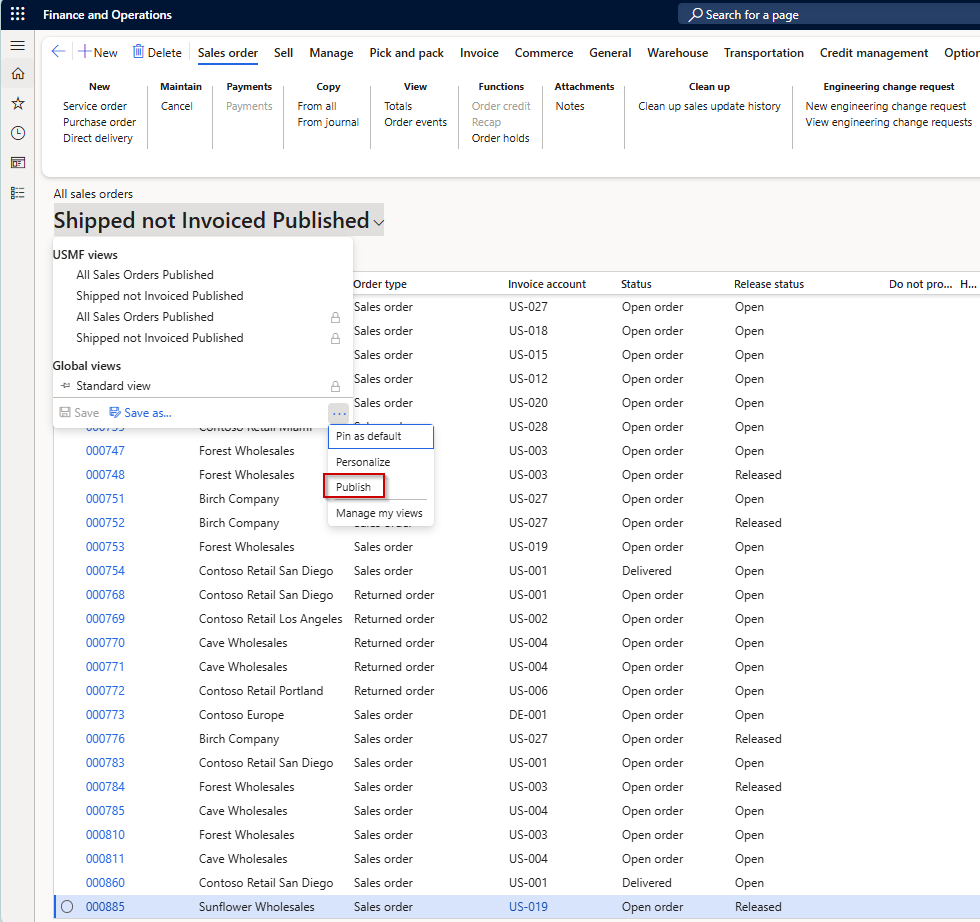
In this example, we want the Customer Service Managers to have access to these views, and we want to restrict it to the legal entity we are currently working with. However, there is the option of publishing this to a subset of legal entities if needed.
Create Workspace
Once the necessary views have been created, we need to create the workspace to which we will add these published views. In order to this, navigate to the home screen of D365 by clicking on the Home button on the left-hand navigation bar.
- Next, right-click on a blank area of the home dashboard and click Personalize: Workspaces.

- Next, click Add a page.
- Select Workspace
- Name the workspace. I am calling it Customer Service Dashboard.
There is now a personal workspace created that we will add the previously created published views to.
Add Saved Views to Workspace
The next step in creating the published workspace is to add the published views to the workspace just created in the last section.
These saved views can be added in three different ways, via a tile, list, or link. Tiles are typically utilized when it is important for the team to know the number of records that are applicable to this view. In my example dashboard, I decided to use a Shipped not invoiced view as a tile with a number count added to it so that the customer service team can quickly ascertain how many orders are awaiting invoicing.
The next type of workspace feature I added was a list view of a published All Sales orders view. This shows up to 8 columns from the actual form that it is linked to and will allow the customer service team to quickly look up a specific sales order without leaving the dashboard.
Finally, I added a link to the standard price lookup tool that Dynamics Finance & Operations offers to quickly search for different prices that may vary depending on the product and customer that product is being sold to.
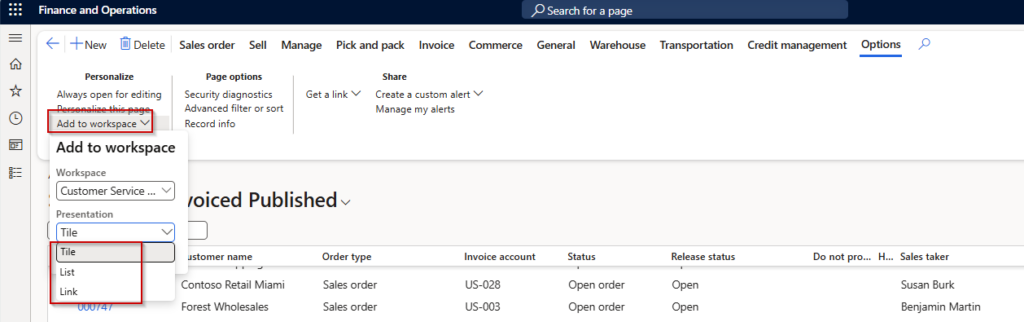
To add these published views to the workspace, you should navigate to the base form that the view was created from and in the Action Pane, select Options > Personalize > Add to Workspace. This will give you a drop-down menu on which workspace to add this to, as well as the feature you would like to add the view as (Tile, List, Link).
After adding all three of the Saved views mentioned above, the resulting dashboard is as below:
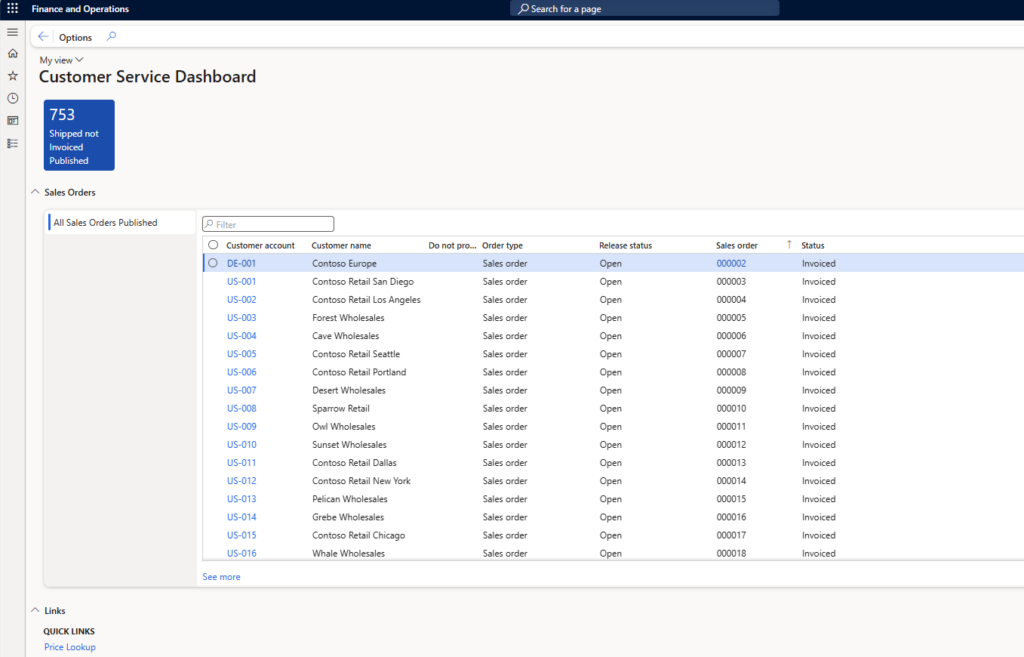
Note: Without the Saved views support for workspaces feature mentioned above, you will not have the smaller “My view” or equivalent. This feature essentially allows you to save different versions of the workspace like any other form and then publish that specific saved view to others.
Publish Workspace
- Once the workspace is ready to be published to the rest of the users, we will navigate to System Administration > Setup > Personalization.
- Next, under the Personal Views tab, find the Workspace name by fileting in the Page column.
- Once you have found the view name, select it and click the Publish button. Just like the Saved Views section, it will give you a drop-down for what company you want to publish this to and what role(s) you would like to publish it to as well.
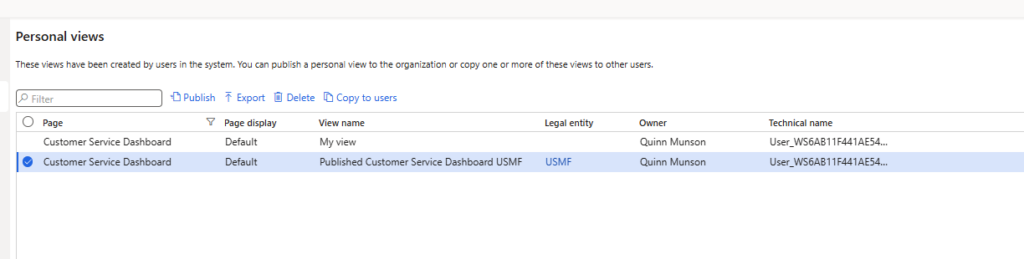
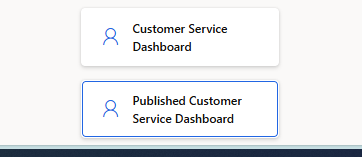
Publishing the personal workspace creates a new workspace titled with the view that was published with a “Standard view” option. For example, I titled the view Published Customer Service Dashboard and published that which in turn created a new tile on my home dashboard screen.
Required Security Roles
Typically, a system administrator is in control of creating these. However, there is a security role, Saved views administrator, that allows non-system administrators to maintain these workspaces and views. This can be given to a trusted manager to allow them to manage what their team is working through and seeing on a daily basis.
The Business Impact
Creating published workspaces allows teams, such as customer service, to centralize their operations into minimal screens. This can reduce inefficiency in information gathering across the system and allows the team to focus on growing their business rather than spending half their time gathering the information needed to act on a single order. By centralizing this it also allows for quicker and easier communication within teams, which encourages collaboration. Published workspaces are a highly popular implementation tool that also enables the business to quickly pivot when there are new metrics that need to be tracked. Publishing to a group of people, rather than individuals, also enforces segregation of duties within the business framework. It creates natural flows for end-to-end business processes such as Order to Cash, Procure to Pay, and Plan to Produce. For instance, in the order to cash process there could be four different dashboards: one for initial order creation and maintenance, order processing, credit management, and invoicing. Creating dashboards for each of these allows each team to focus on their portion of the process, and limits distractions from other areas of the business.
Have any questions about creating custom workspaces and publishing them in Microsoft Dynamics 365 Finance and Operations? Please reach out to one of our experts at any time!
This publication contains general information only and Sikich is not, by means of this publication, rendering accounting, business, financial, investment, legal, tax, or any other professional advice or services. This publication is not a substitute for such professional advice or services, nor should you use it as a basis for any decision, action or omission that may affect you or your business. Before making any decision, taking any action or omitting an action that may affect you or your business, you should consult a qualified professional advisor. In addition, this publication may contain certain content generated by an artificial intelligence (AI) language model. You acknowledge that Sikich shall not be responsible for any loss sustained by you or any person who relies on this publication.