







As people still work from home, IT still needs to manage security. The holy grail of high security and convenience is passwordless authentication.
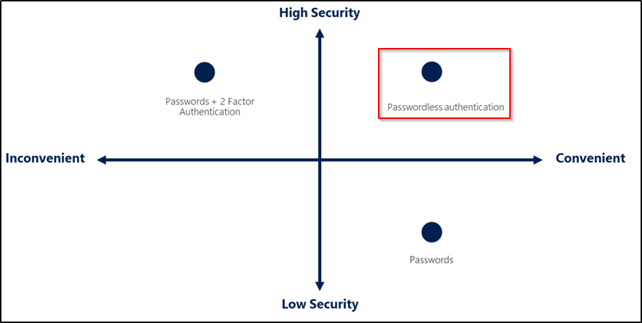
Passwordless authentication is currently in public preview now over at Microsoft Azure with the Microsoft Authenticator app. Details here: https://docs.microsoft.com/en-us/azure/active-directory/authentication/howto-authentication-passwordless-phone.
You can turn it on and target it to specific users or groups to trial it out. As with anything in public preview, turning it on and using in a production environment is done at your own risk. The prerequisites for the end user are simply to have the latest version of Microsoft Authenticator installed on a device and to have the default sign-in method set to Microsoft Authenticator push notification. This is set on the end user’s personal My Sign-Ins page (https://mysignins.microsoft.com/security-info).
To set it up, as a global admin, navigate to the Azure Portal (https://portal.azure.com/). Find Azure Active Directory and then browse to Security > (manage section) Authentication methods.
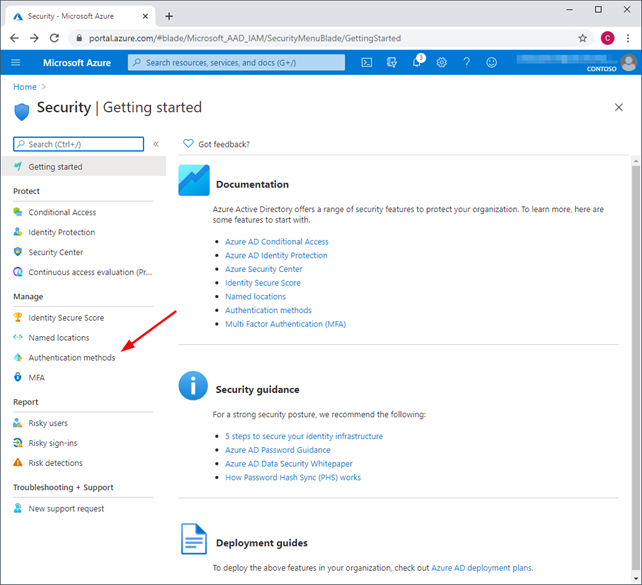
From here it defaults to authentication method policies.
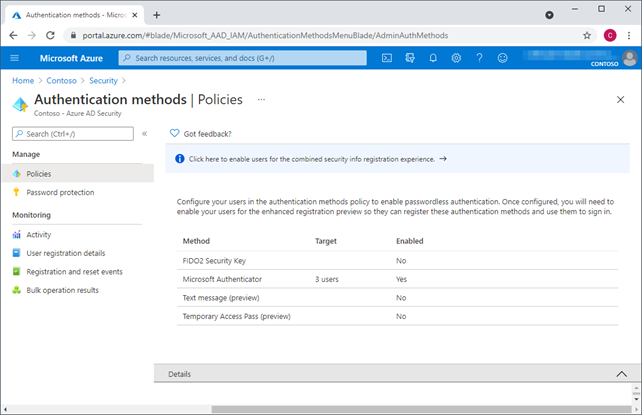
Select Microsoft Authenticator, enable it and either target it for all users or your test users.
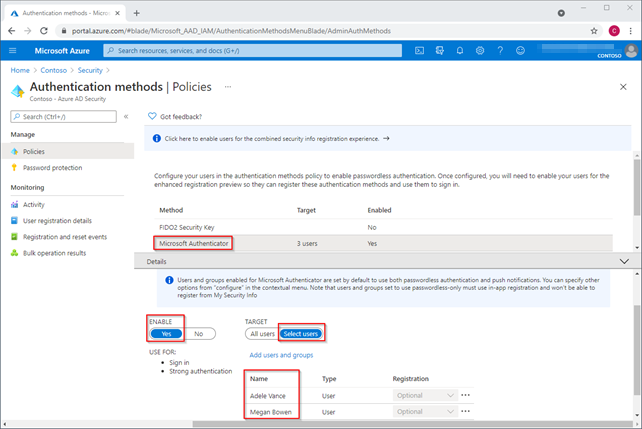
Note: Be aware that at this time, the Microsoft Authenticator app can only be configured to sign in to one account without a password. Hopefully this will be changed in the future.
Setting up Passwordless Authentication for Azure
Once the user is configured to be able to use the Microsoft Authenticator app, they can be further refined to be able to use it with Push, Passwordless, or Any (the default) type of authentication method available in the app by clicking the … next to their row.
The next steps are done by the end user. They must have MFA set up first. Have the user register for MFA using the Microsoft Authenticator app. Refer to this blog for instructions how: https://www.sikich.com/insight/microsoft-mfa-update/.
Once MFA is set up, the user will have the option to set up phone sign-in from inside the app in order to have a passwordless experience using their mobile device. From the app on the mobile device, select the account that was set up, and select Set up phone sign-in, Sign in without a password.
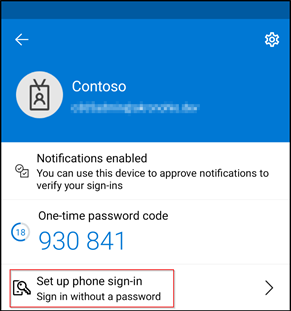
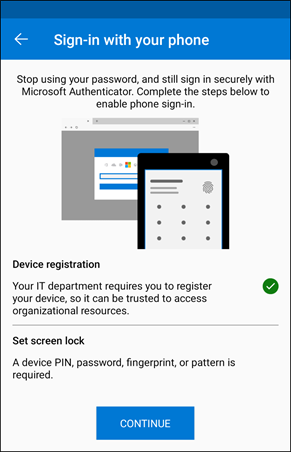
Note: if you get an error stating that this device is already registered with another organization, you won’t be able to continue. To remove the device from the other organization, from the Authenticator app, go to settings, device registration, and unregister the device. Once the device isn’t registered to another organization, it can be set up with passwordless sign in to this organization. Click continue to set it up and follow the prompts to sign in and register the device.
Once the device is registered, you can simply continue to set up sign-in.
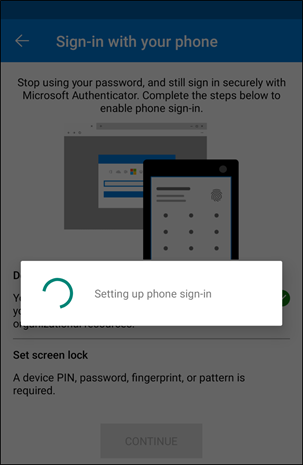
Wait a few moments for it to set up.
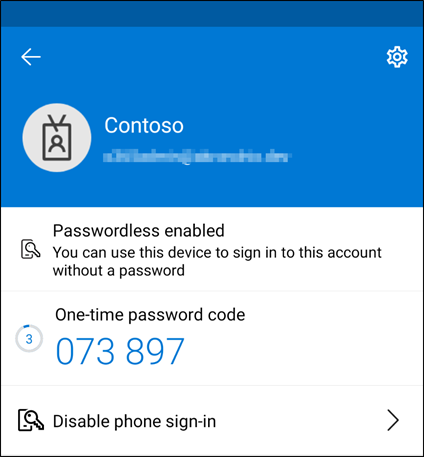
Once set up your device will look like this in the account settings.
Using Passwordless Authentication via the App
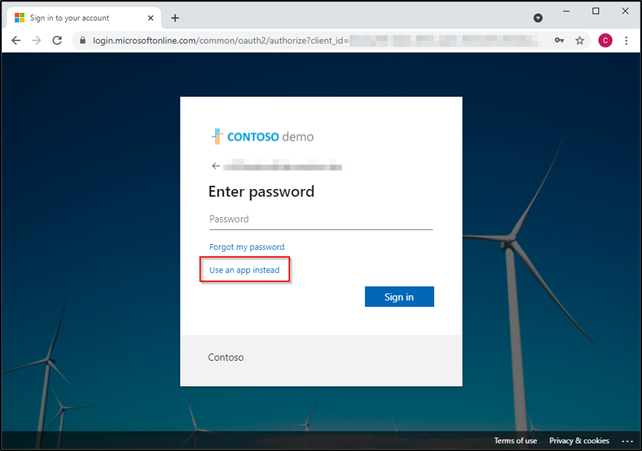
Try it out! Log into https://portal.office.com and sign in. Instead of supplying the password (which remains a valid option), select “use an app instead.”
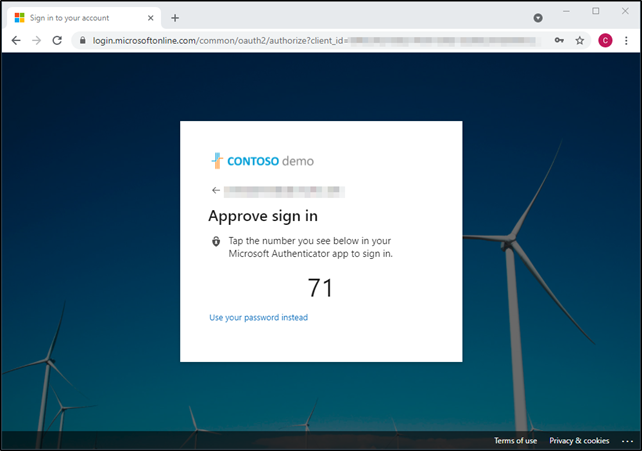
It will display a 2 digit code on the screen.
There will also be a prompt in the Microsoft Authenticator app that will show 3 different numbers. You would look to match the number shown on the screen and then click approve.
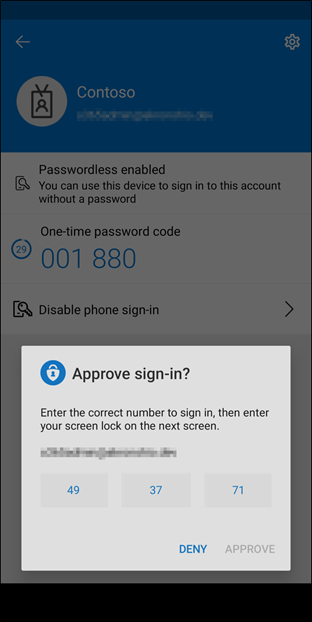
Once the correct code is selected in the Authenticator app, it may request a form of authentication on the device to continue such as a fingerprint or pin.
It will then sign you into the Microsoft service you were connecting to. Once this is selected, it will become the default way to sign in for this account.
This is more secure than a simple prompt to either approve or deny an MFA request through the app because it forces the end user to realize what they are doing instead of mindlessly clicking approve unintentionally.
From time to time and especially while this is in public preview, it’s possible for something to not work quite right and you might see a screen such as this:
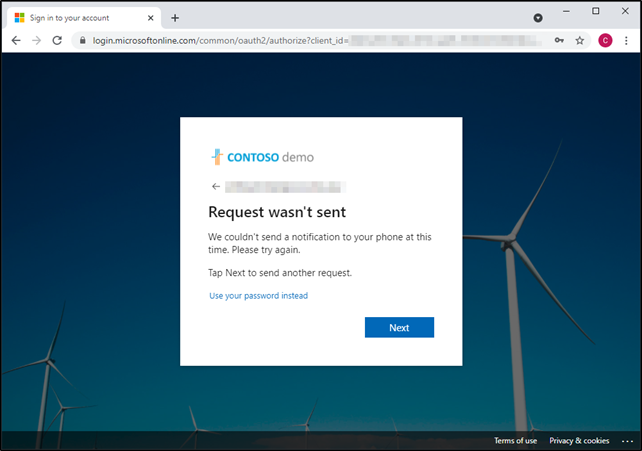
You can attempt to click the next button to try again but in my experience it won’t work. You don’t have to wait it out fortunately as you always have the option to fall back to using your password and MFA prompt instead by selecting the “Use your password instead” link.
I hope these issues will be worked out and this brought out of public preview soon.
This publication contains general information only and Sikich is not, by means of this publication, rendering accounting, business, financial, investment, legal, tax, or any other professional advice or services. This publication is not a substitute for such professional advice or services, nor should you use it as a basis for any decision, action or omission that may affect you or your business. Before making any decision, taking any action or omitting an action that may affect you or your business, you should consult a qualified professional advisor. In addition, this publication may contain certain content generated by an artificial intelligence (AI) language model. You acknowledge that Sikich shall not be responsible for any loss sustained by you or any person who relies on this publication.