







For people not accustomed to entirely working from home, the past few months living in a pandemic could bring about many new challenges. In general, job satisfaction is largely influenced by the daily interactions with those you work with. In a work from home mandated workplace these interactions are impossible now and are replaced 100% by phone calls, emails, chats, or the now extremely popular video conference calls.
However, a tool that should be bringing people together and increasing job satisfaction can result in the opposite—remote meeting fatigue.
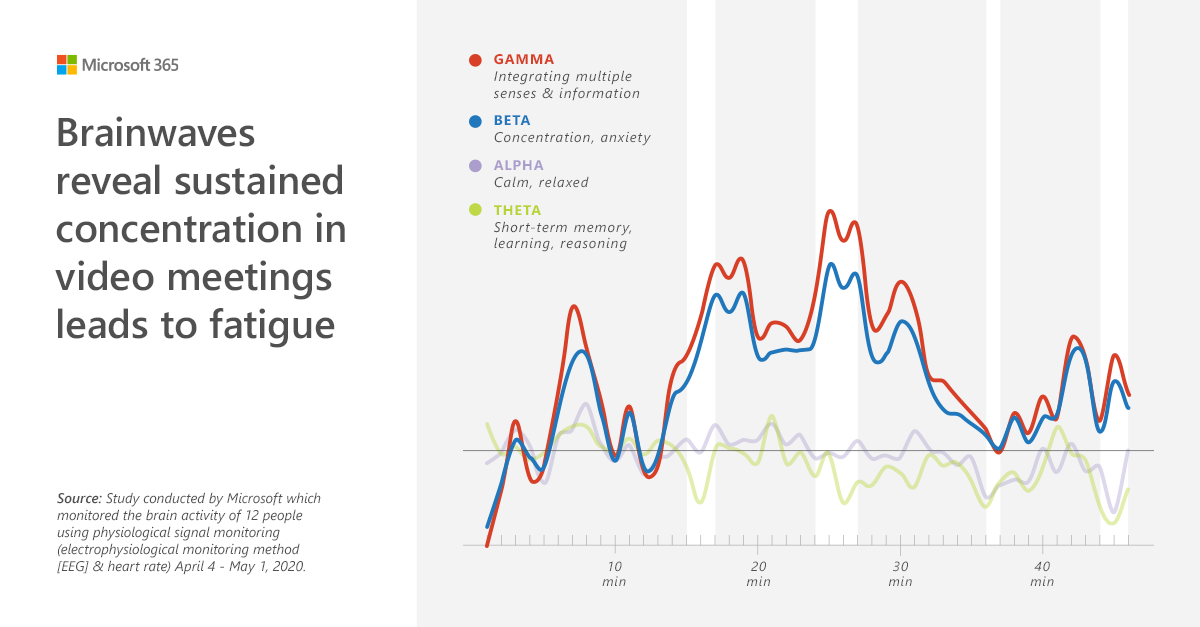
Some simple recommendations are available from Microsoft to help with this including:
- Taking a break every 2 hours to let your brain re-charge
- Getting rid of the hour-long meetings just because you’ve always done hour-long meetings. Try limiting meetings to 30 minutes instead.
Microsoft has also taken steps with technology to assist as well. I’m highlighting the latest available in Microsoft Teams in this blog post, Together mode.
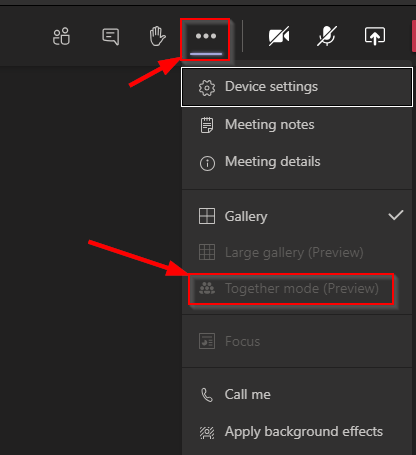
Together mode is available now in Teams for each individual to turn on if they want to view the video this way. It is available when 5 or more users are sharing their video currently and augments each users video, putting them next to each other in auditorium theater seating.

You can turn it on in a meeting by clicking the … and then clicking Together mode.
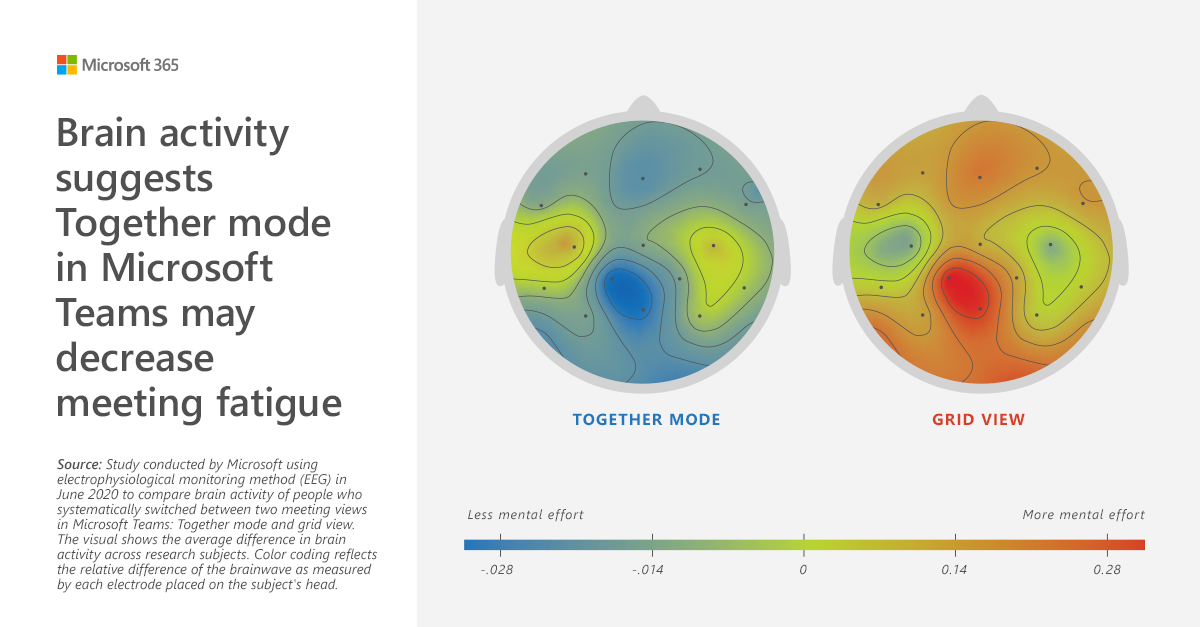
Early research has shown that the brain exerts less effort when making conversations feel more natural, as if all users on the call were sitting together instead of being physically separated.
In the few Teams meetings that I have had the opportunity to use this feature, it is always accompanied by smiling faces when it is first seen. I think that is a good indication that we are social beings; we are not meant to live this life alone.
Using Together Mode
To make sure you can use this feature in Microsoft Teams, you will need a recent version of Teams to be installed. Teams handles updating itself automatically and if you are a regular user of Teams, it is likely already updated. Open Teams and click your profile picture, and then click Check for updates.
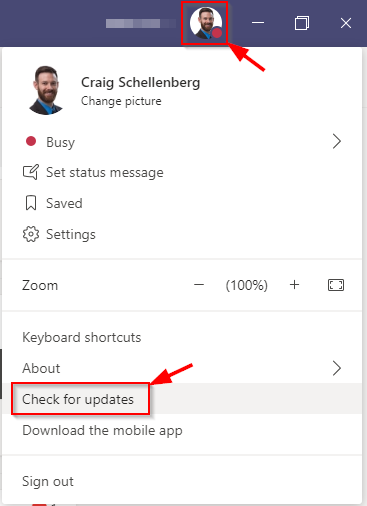
A banner will show at the top of Teams indicating it is looking for updates.

If it finds any updates it will automatically install them in the background. If the update requires Teams to restart, it will prompt you to restart Teams. Otherwise it will give an update that the latest updates were already installed.

You can also check your version by opening Teams, click your profile picture, click About, then click Version.
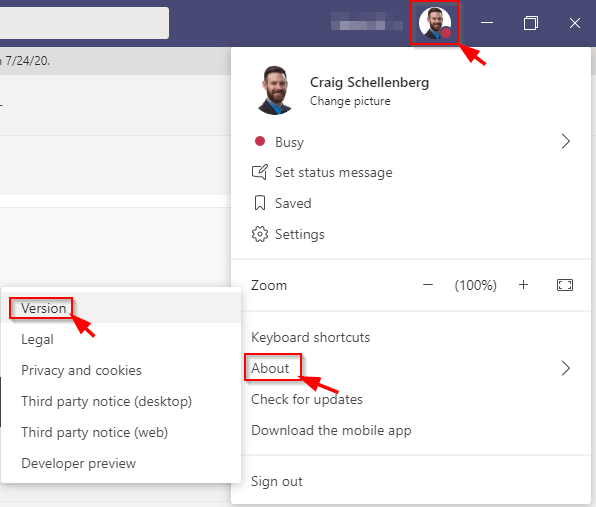
A banner will show at the top of the screen letting you know your version and when the last update was.
Microsoft has written more about the future of remote work and is a great read here: https://www.microsoft.com/en-us/microsoft-365/blog/2020/07/08/future-work-good-challenging-unknown/
If you have any other questions about Microsoft Teams and Together mode, feel free to contact us at any time!
This publication contains general information only and Sikich is not, by means of this publication, rendering accounting, business, financial, investment, legal, tax, or any other professional advice or services. This publication is not a substitute for such professional advice or services, nor should you use it as a basis for any decision, action or omission that may affect you or your business. Before making any decision, taking any action or omitting an action that may affect you or your business, you should consult a qualified professional advisor. In addition, this publication may contain certain content generated by an artificial intelligence (AI) language model. You acknowledge that Sikich shall not be responsible for any loss sustained by you or any person who relies on this publication.