







With Dynamics 365 Sales, Marketing, Customer Service and Field Service, a major consideration of your implementation is managing Dataverse storage space and predicting future growth and investment needed to maintain the environment, so proper budgeting can be done with an eye on future capacity needs.
Managing capacity can often be a delicate balancing act between keeping relevant data and keeping storage costs at a minimum. Running out of space can temporarily stop you from being able to create and update records and having too much free storage space will result in paying for storage space you do not immediately need.
Let us look at ways you can analyze and manage storage space in a cost-effective manner.
Cost-effective storage management
First, it is important to understand how storage breaks down in your environment.
There are three general areas of consideration for your storage capacity:
Database storage
Database storage includes records, table data, and metadata.
Examples:
- Base records (Accounts, Contacts, Leads, Opportunities, Cases, etc.)
- Activity records (Emails, Phone Calls, Appointments, etc.)
- Custom tables
- Workflows and Plugin execution data
- System metadata and configurations
File storage
File storage includes attachments and image files.
Examples:
- Stores attachments (from notes), images, and files.
Log storage
Log storage includes audit logs and system logs.
Examples:
- System logs, audit logs, Plugin trace logs, System job history (workflows and asynchronous jobs)
Analyze your current storage usage
To get started, let us see how to review and analyze the current storage usage in your environment.
Go to Power Platform Admin Center. Choose Licensing > Dataverse.
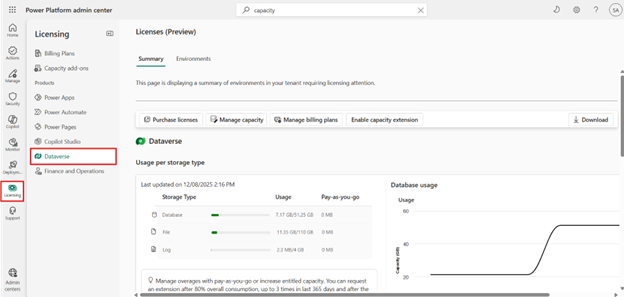
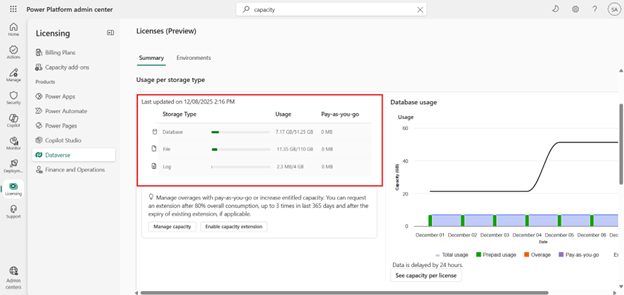
Here we can see the current database, file and log storage used by this environment, under the Storage Capacity Usage section.
On the right is the Storage Capacity by Source section. This section shows the default organization, file and log storage allotted, as well as the additional space included with certain user licenses as well as any additional capacity purchased.
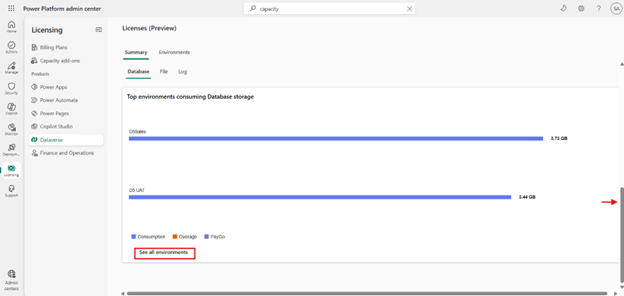
If we scroll further down the page with the right scroll bar, there will be a breakdown of Database storage by usage. Click on the See all environments button in the lower left to expand the view to see all of your environments.
Now that we have identified the current usage for all environments, we can drill into each the details of each environment further, from the Environments tab.
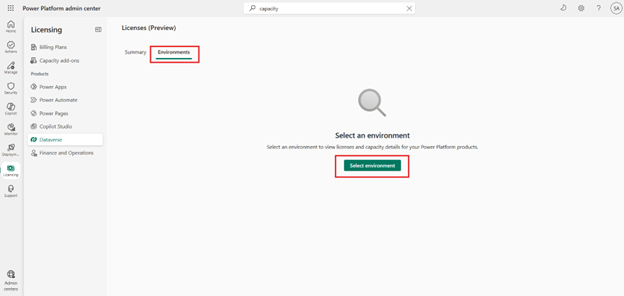
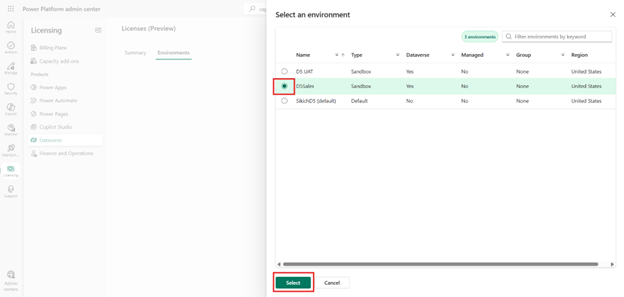
From the Environments tab, click on the Select environment button to choose from a list of environments. Choose the environment to be reviewed and click on the Select button.
After clicking on Select, we will be provided with a breakdown of usage for each storage category in the Usage per storage type section and a list of the top tables based on consumption displayed below in the Consumption per table section. We can see several days of usage in the Database usage chart to the right, which can help determine if there were any recent spikes in usage and estimate general growth rate.
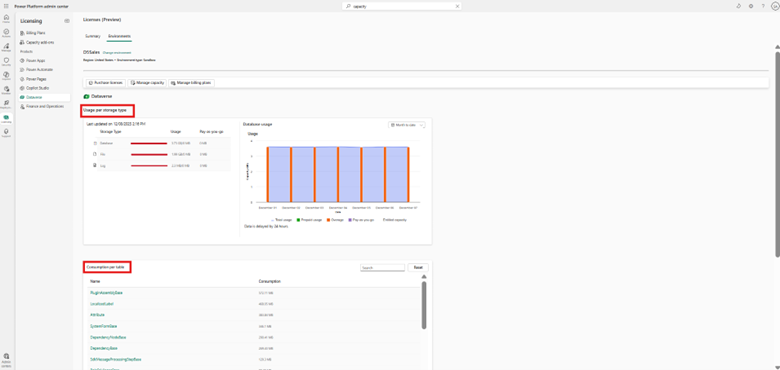
Usage spikes might come from recent data migrations, mass updates or changes in business processes which result in spikes.
Example: After using Dynamics 365 for Sales for 6 months, your company has decided to start utilizing the Dynamics 365 App for Outlook and there is an initiative to track any email related to customer interaction. Since each user might be tracking multiple emails per day to your environment, you can start paying attention to any increase in file attachment space being used as well as any increase in database storage used for email records in the database storage. If you monitor the increase in storage used over a couple of weeks, it can help you estimate future growth rate going forward, based on this change in procedure.
Hover over the Database usage chart to see storage details for a specific date.
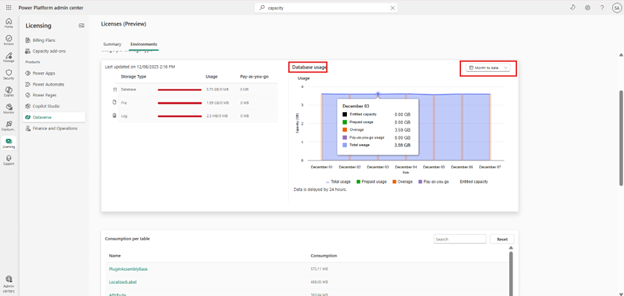
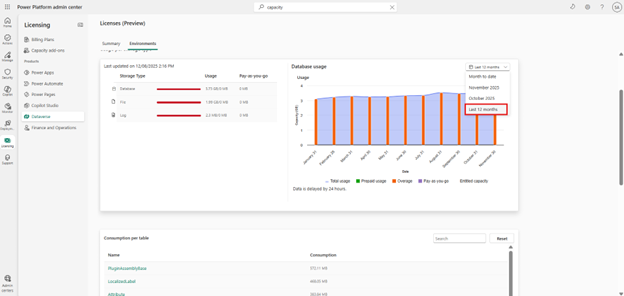
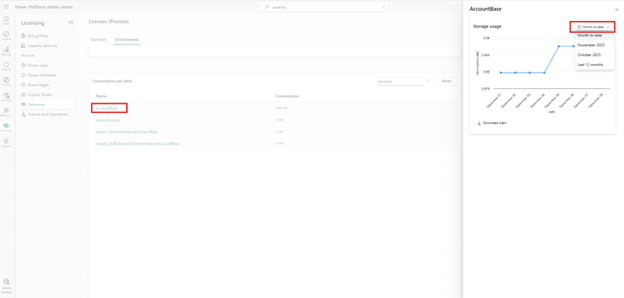
In the upper right of the chart, we can select from timeframe options. Choosing to view the last 12 months can help us see usage trends and predict future storage needs.
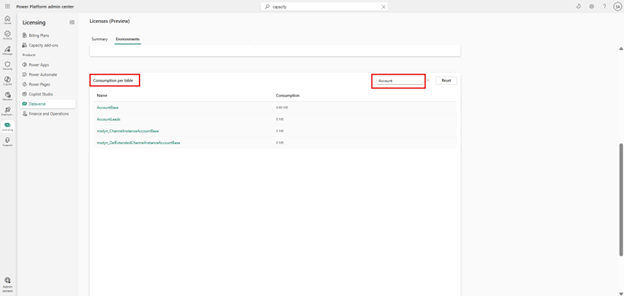
Next, using the right scroll bar, scroll down to the Consumption per table section where we can see database storage used by each table. We can scroll the list of tables or else use the search by entering a table name like “Account”.
Note: After entering table name, hit the Enter key to view the filtered list. You might be tempted to hit the Reset key out of habit, but this will only clear your search and reset the view.
Click on the hyperlink for the table name to bring up a chart showing table growth. You can select a timeframe to see growth trends by previous recent months or for the last 12 months.
Examining all tables
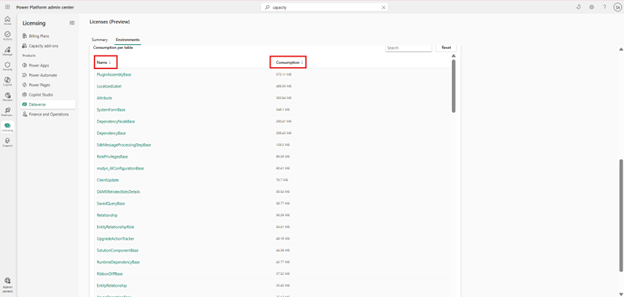
We can sort by Name or Capacity to see the table size and find tables we might want to focus on. Below we will review common tables where we can often delete data from with low impact. We may see system tables consuming moderate amounts of storage, but deleting data from these tables will have wider implications.
Freeing up storage space
Database storage
In general, the following tables can give the quickest wins when trying to free up database storage space:
Email and activities
Email records store data like HTML tags with the email body as well as the body of the email in a text field. All activities such as emails have data in multiple related tables. For example, every email record will have data in the Email and Activity Pointer tables, as well as an entry for each party related to the email in the Activity Party table. The record owner, regarding party, and each to and from record (along with other party types), will have a record created in the Activity Party table. If an email has five people copied on it, there will be more than five records created between those 3 tables. Where there might be thousands of emails recorded in the environment for any given month, it is easy to see where a good amount of storage space can used up in historical emails.
When an email record is deleted, it will also delete those related records and reduce the size of each table at once. Based on the storage used by a single email in the email table and the storage used by the related records, you will typically save the most notable storage space by cleaning historical email messages that are determined to hold little to no historical value. The same holds true with other activities like tasks and appointments, albeit emails will typically result in freeing up the most storage based on the nature of what is stored in the table and the number of related activity parties.
A great rule of thumb is to match your activity retention policy in Dynamics to your company’s email retention policy. If your company policy dictates emails over 3 years old will be deleted and you have 7 years’ worth of activities in the environment, deleting 4 years of activities may save good deal of valuable storage space.
Leads
The Lead table also ties to a Lead Address table. While deleting from other tables like Account and Contact might not be favorable, often disqualified and duplicate leads exist with little value to operations. Deleting disqualified leads that are no longer relevant can free up space from both the Lead and Lead Address table. In many cases, there may be thousands of disqualified Lead records that can be removed with negligible impact on operations.
Accounts and contacts
In general, Account and Contact records have value to operations even when they are inactive. However, if those records are inactive as the result of the merging of duplicates, it is typically advisable to delete those records for housekeeping purposes. Account and Contact records will also have related records like Addresses, Connections, Activities, and the like. Cleaning up these records will minimize the storage space used for those tables. If inactive records resulting from merge operations haven’t been reviewed and deleted in a long time, this would be a good place to look.
Estimating space savings
A good way to get a rough estimate of how much space might be saved by deleting activity records is to look at the total number of years of activities you currently maintain and adding up the storage used by the individual activity tables (Email, Task, Appointment, fax…), the Activity Pointer, and the Activity Party tables provided from the table size export. Add them together then divide by the total number of years of activities for a rough estimate. It is also helpful to consider if the first year the environment was implemented and the current year only has a partial year’s worth of data, make sure to factor that in for a more accurate estimate.
Views can also be used through the interface to help better estimate as well. Using the export to Excel functionality from Activity views filtered on Emails in a time period like one month will give you a total count of records for that period. By deleting that same period of Emails and reviewing the space that opens up, it’s easy to extrapolate a rough estimate of what might be saved by deleting a month’s worth of emails or else an estimate based on record counts in a time period.
While it is not an exact science, it can help determine where to best direct your efforts. If deleting one month of Email activity in a normal year saves 20MB of storage space, it could be roughly estimated that deleting Emails for a normal year will free up 240MB. Further comparing recount counts in different years might help better determine which years are worth targeting.
Remember, it can take up to 24 hours for Microsoft to update storage calculations. Make sure to wait 24 hours to see the results to be sure they are accurate.
Manage Logs and File Storage
We have looked at freeing up database storage space, now let us take a look at how we can manage storage used by Logs and Files (attachments).
File Storage
Move Attachments to SharePoint with SharePoint Integration
One of the best ways to limit and control File Storage size is to enable SharePoint Integration. When you use SharePoint Integration, instead of using File Storage in Dataverse, documents will be stored in SharePoint. The documents are still accessible from the front end, but they will live in SharePoint and will not count against your File Storage capacity.
Remove or Archive Large Attachments
Attachments from emails and notes can consume a large amount of file storage.
- If possible, delete notes with large attachments or move them to SharePoint if SharePoint Integration is set up.
- Review email records with large attachments and consider moving those to SharePoint or deleting records.
Log Storage
Audit log management
Audit logs track changes in records and user activities but can grow significantly over time.
If you have auditing turn on for different entities, it is helpful to review and optimize auditing for storage space considerations. This is done in the Power Platform Admin Center.
- Navigate to Power Platform Admin Center > Manage > Environments > Choose Your Environment.
- From the top command bar, click on Settings > Audit and Logs.
- Disable auditing for unnecessary entities or fields. Set auditing to only the important fields. You can turn Auditing on and off from Audit Settings.
For existing audit logs, you can delete older audit logs to free up space.
- Navigate to Power Platform Admin Center > Manage > Environments > Choose Your Environment.
- On the environment landing page, in the Auditing section under Free up capacity, click on Delete audit logs. This willbring up a form with a list of options for deleting logs By Table, Access logs specifically or all logs by date.
- Going forward, it is possible to schedule bulk deletion jobs to remove older audit logs automatically.

Plugin trace log management
Plugin trace logs store error messages and can grow large over time. These logs should be addressed routinely to avoid unnecessary wasted storage space.
- Follow the steps above to get to the Delete audit logs option.
- Choose to delete by Table and search Plug-in Trace Log but a better option is to use Dynamics CE Advanced filters to delete Plug-in Trace logs with filtering.
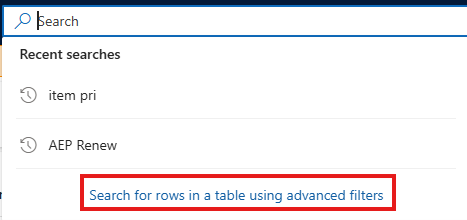
- Use the old UI gearwheel > Advanced Settings. Here you can use the old Advanced Find feature if you still have the option or else use the search option and Advanced Filters by clicking on Search for rows in a table using advanced filters.
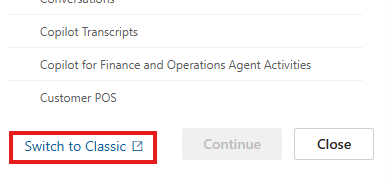
- When the table search form pops up, select Switch to Classic in the lower left corner of the form. This will allow you to use the old Advanced Find functionality.
- Using Advanced Find, you can select Plug-in Trace logs and delete, as necessary.
- The Logging Mode can be turned off or set to exceptions only. Turning off logging in sandbox environments is a good idea if not needed.
System job logs cleanup
System jobs (workflow history, async operations) can use up log space and grow quickly. You can clear the system job logs the same way the Plug-in Trace logs were cleared.
- Use Advanced Find from the previous steps to filter failed or completed jobs for a specific period.
- Bulk delete system jobs. (Make sure when scheduling a bulk delete, you do not include recent records you might need to troubleshoot recent failures).
Tips and suggestions going forward
Now that we have seen where to see storage space usage, how to analyze which entities are using the most space and what you can do to free up storage space, here’s a couple of tips and suggestions for maintaining your environment going forward.
- Purchase enough space to cover estimated growth for the near future based on the growth rate you can now estimate better.
- Staying close on free storage space may trigger warning emails, but it will also help keep storage cost at a minimum. Instead of having 5G of free storage space that may take several months before it is needed, consider if 2G to 3G might be sufficient for the near future so you are not paying for space you may not need for several months, at which time you can simply purchase more storage space. (Remember, if the need arises to create a new environment, at least 1G of free space is needed to perform the action. Also consider any scheduled UAT or Sandbox restores from Production which may result in increasing the storage used by those environments).
- Set a policy for Activity retention and schedule routine Bulk Delete jobs to adhere to that policy.
- It is good practice to match this to your company’s email/records retention policy, at a minimum.
- Set up Deduplication rules for records in your system.
- Set a schedule to run routinely and merge duplicates and then delete the resulting inactive records when applicable.
- Review your storage capacity and utilization, at least monthly.
- Compare week-over-week and month-over-month trends, analyze spikes, and plan accordingly as you add new users or change business practices that might affect capacity.
- When you add new users and add licenses, some licenses include additional space allotment.
- Remember to include that in your calculations. Conversely, make sure to account for any reduction in licensed users. It may cost you a bit storage space from the default allotment if you reduce the number of user licenses.
- Delete unneeded environments and unneeded data from Sandbox environments.
- If you are addressing data in the Production environment, do not forget to address it in any other environments!
- Consider data warehousing for historical records you would like to keep but have minimal value for day-to-day operations.
- Warehousing historical data and removing it from your environment may offer a great solution to free up storage space while keeping those historical records.
- Set a schedule and routinely purge audit logs when you have auditing turned on.
- Check your ISV’s attachments storage policy. Certain ISVs exist that allow you to move Emails (body and HTML) and Notes Attachments to an offsite location. While this may be an effective way to free up storage space and keep historical records access through the application, make sure you consider the scenario where you might move away from that ISV in the future. Migrating the records back to your environment or a data warehouse may not be possible. Even if it is possible, migrating activities can be costly and require purchasing additional migration applications to perform the migration. If you choose this route, consider the impact of potentially losing those records in the future.
- When deleting records – When you delete records, it can take up to 24 hours before you see the results. After deleting records, wait 24 hours before you review the results to get an accurate picture of the resulting storage space implications.
- Before adding new users – If adding new users, consider the space needs due to new users potentially tracking more emails and activities and adding more data in general.
- Schedule bulk delete jobs. – Scheduling bulk delete jobs to delete records and logs older than X years will keep your data inline with your retention policies in an automated fashion.
- If deleting records, always remember once they are gone, there are options to restore the records, but the effort may be costly and time consuming so proceed with caution!
Have any questions about managing your Dataverse storage space for Dynamics 365? Please reach out to our experts at any time!
This publication contains general information only and Sikich is not, by means of this publication, rendering accounting, business, financial, investment, legal, tax, or any other professional advice or services. This publication is not a substitute for such professional advice or services, nor should you use it as a basis for any decision, action or omission that may affect you or your business. Before making any decision, taking any action or omitting an action that may affect you or your business, you should consult a qualified professional advisor. In addition, this publication may contain certain content generated by an artificial intelligence (AI) language model. You acknowledge that Sikich shall not be responsible for any loss sustained by you or any person who relies on this publication.