







It is best practice to periodically review the security accounts held in Active Directory so that inactive accounts can be disabled or deleted. This regular administrative activity is intended to identify unused accounts so that they can either be disabled or deleted and prevented from being used maliciously.
PowerShell can effectively provide answers regarding whether a user or computer account has been used to authenticate against Active Directory within a certain period of time. This scripting can either result in creating a report of active or inactive accounts as well as automatically disabling them.
How to Use Powershell for User/Account Reporting
To start, ensure that PowerShell is run with Administrator privileges. Once PowerShell is running ensure that the Active Directory module is loaded by using the following command:
Import-Module activedirectory
Results can then be generated using the appropriate scripting for the type of object you are generating information for. The Get-ADUser and Get-ADComputer syntax is used based on whether you are querying for user or computer accounts.
A filter is employed with the scripting to set the target date for the query. The greater than (gt) or less than (lt) operators are used depending on if you want to know accounts that have not logged on since the specified date (-lt) or have logged on since the specified date (-gt).
The full syntax to determine the user accounts that “have” logged on successfully since 3/30/2018 would appear as:
Get-ADUser -Filter {lastlogondate -gt “3/30/2018”} -Properties lastlogondate | select Name,LastLogonDate | sort LastLogonDate
Conversely, to display the user accounts that have not logged on since the specified date:
Get-ADUser -Filter {lastlogondate -lt “3/30/2018”} -Properties lastlogondate | select Name,LastLogonDate | sort LastLogonDate
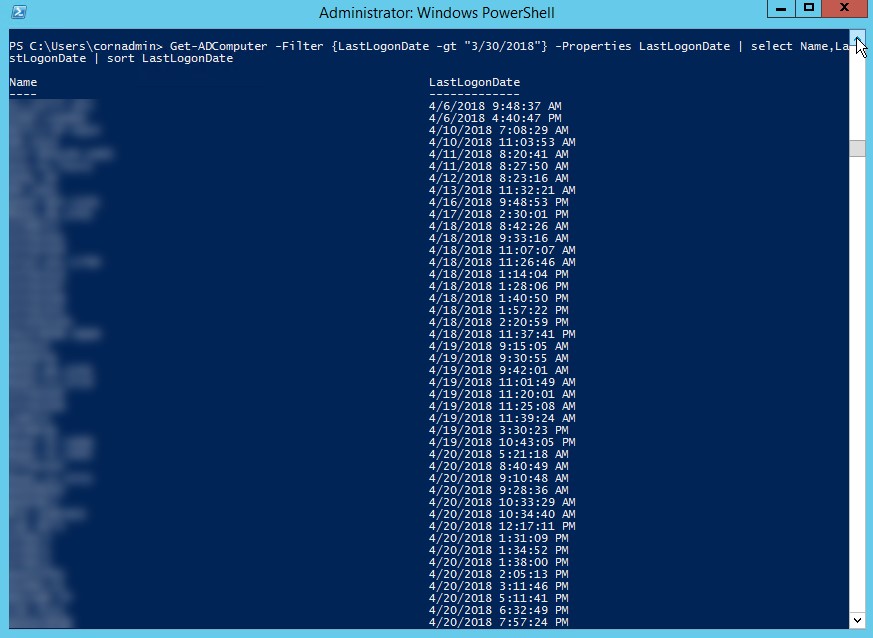
Similar syntax exists for the computer accounts. The syntax to display the computer accounts that have logged in since the specified date would appear as:
Get-ADComputer -Filter {lastlogondate -gt “3/30/2018”} -Properties lastlogondate | select Name,LastLogonDate | sort LastLogonDate
To list the computer account that have “not” logged in since the specified date:
Get-ADComputer -Filter {lastlogondate -lt “3/30/2018”} -Properties lastlogondate | select Name,LastLogonDate | sort LastLogonDate
Additional options exist depending on what needs to be accomplished. The report data can be output to a file using the Out-File command. The syntax to output the information from the last script to a text file:
Get-ADComputer -Filter {lastlogondate -lt “3/30/2018”} -Properties lastlogondate | select Name,LastLogonDate | sort LastLogonDate | Out-File C:ComputerLastLogon.txt
Finally, we can script disabling the accounts that have not logged in since the specified date. In the following example, we disable the user accounts that have not been used to authenticate against Active Directory since the specified date:
Get-ADUser -Filter {lastlogondate -lt “3/30/2018”} -Properties lastlogondate | Set-ADUser -Enabled $false
This publication contains general information only and Sikich is not, by means of this publication, rendering accounting, business, financial, investment, legal, tax, or any other professional advice or services. This publication is not a substitute for such professional advice or services, nor should you use it as a basis for any decision, action or omission that may affect you or your business. Before making any decision, taking any action or omitting an action that may affect you or your business, you should consult a qualified professional advisor. In addition, this publication may contain certain content generated by an artificial intelligence (AI) language model. You acknowledge that Sikich shall not be responsible for any loss sustained by you or any person who relies on this publication.