







To refresh a Sandbox environment in Business Central, you need to delete the Sandbox and create a new one. There is no refresh option to provide more recent data from your Production environment. You will create an entirely new tenant as a copy of Production; this ensures that the Sandbox environment is an exact copy of Production as of that point in time.
Business Central allows up to three Sandbox environments and three Production environments at once. We recommend adding a date and initials to the Sandbox name, so it is clear exactly when the environment was created and by whom or for what purpose (i.e. integration testing, data imports, etc.).
Unlike on-premises database systems, you do not need to take a backup of the Production environment before or ensure that users are out of the system during this process.
Please note that you are unable to recover a tenant (Sandbox or Production) after it has been deleted without the support of Microsoft. They alone have access to the backend of your system and can restore an environment that has been removed to a certain point in time.
How to create a new Sandbox as a copy of Production
- Log into the Business Central Admin Center (if you are not sure how to access the Business Central Admin Center, ask your IT department or partner).
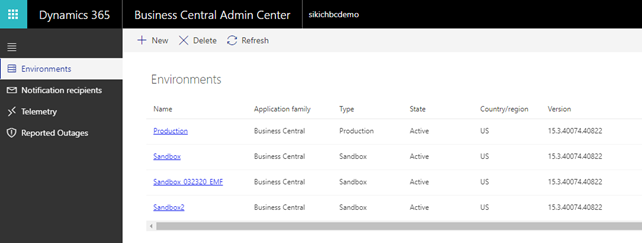
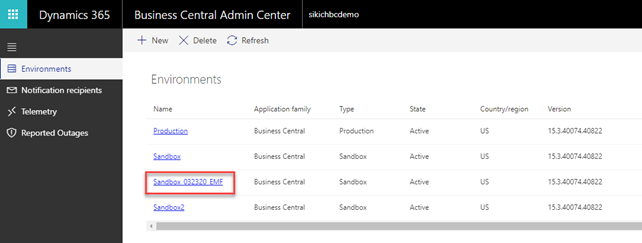
- Click the name of the Sandbox environment you wish to refresh.
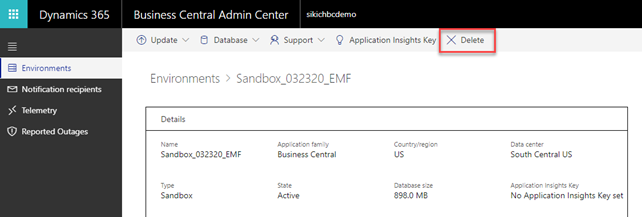
- Click “Delete” to delete the Sandbox environment.
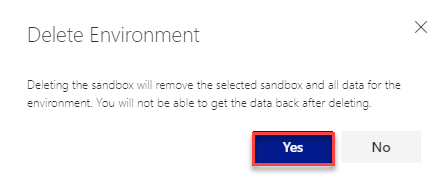
- Click “Yes” to confirm.
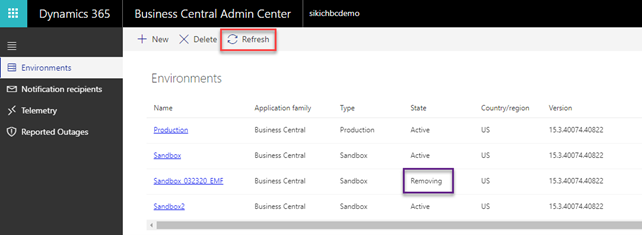
- The State will show as “Removing” initially. Click “Refresh” until the environment is removed from the list.
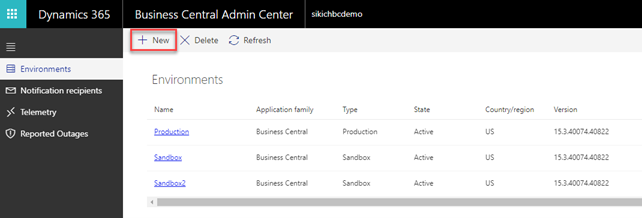
- Click “New” to create a new Sandbox environment.
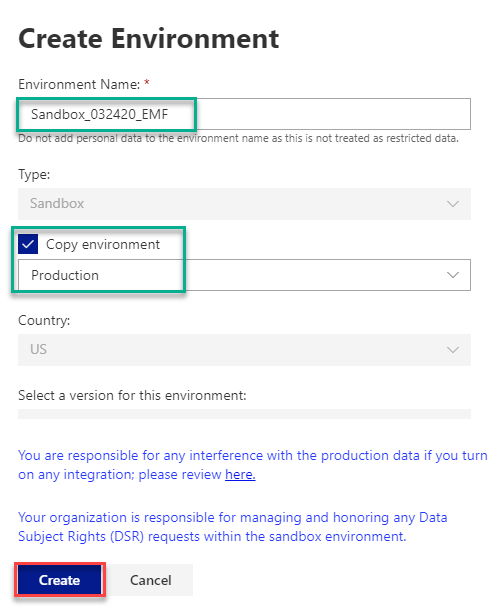
- Enter an Environment Name, select Copy environment, choose Production, then click “Create.”
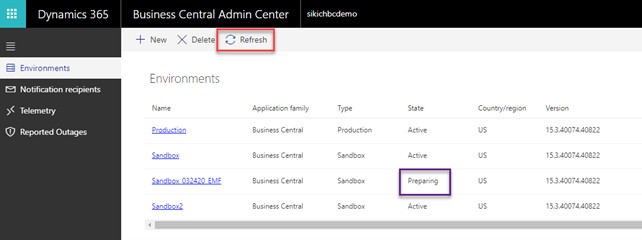
- The State will show as “Preparing” initially. Click “Refresh” until the State shows as “Active.”
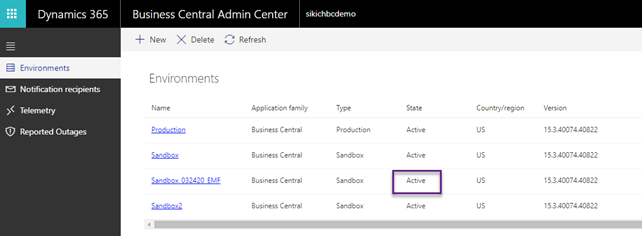
Once the State shows as “Active,” the refreshed Sandbox environment is ready to use! You can log into the environment by clicking on the URL (either within the main Business Central Admin Center or by clicking on the Environment Name). You can also copy the URL and share it with others throughout the organization for testing purposes.
Creating a copy of your Business Central company
In addition to creating a new Sandbox environment, you also have the option to duplicate or copy a BC company inside the same tenant. This is a quick option if you need to test something inside your live company (for example, troubleshooting an error message that you are experiencing).
Here are the steps:
- Search “Companies” in your universal search bar.
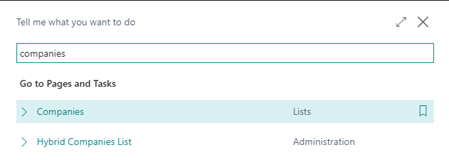
- Select or highlight the company you wish to copy.

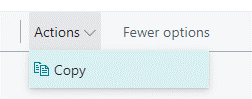
- Click “Copy” under Actions in the toolbar.
- Type the name of your new company. Click the toggle to check “Understand” then click “OK.”
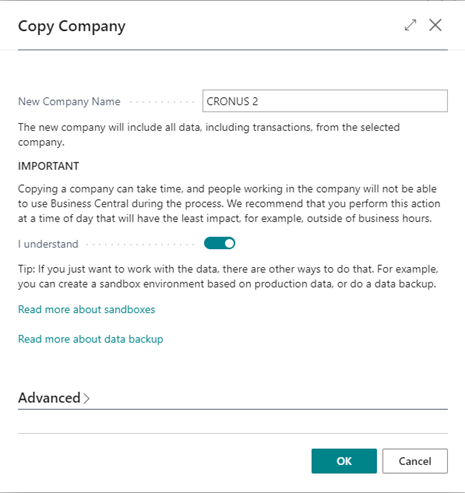
- Wait until you receive confirmation that the company has been created.
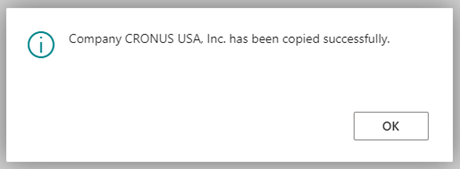
And that’s it! Now you have a copy of your BC company to use. When you are done using the company, you can easily delete it afterwards in the same “Companies” window.
If you have any questions on managing your Business Central environments or companies, please feel free to reach out to Sikich at any time!
This publication contains general information only and Sikich is not, by means of this publication, rendering accounting, business, financial, investment, legal, tax, or any other professional advice or services. This publication is not a substitute for such professional advice or services, nor should you use it as a basis for any decision, action or omission that may affect you or your business. Before making any decision, taking any action or omitting an action that may affect you or your business, you should consult a qualified professional advisor. In addition, this publication may contain certain content generated by an artificial intelligence (AI) language model. You acknowledge that Sikich shall not be responsible for any loss sustained by you or any person who relies on this publication.