







Microsoft Teams live events allow users in your organization to broadcast video and meeting content to large online audiences. While meetings are typically collaborative, live events are meant to be a one-to-many communication with the host leading the event by sharing video and content. Attendees can have the ability to participate via Q&A or conversation on Yammer.
Up until recently, the max audience size was 10,000 attendees, however, Microsoft just increased this to 20,000 on July 1, 2020. Besides using a live event to do an internal broadcast to potentially your entire organization, you also can use them to communicate to the public. By default, however, the ability to broadcast publicly is disabled.
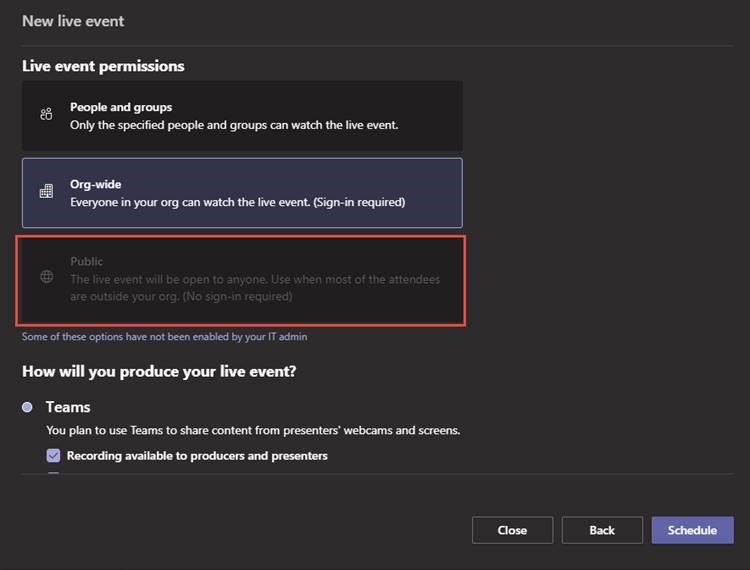
You can enable the option for a public live event via the Teams admin center. You can opt to enable it globally for your organization or on a per user basis by creating multiple live event policies.
To view your live event policies from the Teams admin center, expand Meetings and select Live event policies. You will only have one policy by default—Global (Org-wide default)—that Teams will apply to all users.
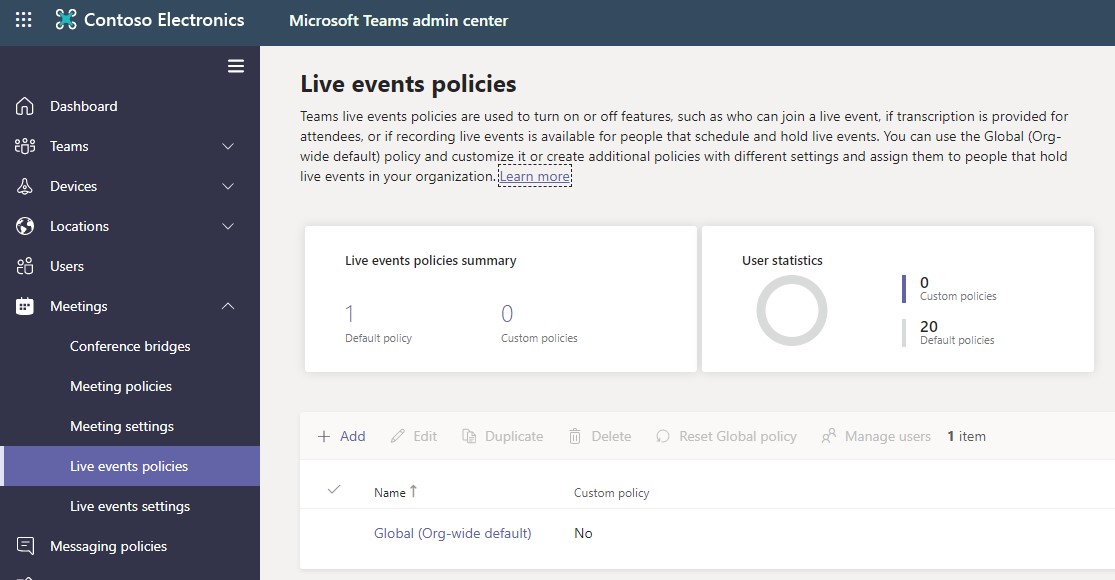
Enable Live Public Events for Entire Organization
If you would like to enable the option to create Teams live public events for your entire organization select the Global (Org-wide default) policy. Select the drop down next to Who can join scheduled live events and change this from Everyone in the organization to Everyone.
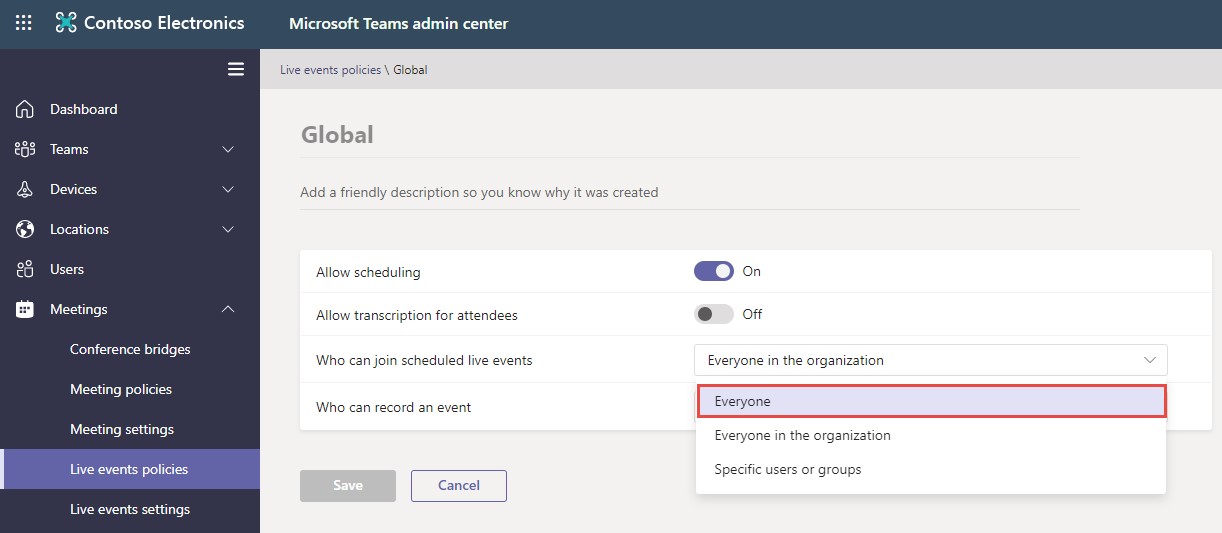
Enable for Specific Users
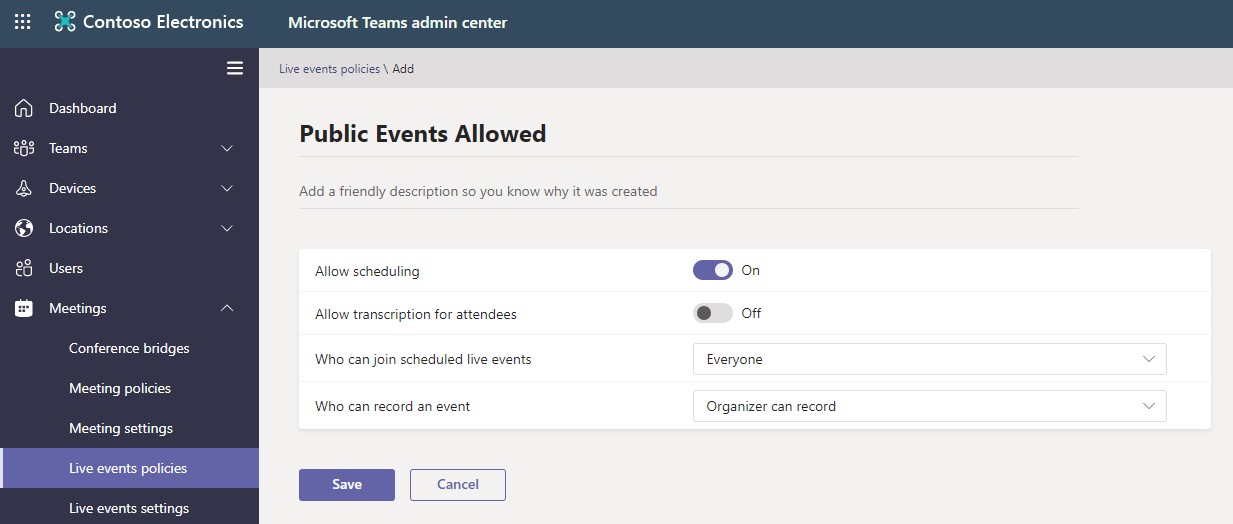
If you prefer to enable the option to create live public events for only specific users, we will leave the Global (Org-wide default) policy as is. Instead, we will select the +Add button from the Live events policies page to create a new policy.
Give your new policy a name, such as Public Events Allowed. The primary setting we want to adjust is Who can join scheduled live events. Set this to Everyone. The other settings can be adjusted at your discretion. You may want to consider the Who can record an event option. Changing this to Organizer can record gives the power to record solely to the Organizer. You may want to do this if you prefer to edit the video after recording it, before making it available.
Once we create the new policy, we need to assign it to the users we want to allow to create public live events. To do this, go to the Users section of the Teams admin center. Find a user you want to make the change for, and select the View Policies link next to their name.
Next to Assigned Policies, select Edit. From the menu that pops up on the left side of the window, locate Live events policy and select the newly created Public Events Allowed policy from the drop down. Click Apply to save changes.
Repeat this step for each user that you want to allow to create public events. The change should take effect for the user almost immediately. They may need to restart their Teams client to see it reflecting on their end.
Microsoft is continuing to expand on the capabilities of Teams live events, as they are with the entire platform. If you are already using Teams internally, you should consider how the included public live events feature can help your business continue to grow and meet your goals.
This publication contains general information only and Sikich is not, by means of this publication, rendering accounting, business, financial, investment, legal, tax, or any other professional advice or services. This publication is not a substitute for such professional advice or services, nor should you use it as a basis for any decision, action or omission that may affect you or your business. Before making any decision, taking any action or omitting an action that may affect you or your business, you should consult a qualified professional advisor. In addition, this publication may contain certain content generated by an artificial intelligence (AI) language model. You acknowledge that Sikich shall not be responsible for any loss sustained by you or any person who relies on this publication.