







Microsoft’s Network Policy Server (NPS) extension allows you to add your existing Azure AD MFA to your infrastructure by pairing it with a server that has the NPS role installed. By configuring that solution and then configuring your SonicWall firewall to use RADIUS authentication for VPN clients via the same server running NPS, you are able to enforce MFA on new VPN connections. While both of the vendor documents I’ve linked contain information on how to configure each piece of this solution separately, I am going to walk through the exact steps you need to take to implement the solutions so they fully work together.
Prerequisites
While I will not be walking through how to configure any of these prerequisites, as there is plenty of information available on these topics, you should review them and confirm they are in place so you don’t run into issues following the rest of this guide.
- Azure MFA deployed to users and licensed for its use (Azure AD Premium P1/P2 or EMS)
- Users are registered to use either the Authenticator app notifications or phone call MFA methods. This is necessary because the SonicWall VPN clients do not allow you to enter an MFA code, whether generated via TOTP or SMS.
- Windows Server 2012 or newer with the NPS role installed
- On-premise AD that is syncing to Azure AD via Azure AD Connect
- The NPS server is able to communicate to the URLs listed here via 80/443.
Install the NPS extension
You must download and install the NPS extension on your servers that NPS will be configured on. If you are using multiple servers for redundancy, complete this process on each server. After installing using the executable, you will also need to run a script that configures a self-signed certificate and the public keys needed for AAD. Microsoft’s documentation on this is good, and I suggest referencing it if you run into errors following these steps.
- Download the NPS extension from here to the NPS server you will be installing it on
- Run the setup.exe file, if you have errors confirm these prerequisite libraries are installed.
- Launch PowerShell as an admin and browse to C:Program FilesMicrosoftAzureMfaConfig
- cd “C:Program FilesMicrosoftAzureMfaConfig”
- Run the AzureMfaNpsExtnConfigSetup.ps1 script
- .AzureMfaNpsExtnConfigSetup.ps1
- Sign into AAD with a global administrator account when prompted
- Provide your Tenant ID GUID when prompted
- This can be found by logging into the Azure AD admin portal on the web and reviewing the Overview blade.
IMPORTANT – The self-signed certificate that gets created by running the script is valid for 2 years. After it expires, you will need to run the script again to generate a new certificate. Ensure after doing so you remove the expired certificate to prevent any potential issues. This will need to be done on each server you configure NPS on.
Configure NPS
Configure your RADIUS clients
Create a new RADIUS client for your SonicWall and configure it, as shown in the following screenshots. You’ll need to provide a Friendly Name, the IP of the firewall, and create a shared secret (be sure to make a note of this, we will later use it during the SonicWall configuration).
Configure your Connection Request Policies
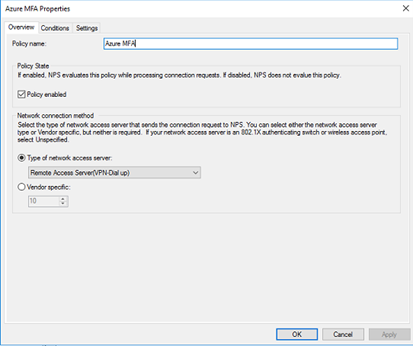
Create a new Connection Request Policy and configure it, as shown in the following screenshots. Ensure to set the type of network access server to Remote Access Server (VPN Dial-up).
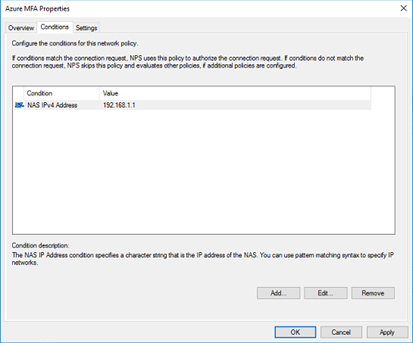
For the conditions, add a NAS IPv4 address and point it to the IP of your SonicWall.
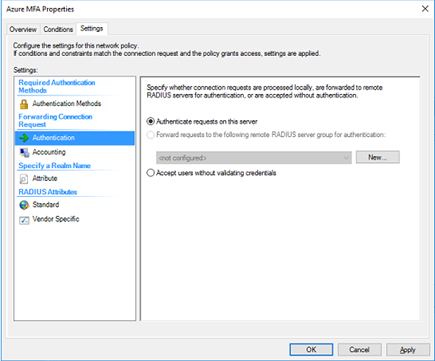
The Authentication settings can be left to the default of Authenticate requests on this server.
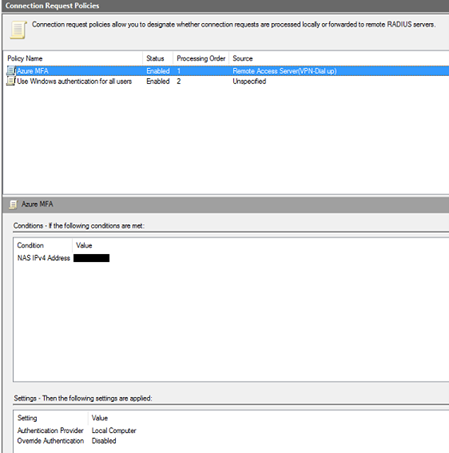
Once the policy is created, set its processing order to 1.
Configure your Network Policies
Create a new network policy as shown in the following screenshots.
Be sure to check the box for ignore user account dial-in properties. The type of network access server can be left to unspecified.
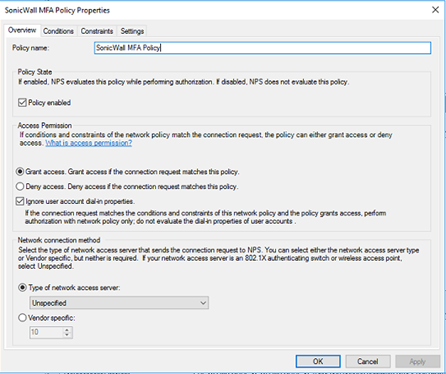
The condition will vary depending on how you’re restricting your access to the VPN, if at all. In this example, two different AD security groups are being used. One that gives full VPN access, and another that only allows the use of port 3389 for establishing RDP.
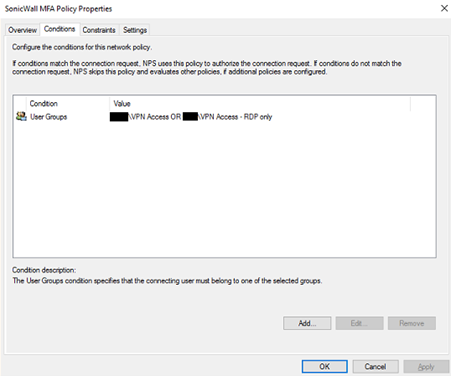
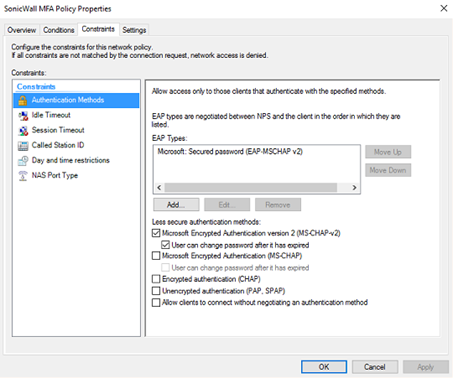
Restrict the Authentication Methods to MS-CHAP-v2, as this is the supported method used by the Azure AD.
Once completed, set the processing order of the new Network Policy to 1.
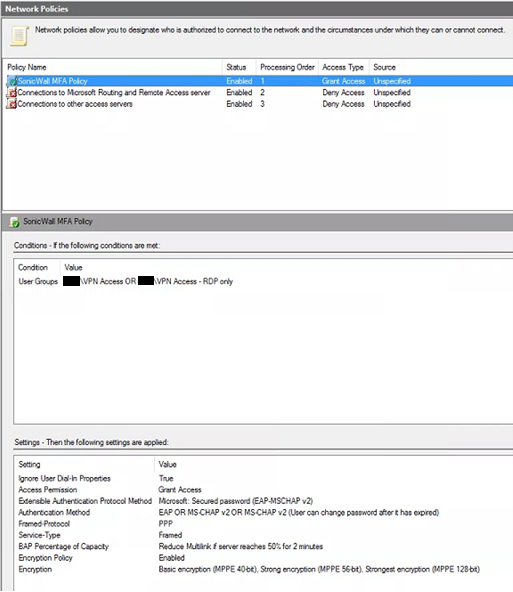
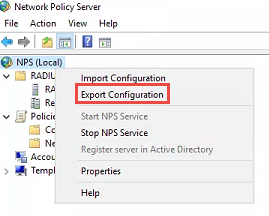
If you are going to configure NPS and the NPS Extension on multiple servers for redundancy, you can export your NPS configuration and import it onto the secondary server to quickly apply the same configuration. Do this by right-clicking on NPS (Local) and selecting Export Configuration.
Configure the SonicWall for RADIUS
This guide assumes your SonicWall was already configured for client VPN and was using LDAP or Local Users for authentication previously. If you’re starting from scratch, SonicWall’s documentation will walk you through the initial configuration.
Configure RADIUS
- Log into the SonicWall and go to Manage > Users > Settings
- Select Configure RADIUS
- Add your server(s) that you just configured.
- Provide the IP and Shared Secret that we previously configured when setting the RADIUS Client up during the NPS configuration. The port can be left at the default of 1812 unless your environment is configured otherwise.
- Servers will initially show a status of yellow. When an authentication attempt is made, this will change to green.
- I recommend under General Settings to set the RADIUS Server Timeout (seconds) to 60 or lower. The timeout for Azure AD MFA is 60 seconds.
- For RADIUS Users settings, select the appropriate mechanism for looking up users. If you were previously using LDAP or Local Users, check the appropriate box.
Change the User Authentication Method
Be aware that proceeding will cause all existing VPN connections to be terminated. You will likely want to make this change during an outage window.
- Log into the SonicWall and go to Manage > Users > Settings
- Using the drop-down menu, change the User Authentication Method to RADIUS or RADIUS + Local Users.
Test your VPN
To test the SonicWall VPN, you will need to use a licensed account that you’ve previously configured Azure AD MFA for and registered the MFA method as Authenticator app notifications or phone calls. When you initiate the VPN connection from the SonicWall NetExtender application, you will see the connection process hang at the below step. During this time, you should be receiving an Authentication notification or phone call.

Troubleshooting
If you’re not getting the anticipated results when testing, you can revert your User Authentication Method back to what was previously in use in order to restore VPN access while you troubleshoot. Some suggested troubleshooting tips are below:
- Review the prerequisites at the beginning of this post, along with the prerequisites listed in the documentation links for Microsoft and SonicWall and ensure everything required is in place.
- Review the Event logs on your Windows server running NPS.
- Event Viewer > Custom Views > Server Roles > Network Policy and Access Services
- Uninstall the NPS Extension and test again, this will ensure there are no issues with standard RADIUS authentication between your SonicWall and Windows server environment.
- See Microsoft’s documentation on troubleshooting errors with the NPS Extension.
Have any questions about configuring Azure AD MFA with SonicWall? Please reach out to our experts at any time!
This publication contains general information only and Sikich is not, by means of this publication, rendering accounting, business, financial, investment, legal, tax, or any other professional advice or services. This publication is not a substitute for such professional advice or services, nor should you use it as a basis for any decision, action or omission that may affect you or your business. Before making any decision, taking any action or omitting an action that may affect you or your business, you should consult a qualified professional advisor. In addition, this publication may contain certain content generated by an artificial intelligence (AI) language model. You acknowledge that Sikich shall not be responsible for any loss sustained by you or any person who relies on this publication.