







Azure DevOps is modernizing how Team Foundation Version Control (TFVC) check-in policies are stored and managed. Microsoft has announced a multi-phase transition from a legacy storage model to a JSON-based format that is more reliable, easier to maintain, and compatible with current and future versions of Visual Studio. This change resolves long-standing serialization issues and reduces the risk of policy corruption over time.
The full announcement is available on the Azure DevOps Blog.
As teams prepare for this transition, many are discovering that older TFVC projects still contain obsolete or legacy check-in policies. Some of these policies are easy to identify and remove through Visual Studio. Others are hidden—causing check-in failures even when the Check-in Policy UI shows no configured policies.
This article summarizes the TFVC policy storage changes and explains how to safely remove obsolete policies, including a programmatic cleanup option for scenarios where Visual Studio can no longer surface them.
Understanding the TFVC policy storage update
Microsoft is rolling out this change in three distinct phases:
Phase I — Migration support (complete)
Visual Studio 2017, 2019, and 2022 (with appropriate updates) can read and write the new JSON-based policy format. During this phase, teams could opt in and migrate existing policies forward.
Phase II — Blocking obsolete policy saves (December 2025)
Legacy policies can still be read, but Visual Studio no longer allows them to be created or updated. This prevents accidental reintroduction of obsolete policy definitions.
Phase III — Removal of obsolete policy read support (January–February 2026)
Visual Studio stops reading obsolete policies entirely. Any policy that has not been migrated by this point becomes unusable and must be recreated using the new format.
Because of this timeline, teams should audit existing TFVC projects now to avoid unexpected check-in issues once legacy policy support is fully removed. If you have not removed the policies, you may see the error:
“It’s not possible to operate with deprecated policies, please see Azure DevOps blog for more information.”
Removing obsolete TFVC policies
Path 1: Remove policies through Visual Studio
If Visual Studio can still read your legacy policies, removal is straightforward:
- Open Team Explorer
- Select Settings
- Choose Team Project Settings
- Open Source Control
- Select Check-in Policy
Obsolete policies are clearly labeled. Select the policy, click Remove, and save the configuration. If the policy is still required, recreate it afterward so it is stored in the new JSON-based format.
For many teams, this fully resolves the issue.
Path 2: Policies exist but the UI shows none
Some teams experience a more confusing situation:
- Visual Studio reports check-in policy validation errors
- The Check-in Policy UI shows zero configured policies
- Errors persist even after updating Visual Studio
In these cases, obsolete policy entries still exist on the server but can no longer be displayed in the client UI. When this happens, the only reliable fix is to remove the policies programmatically.
Code-Based Cleanup for Hidden Policies
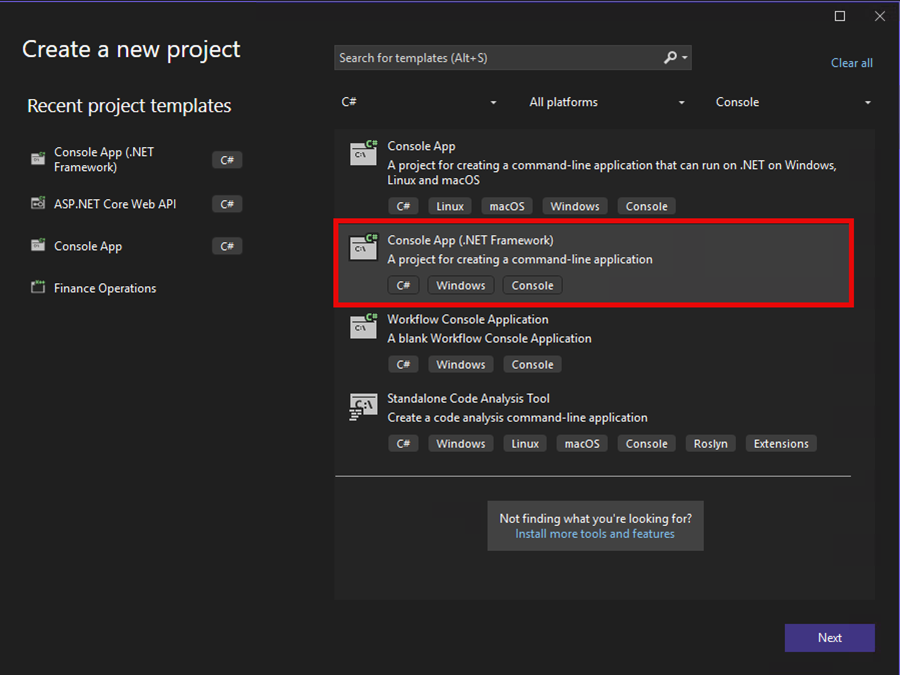
1. Create a console application
Create a Console App (.NET Framework) project targeting .NET Framework 4.8. This application will connect directly to your Azure DevOps collection and clear the TFVC policy configuration for a specific project.
2. Add the Required Visual Studio Client Assemblies
Add references from your Visual Studio installation, commonly located at:
C:\Program Files\Microsoft Visual Studio\2022\Enterprise\Common7\IDE\TestTools\TeamExplorerClient
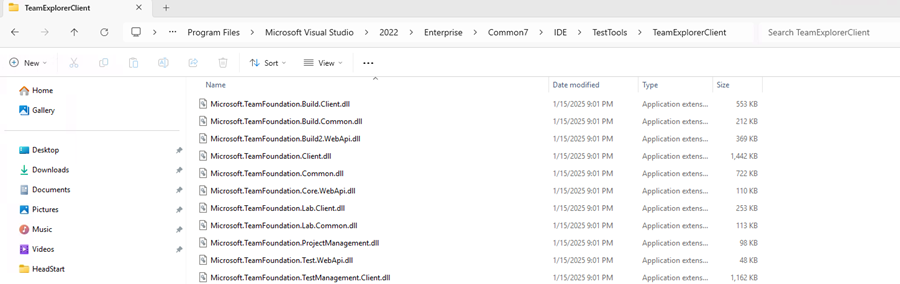
Required assemblies:
- Microsoft.TeamFoundation.Client.dll
- Microsoft.TeamFoundation.VersionControl.Client.dll
3. Resolve the TeamProject type ambiguity
If the TeamProject type is ambiguous, fully qualify it using:
Microsoft.TeamFoundation.VersionControl.Client.TeamProject
4. Clear the check-in policies programmatically
The following code connects to your Azure DevOps collection, retrieves the TFVC project, and removes all configured check-in policies by setting them to null. Please change the highlighted portions to reflect your Azure DevOps Site and Project.
using Microsoft.TeamFoundation.Core.WebApi; using Microsoft.TeamFoundation.Client; using Microsoft.TeamFoundation.VersionControl.Client; namespace PolicyCleanup {
internal class Program
{
static void Main(string[] args)
{
var collectionUri = "{UrlToYourCollection}";
var currentProjectName = "{YourProjectName}";
using (TfsTeamProjectCollection tpc = new TfsTeamProjectCollection(new Uri(collectionUri)))
{
var versionControlServer = tpc.GetService<VersionControlServer>();
Microsoft.TeamFoundation.VersionControl.Client.TeamProject teamProject =
versionControlServer.GetTeamProject(currentProjectName);
teamProject.SetCheckinPolicies(null);
}
}
}
}
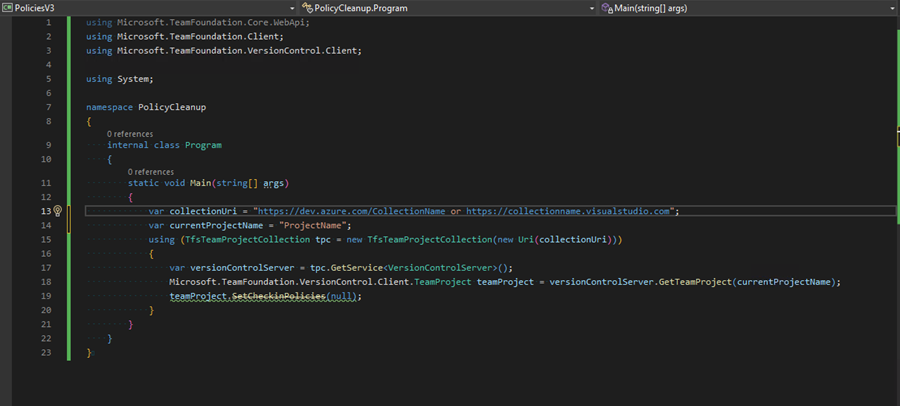
Although SetCheckinPolicies is marked as obsolete, it has proven effective in this scenario. If it does not work in your environment, use the newer SetCheckinClientPolicies method instead.
Recreate Required Policies
After cleanup, return to Visual Studio and re-add any required check-in policies. Newly created policies will be stored using the modern JSON-based format and will remain compatible with current and future Visual Studio releases.
Final Thoughts
The TFVC policy storage update significantly improves reliability and long-term maintainability, but it also exposes hidden technical debt in older projects. Teams that still rely on TFVC should proactively audit and clean up obsolete policies now, before legacy policy support is fully removed.
Whether you can resolve the issue through Visual Studio or need to use the programmatic cleanup approach, addressing obsolete policies early will prevent future check-in disruptions and ensure a smooth transition to the new policy model.
Connect with Sikich experts for TFVC policy support.
This publication contains general information only and Sikich is not, by means of this publication, rendering accounting, business, financial, investment, legal, tax, or any other professional advice or services. This publication is not a substitute for such professional advice or services, nor should you use it as a basis for any decision, action or omission that may affect you or your business. Before making any decision, taking any action or omitting an action that may affect you or your business, you should consult a qualified professional advisor. In addition, this publication may contain certain content generated by an artificial intelligence (AI) language model. You acknowledge that Sikich shall not be responsible for any loss sustained by you or any person who relies on this publication.