









In recent years, we have seen more and more organizations pursuing CMMC (Cybersecurity Maturity Model Certification) compliance in order to be able to work as Department of Defense (DoD) contractors and subcontractors. CMMC compliance demonstrates that an organization has implemented robust cybersecurity measures to protect sensitive, unclassified information.
By default, no FortiGate firewall appliance, with its standard firmware installed, is FIPS-CC certified, which is a requirement to be CMMC-compliant. This is true even with the latest firmware update provided by Fortinet. In addition, a FortiGate firewall deployment is no longer limited to a physical device deployed to an on-premises network. More and more FortiGate Virtual Firewall appliances are being deployed in the cloud to protect the workloads there.
In my previous blog post, “How to Deploy a FIPS-CC-Certified FortiGate Appliance,” I discussed how to deploy a FortiGate Firewall Appliance to an on-premises network. In this blog post, I will discuss how to deploy a FIPS-CC certified FortiGate virtual firewall in an Azure Cloud network environment.
I will assume the following:
- You are deploying a new FortiGate Virtual Appliance in Azure.
- The FortiGate appliance has been properly registered.
- You have access to the Fortinet support site to download the latest firmware of the FortiGate appliance.
Deploy a FIPS-CC Certified FortiGate Virtual Firewall in Azure Cloud
When you attempt to deploy a FortiGate Virtual Appliance in the Azure environment, you will discover that a FIPS-CC version of the FortiGate firmware is not available.
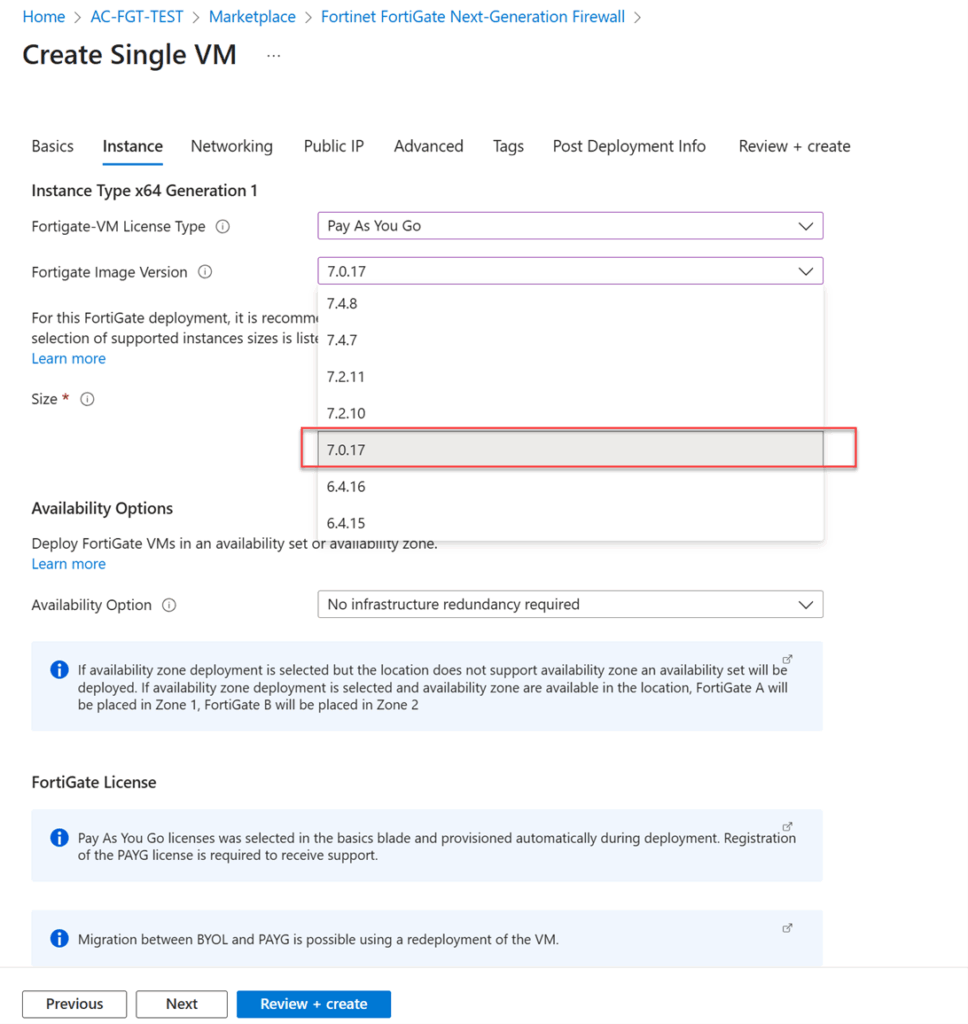
For a physical FortiGate appliance for an on-premises network, you simply download the FIPS-CC version of firmware, upload it, and replace the default firmware that comes with the Firewall. This is not the case with a FortiGate Virtual Appliance for Azure. Instead, you need to deploy the FortiGate Virtual Appliance as a custom virtual machine provided by Fortinet. The following sessions will walk you through how to accomplish this.
1. Download the virtual machine image of a FIPS-CC version of firmware
Go to the Fortinet support site and download the VM version for Azure.
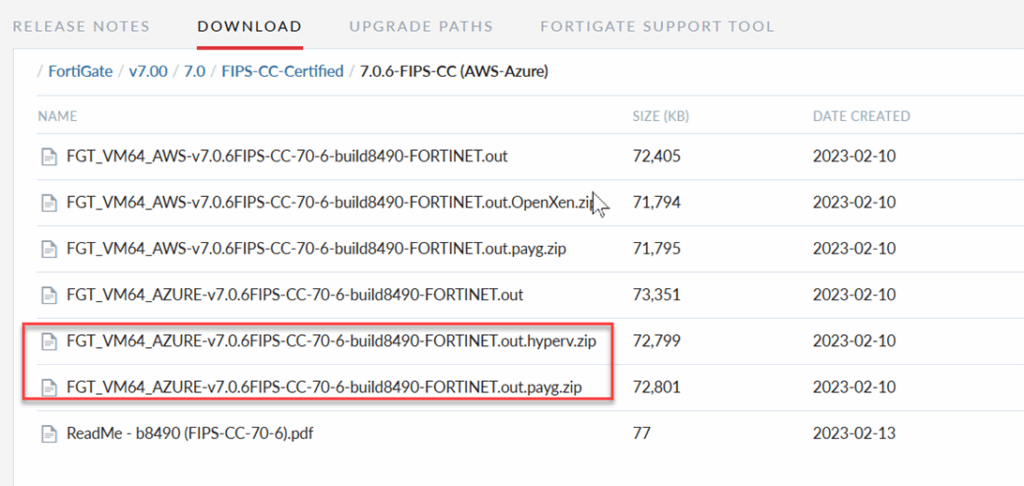
2. Deploy a custom virtual machine image to Azure
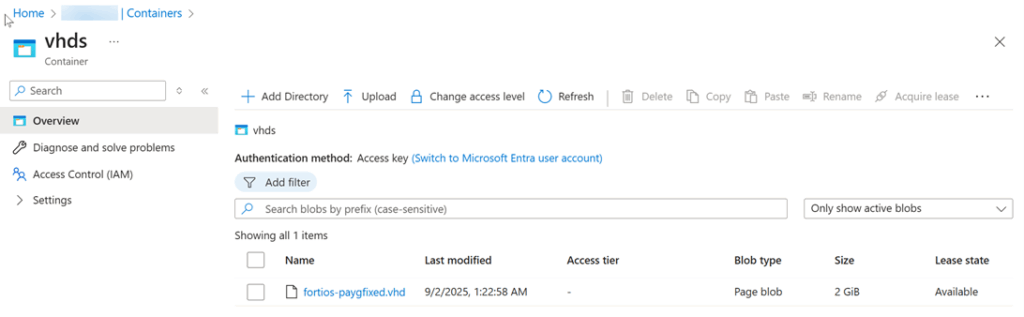
Create a storage account with a container, vhds, in Azure to store the custom image.
Upload the custom image you downloaded to the container. (Please make sure to convert the dynamic vhd disk of the image to fix the vhd disk before uploading.)
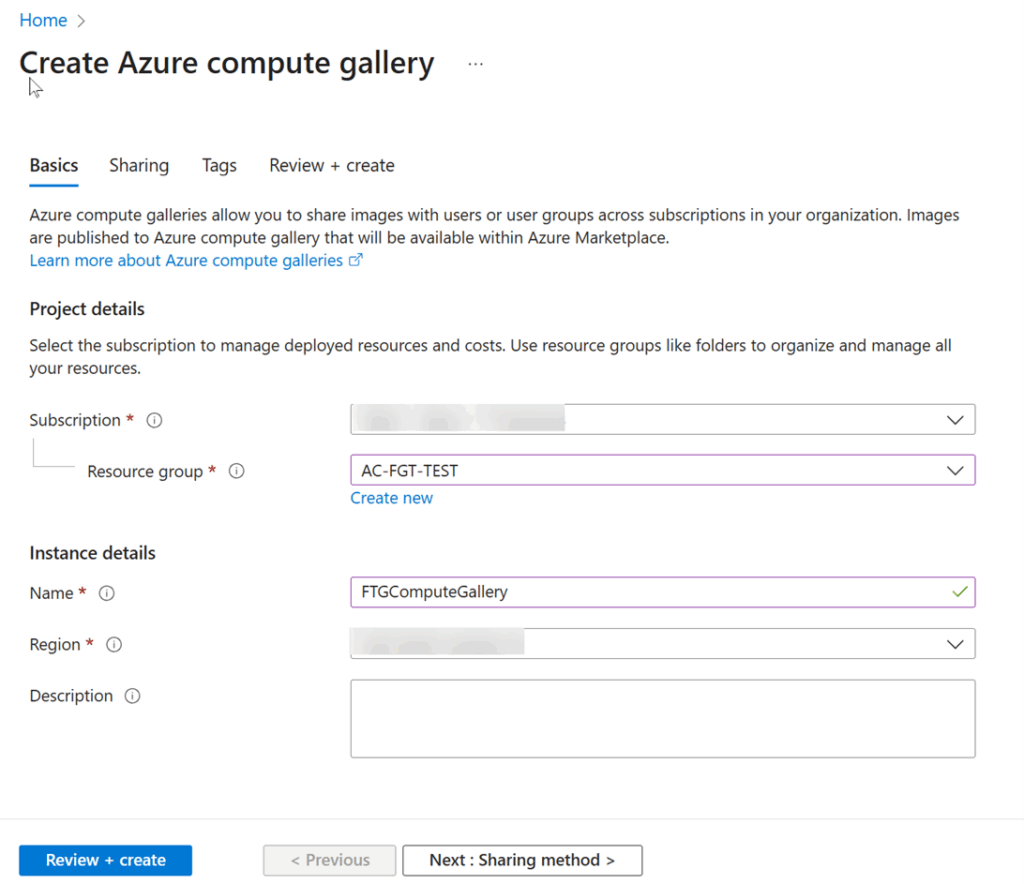
3. Create an Azure Compute Gallery
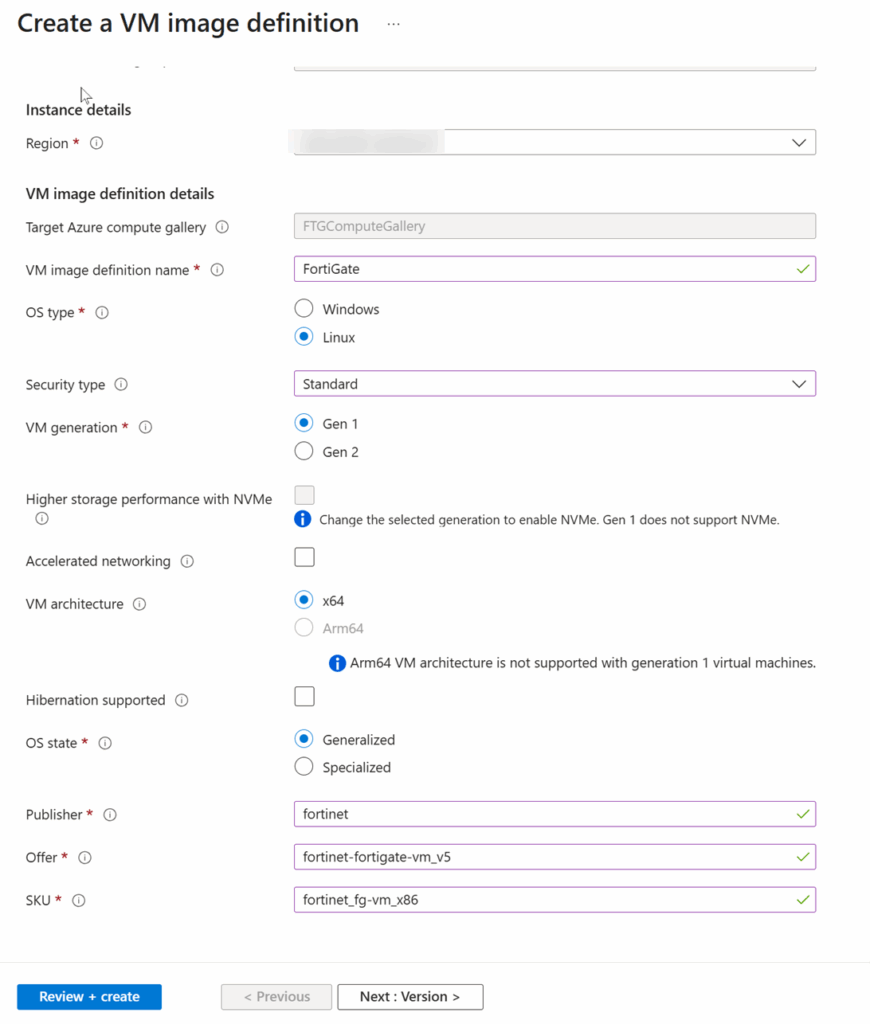
4. Create an Image Definition
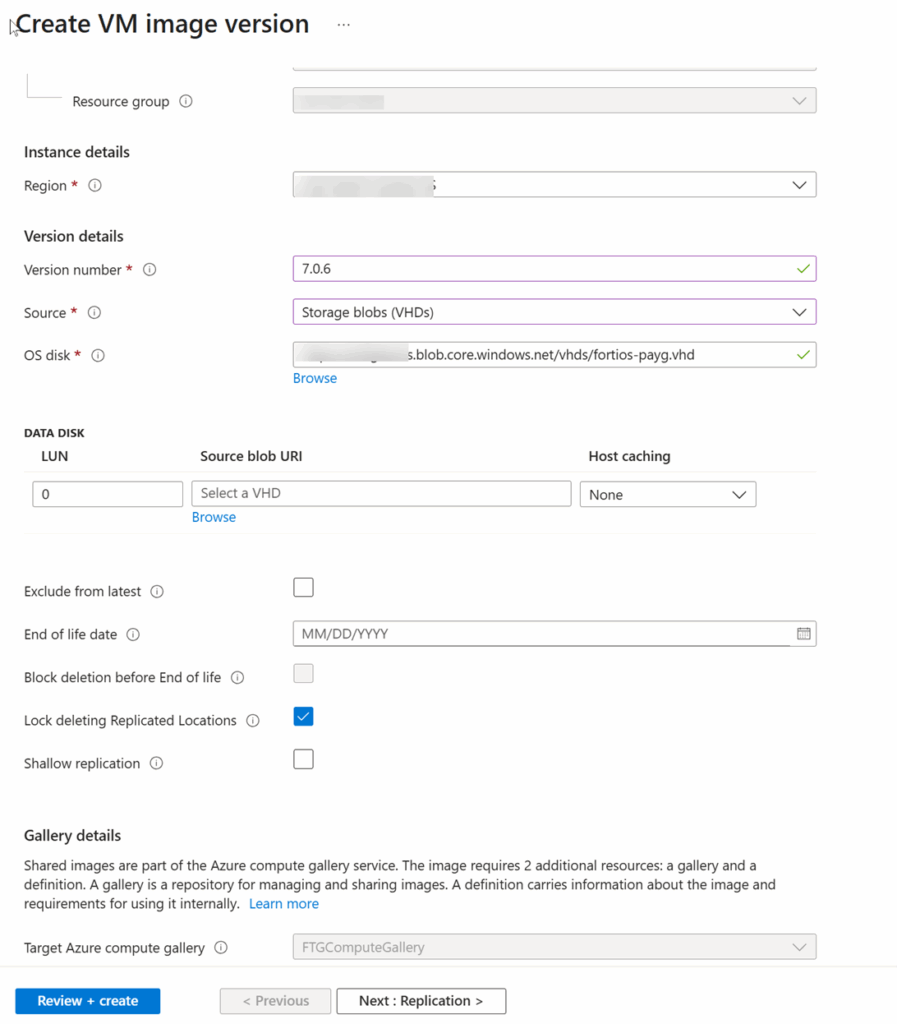
5. Create an image version based on the uploaded FortiOS vhd file
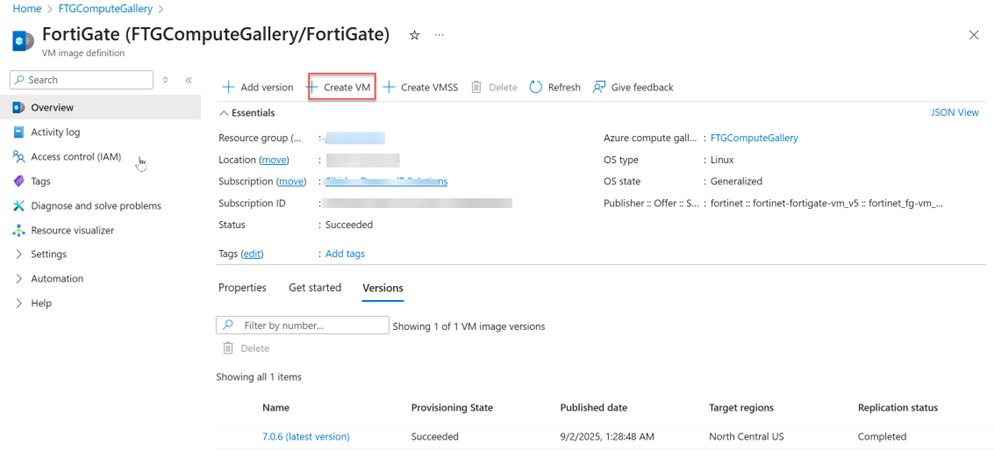
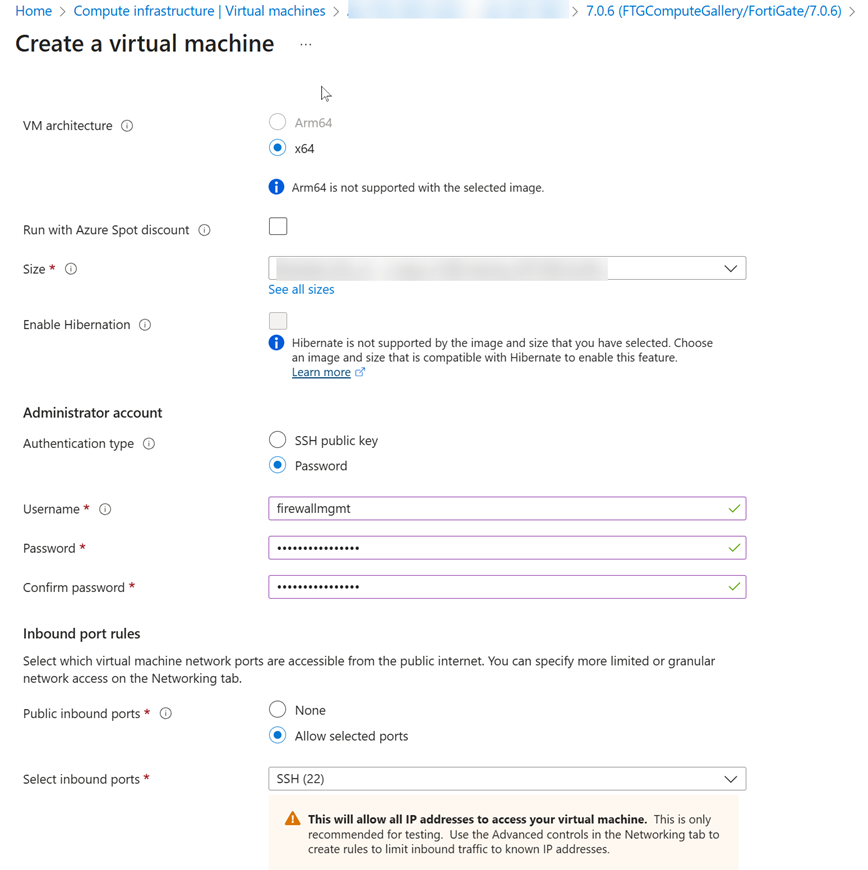
6. Deploy a FortiGate virtual appliance with a custom image
7. Confirm the new VM is running and the FortiGate appliance is accessible
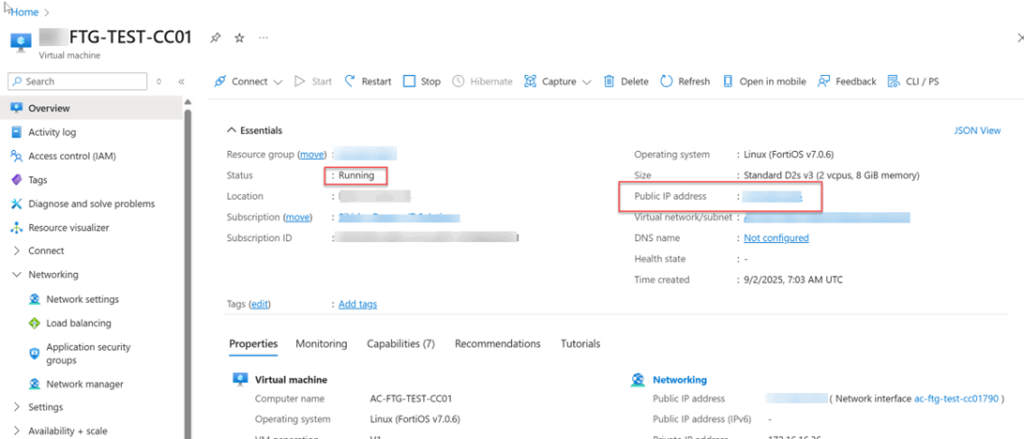
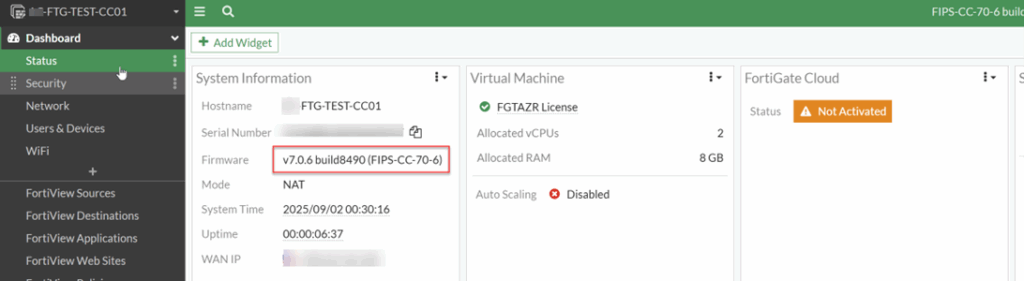
You have now successfully deployed a FIPS-CC version of the FortiGate Virtual Appliance in Azure.
8. Additional configuration after the deployment of the custom image
There are additional tasks that need to be done on the newly created FortiGate VM before it can be fully functional in the Azure environment. (Note: when deploying a FortiGate from the Azure marketplace, these tasks will be done for you automatically.)
- Add a second NIC for the internal network.
- Update the Network Security Group which was created by the custom template to allow inbound internet traffic to access the FortiGate external network interface. By default, only SSH (TCP 22) is allowed.
Additional considerations
Fortinet’s current version of the FIPS-CC certified firmware with the custom image is 7.0.6 (as of this writing), which is a few versions behind the latest firmware version. Per Fortinet support, there will be no new version anytime soon, because certifying a firewall to be FIPS-compliant is a lengthy process.
Make sure to disable the automatic firmware update option and ignore firmware update requests when logging into the FortiGate firewall. FortiGate will not prevent you from performing the firmware update, but doing so will break the FIPS-CC certified status of your firewall.
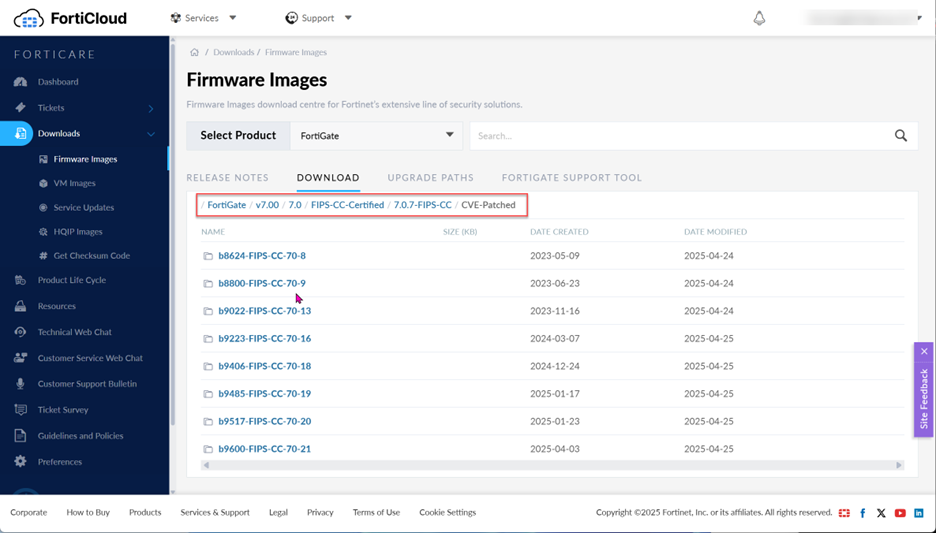
Although Fortinet does not release new updates of the FIPS-CC certified firmware frequently, they do release patches based on CVE (Common Vulnerabilities and Exposures) advisories very quickly. For this reason, make sure to check the CVE bulletins regularly and go to the Fortinet firmware download site to see if new patches are available.
If you have any questions about deploying a FIPS-CC certified FortiGate virtual firewall in Azure Cloud, please feel free to reach out to our team of IT and cybersecurity experts at any time!