







Let’s take a look at how to create multithreaded batch jobs in Microsoft Dynamics 365 F&SCM. In most cases a single threaded batch job will be perfect for the job. However, there are situations where additional performance may be needed and, in those cases, using multithreaded batch jobs could provide us with the throughput required.
The code referenced in this article follows this project structure:
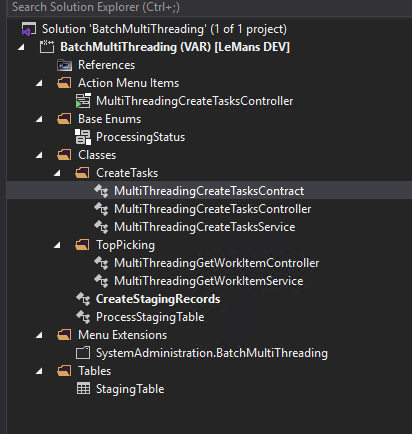
Read this article for more information about different approaches to multithreading. Here we will implement Top Picking.
A quick overview of the approach:
- We will create a batch job that will be our main job used to create tasks. This job should look to process all records in a staging table at the time of execution by dividing records between different threads.
- This job will create X number of threads, each of these threads will lock the top available record in the staging table and send that record to our processing class to run business logic on that method.
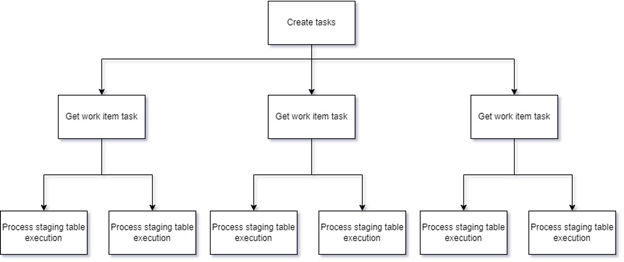
Step One: Create Tasks
Create a standard single-threaded batch job. This will be our main batch job that will divide our work into tasks and assign each task to a new thread. Most of this should be very familiar as it follows the standard SysOps framework.
The contract class will take input from the user to determine how many tasks to break our work up into.
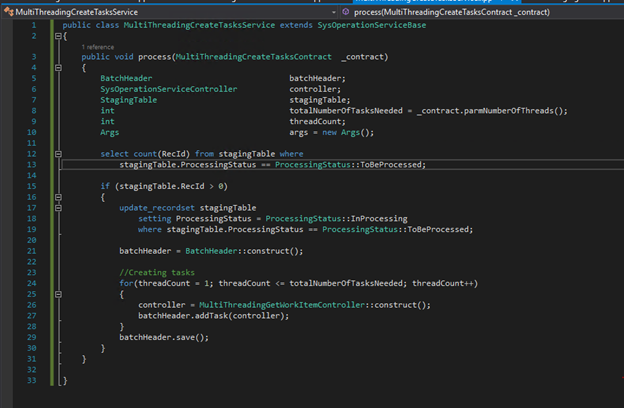
The service is the most interesting part, so let’s dive into that more.
- If there are records in the staging table to be processed, mark all of them as in processing. This will prevent us from attempting to process records that get added to the staging table during the current execution.
- Then create the total number of threads based on the data obtained in the contract class, for each task create an instance of our “Get work item” job.
- Finally we can save the batch header to initiate the new batch job.
Step Two: Top Picking
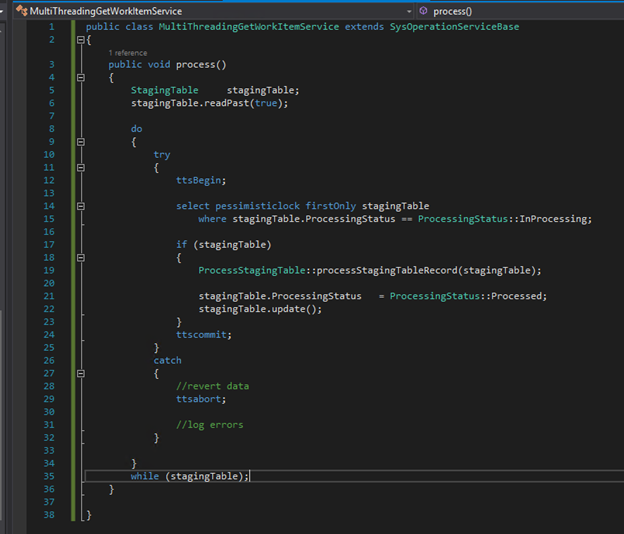
Here we have another standard controller class, and a service class with some interesting pieces. Looking into the service class more we see:
- We are selecting from our staging table with a pessimistic lock. This lock is needed in order to stop different threads from attempting to process the same record at the same time.
- The readPast(true) set on the staging table is needed to allow for the query to skip past currently locked records and find the next available record to process.
- The select statement will grab the next available record and send it to our processing method. We could just process here in place as well but this structure allows for a nice level of abstraction.
- At the end, don’t forget to update the staging table record’s status to indicate processing has completed to avoid selecting records again on a future run.
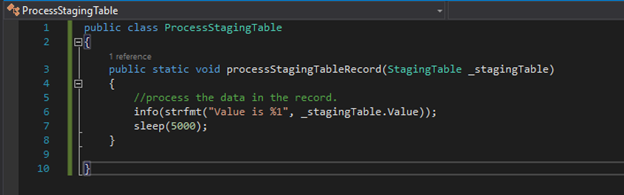
Step Three: Processing
Here is where we would run our business logic. For the sake of a high-level demonstration, this class will simply log our value and sleep for 5 seconds to simulate a longer processing job. However, this is where your core functionality would exist to use the data in the staging table in order to complete some process.
In Practice
To demonstrate this, we will load our staging table up with test data. To do this we will run our runnable job “CreateStagingRecords” by visiting the following URL: https://[D365URL].com/?cmp=[LegalEntity]&mi=SysClassRunner&cls=[ClassName]
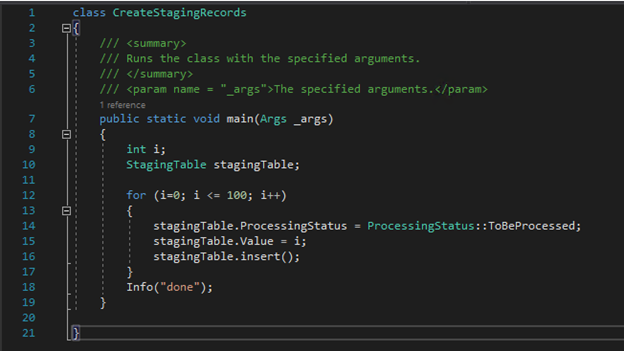
We loaded our staging table with 100 records, and the processing job should take around 5 seconds to process each record. That would be a total of 500 seconds of execution time. However, we can run our job with 8 threads to divide that work, which should bring each thread’s execution time to just over 1 minute.
Now, let’s go kick off our batch job.
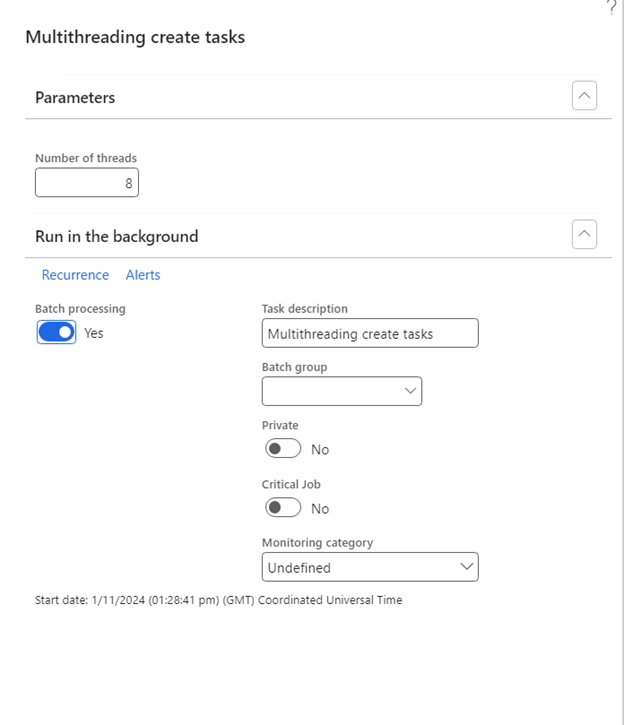
We can see that the main job used to create tasks completed quickly after spinning up the multithreaded job.
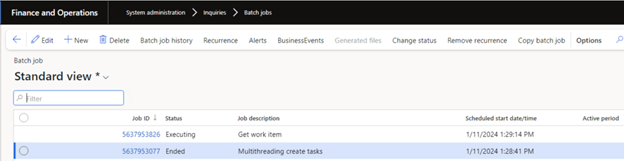
We can see our “Get work item” job completed with all 8 threads taking approximately 1 minute each. Exactly what we were hoping for!
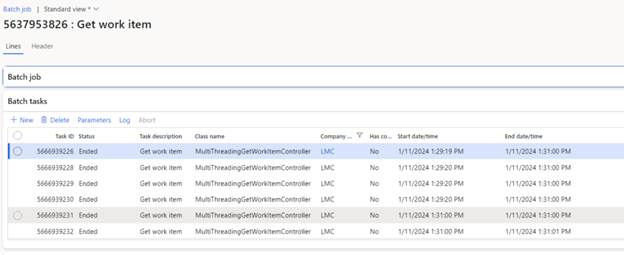
As you can see, multithreading batch jobs in D365 can really increase the performance of a long running batch job. If you elect to use this approach, make sure you understand the number of threads parameterized in your System administration settings. Additionally, make sure your processing is able to work with each record in isolation to avoid threads competing.
I hope you found this useful, and your Dynamics 365 batch jobs will now be lighting fast!
For more D365 tech advice, project planning and support connect with us here.
Post originally published https://markedcode.com/index.php/2024/01/24/d365-multithreading-batch-jobs/
This publication contains general information only and Sikich is not, by means of this publication, rendering accounting, business, financial, investment, legal, tax, or any other professional advice or services. This publication is not a substitute for such professional advice or services, nor should you use it as a basis for any decision, action or omission that may affect you or your business. Before making any decision, taking any action or omitting an action that may affect you or your business, you should consult a qualified professional advisor. In addition, this publication may contain certain content generated by an artificial intelligence (AI) language model. You acknowledge that Sikich shall not be responsible for any loss sustained by you or any person who relies on this publication.