







Okay, so you are fairly new to Power BI and you want to consume data from Dynamics 365 using the OData API. Here’s how!
First you select Get Data, then select OData. You enter your credentials, select your entities and vóila! You have data tables in your model.
But now you are trying to calculate sales by month and year. How can we tie our tables to a specific date? Enter the Dynamics 365 date tables.
There are DAX scripts available (just Google them) to generate a date table programmatically. This comes in very handy. You must remember to select “Mark as Date Table” on the Modelling tab to make time-based calculations work.
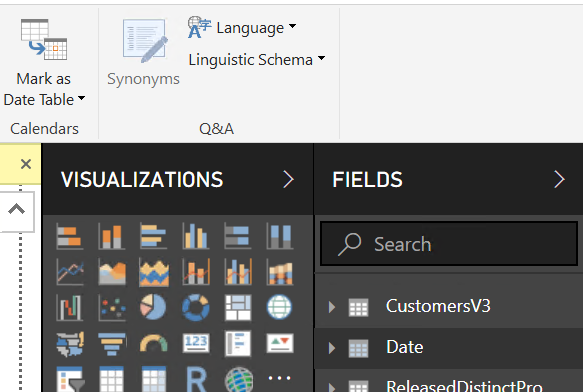 Once “Mark as Date Table” is selected, a new prompt will appear. Select Date from the drop-down list.
Note: the column must be data type “date” and has contain only unique values.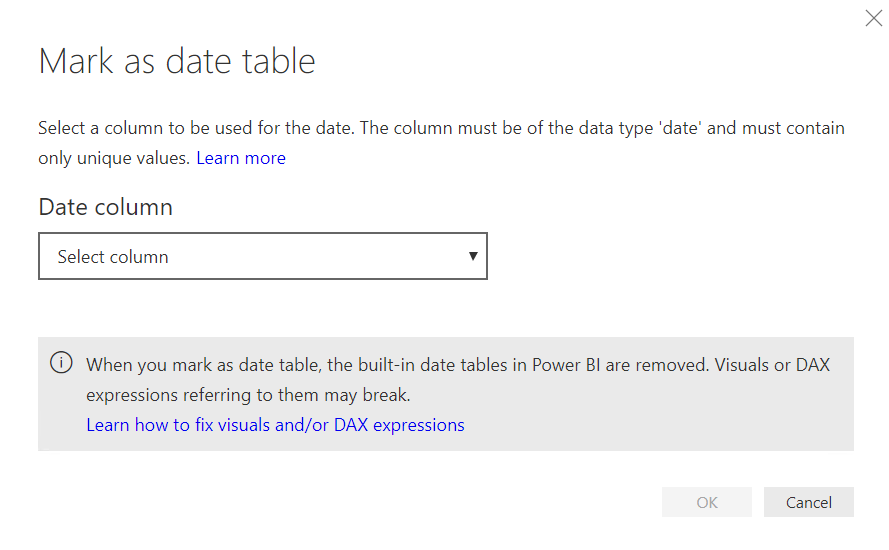
Go ahead and create your relationship between the date table and the other tables in your model, matching on the fields of type “date.”
You continue starting to build out your first visual, adding calendar month to the axis and line amount to the value field.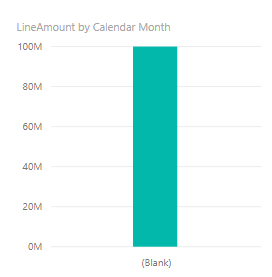
Axis is showing as blank!
There must be an issue with the date table.
Navigate to the relationship of your date table.
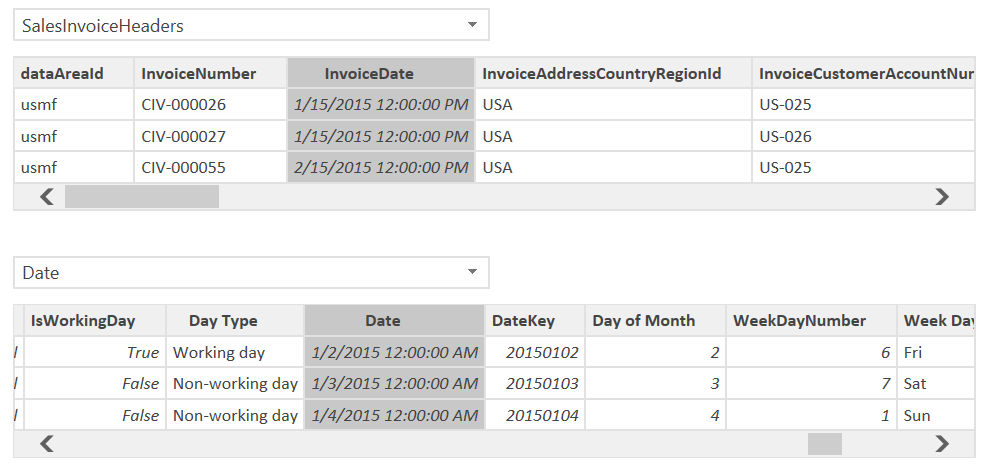
We can see that there is a slight variance in the Date and InvoiceDate causing our visual to be off 12 AM vs 12 PM. This is due to the Invoice Date coming through as a DateTimeOffset Data type. This is a special datatime format used by OData. Since you want the OData sources to refresh every once in awhile, we can’t use PowerQuery to edit this field. Instead we will create a new calculated field to represent the Invoice Date Key.
On the SalesInvoiceHeaders table, create a new column.
InvoiceDateKey = IF(ISBLANK(SalesInvoiceHeaders[InvoiceDate]),0,INT(FORMAT(SalesInvoiceHeaders[InvoiceDate], “YYYYMMDD”)))
Navigate back to the model and update the relationship to match Date.DateKey and SalesInvoiceHeaders.InvoiceDateKey.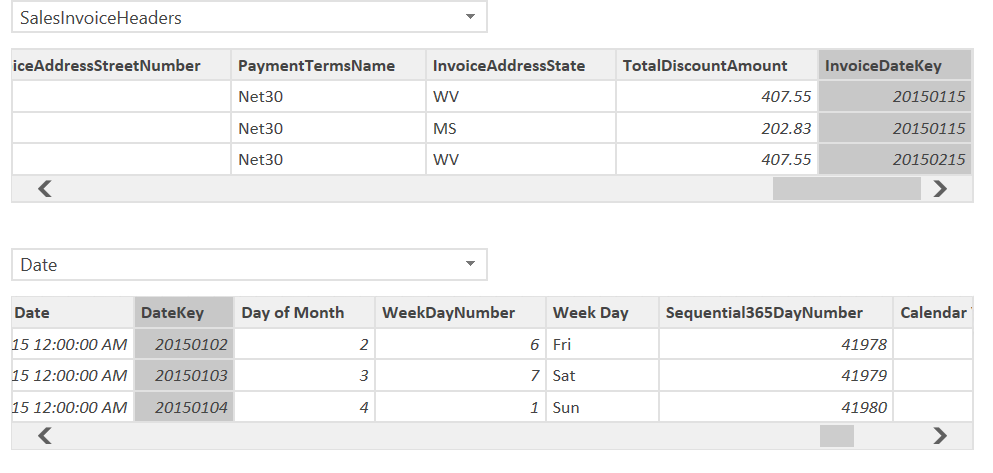
Return to the visual we created and notice the change. It now works as expected.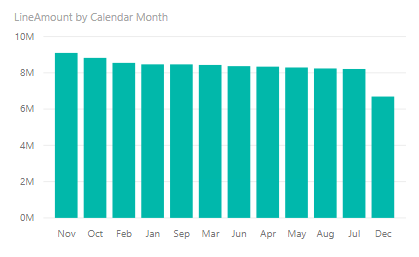
Have any questions about using date tables in Dynamics 365? Please contact us at any time!
This publication contains general information only and Sikich is not, by means of this publication, rendering accounting, business, financial, investment, legal, tax, or any other professional advice or services. This publication is not a substitute for such professional advice or services, nor should you use it as a basis for any decision, action or omission that may affect you or your business. Before making any decision, taking any action or omitting an action that may affect you or your business, you should consult a qualified professional advisor. In addition, this publication may contain certain content generated by an artificial intelligence (AI) language model. You acknowledge that Sikich shall not be responsible for any loss sustained by you or any person who relies on this publication.